
Taking a screenshot is one of the most useful things you can do on a phone: saving a boarding pass, sending a friend a bit of a chat, or showing someone exactly what error you’re seeing.
Most people know the button combo, but Android can do a lot more, including full-page scrolling screenshots and screen recordings with sound. Here’s every method, plus where to find your screenshots afterwards.
Before you start: Android menus vary a little between phone makers. The steps below use Google Pixel / standard Android names, with Samsung Galaxy differences noted. If you can’t find a setting, tap the search bar at the top of Settings and type its name.
How to screenshots & screen recording on Android
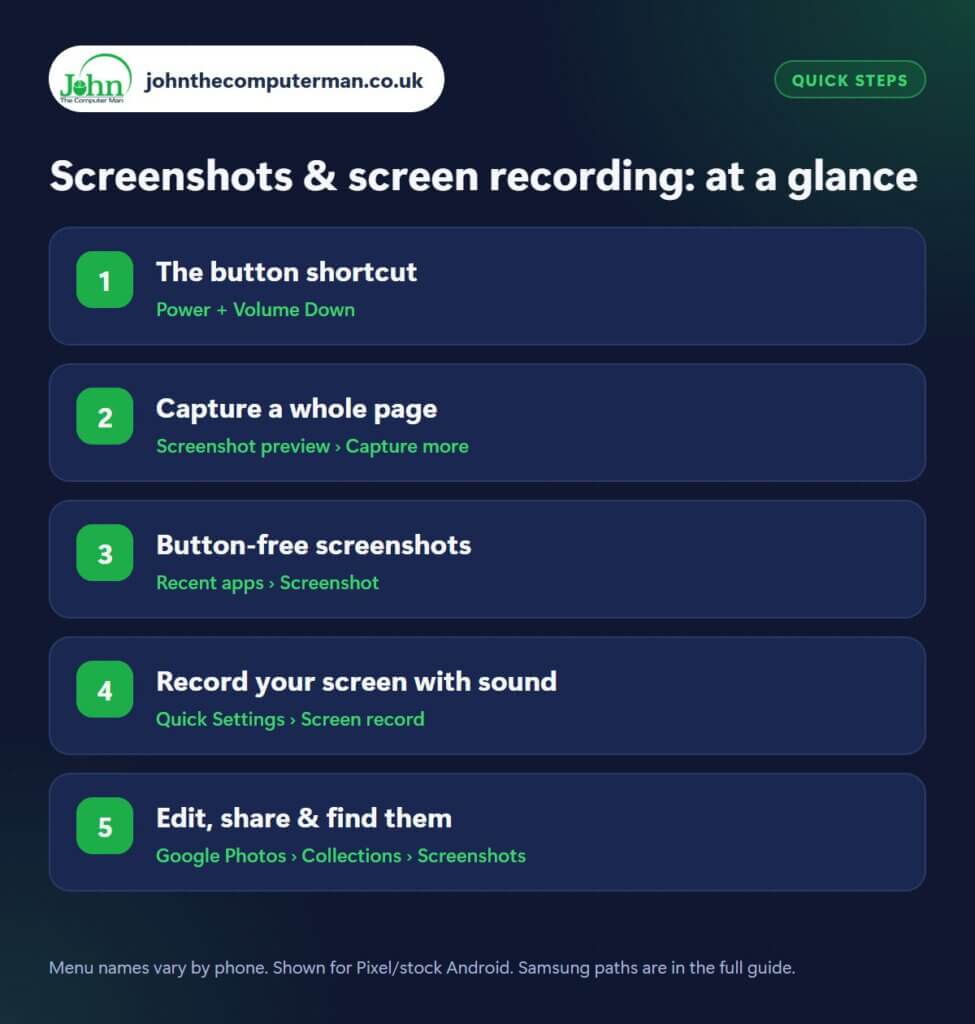
Step 1: The button shortcut
Where: Power + Volume Down
Press the Power and Volume Down buttons at exactly the same time, then let go. The screen flashes and a small preview appears in the corner. The trick is to press both together and release quickly. Holding too long can open the power menu or change the volume instead. This works on nearly every Android phone made in the last decade.
Step 2: Capture a whole page
Where: Screenshot preview › Capture more
Need an entire web page, recipe or long conversation? Take a normal screenshot, then look at the preview. On Pixel and most phones, tap Capture more and drag the handles to choose how much to include. On Samsung, tap the scroll capture button (two downward arrows) and keep tapping until you’ve got everything. You end up with one tall image instead of ten separate ones.
Step 3: Button-free screenshots
Where: Recent apps › Screenshot
Samsung: Settings › Advanced features › Motions and gestures › Palm swipe to capture
If the button combo is awkward, there are other ways. On Pixel, swipe up and hold to open Recent apps, then tap Screenshot under the app. On Samsung, turn on Palm swipe to capture in Settings › Advanced features › Motions and gestures, then swipe the side of your hand across the screen. You can also ask your assistant: say “Hey Google, take a screenshot”.
Step 4: Record your screen with sound
Where: Quick Settings › Screen record
Samsung: Quick panel › Screen recorder
Swipe down from the top of the screen twice to open Quick Settings, then tap Screen record (Samsung: Screen recorder). Can’t see it? Tap the pencil/edit icon and drag it into your tiles. Before you start, choose whether to record audio (from the device, the microphone or both) and whether to show your taps, which is great for showing someone how to do something. Tap the red icon or notification to stop.
Step 5: Edit, share & find them
Where: Google Photos › Collections › Screenshots
Right after taking a screenshot, tap the preview to crop, draw on or highlight parts of it before sharing. Hide personal details like addresses or card numbers before you send it anywhere. Later, find all your screenshots in Google Photos › Collections › Screenshots, or in the Samsung Gallery under Albums › Screenshots. Screen recordings are saved in the same place (sometimes in a Screen recordings folder).
Pro tip
💡 Got a Pixel? Turn on Quick Tap (Settings › System › Gestures › Quick Tap) and double-tap the back of your phone to take a screenshot.
FAQ
Why won’t my phone let me screenshot some apps?
Banking, streaming and some private-browsing apps block screenshots on purpose to protect your information. It’s a security feature, not a fault.
Does screen recording capture notifications?
Yes. Anything on screen is recorded, including notifications that pop up. Turn on Do Not Disturb first if you’re recording to share.
Can I take a scrolling screenshot of any app?
Most apps that scroll support it, but some (like games and videos) don’t. If ‘Capture more’ doesn’t appear, the app doesn’t support it.
The bottom line
Learn the button shortcut and ‘Capture more’ and you’ll use them every day. Screen recording is the secret weapon for helping family members with their phones.
Part of the android phone tutorials series on johnthecomputerman.co.uk. Follow @johnthecomputerman on Instagram for more Android tips. Steps were checked on current Android and Samsung One UI versions in September 2026; menu names can change with updates.
