

Your iPhone has a button you’ve probably never used, and it’s not on the side. It’s the whole back of the phone.
Back Tap is a built-in accessibility feature that lets you double tap or triple tap the back of your iPhone to trigger an action. Screenshots, the torch, Control Centre, even your own shortcuts. It takes about a minute to set up.
What does Back Tap do?
Back Tap uses your iPhone’s motion sensors to detect firm taps on the back of the phone. You can give a double tap and a triple tap their own action, such as taking a screenshot, turning on the torch, muting, opening the camera or running any shortcut from the Shortcuts app.
Takes: 1 minute · Works on: iPhone 8 or later, iOS 14 or later · Cost: free, built into your iPhone
Where to find it
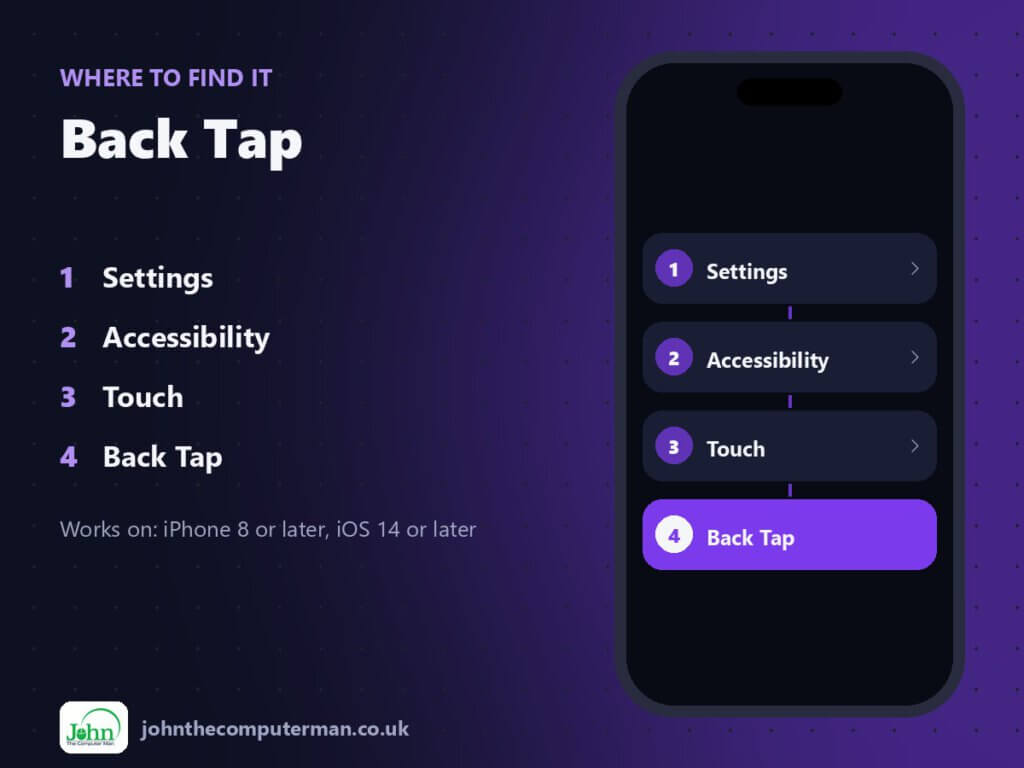
Settings > Accessibility > Touch > Back Tap
Back Tap: step by step
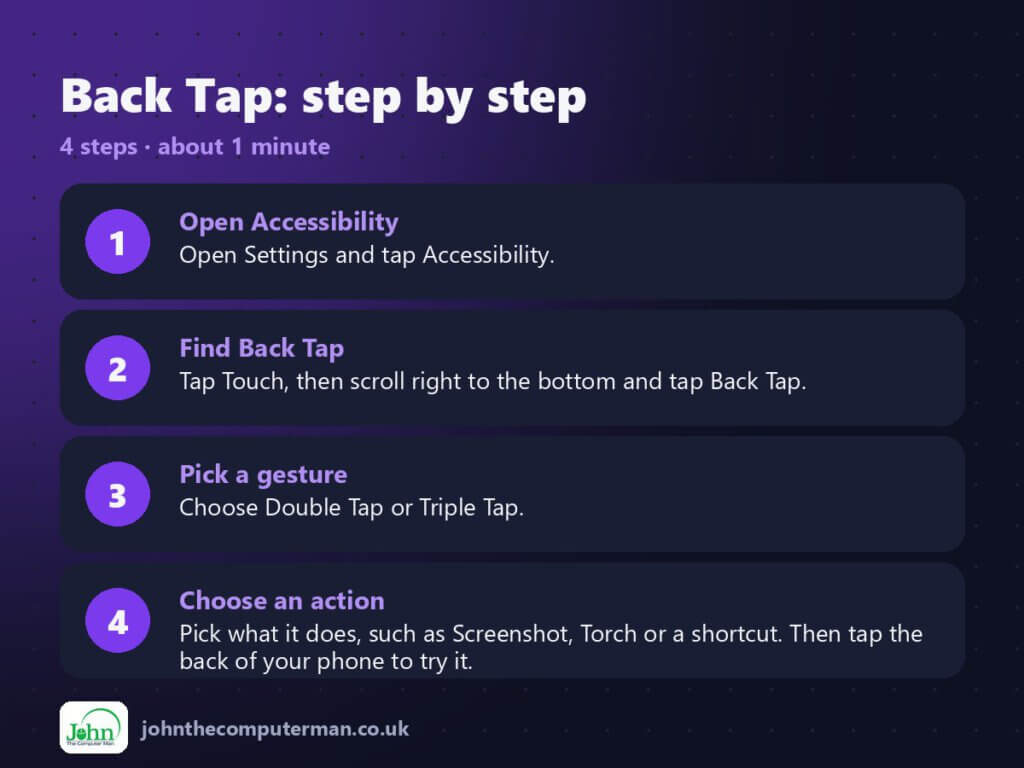
- Open Accessibility. Open Settings and tap Accessibility.
- Find Back Tap. Tap Touch, then scroll right to the bottom and tap Back Tap.
- Pick a gesture. Choose Double Tap or Triple Tap.
- Choose an action. Pick what it does, such as Screenshot, Torch or a shortcut. Then tap the back of your phone to try it.
Pro tip
💡 Set Double Tap to Screenshot and Triple Tap to Torch. You’ll never fumble for buttons in the dark again.
More tips
- Tap near the Apple logo with the pad of your finger. Firm, quick taps work better than light ones.
- Very thick or rugged cases can make Back Tap less reliable. Try a slightly firmer tap if it misses.
- Choose ‘Accessibility Shortcut’ to toggle things like Magnifier or Zoom without opening Settings.
- Pick any shortcut from the Shortcuts app, for example one that texts home ‘On my way’.
FAQ
Why does Back Tap keep triggering by accident?
Pockets and car mounts can set it off. Move your favourite action to Triple Tap, which is much harder to trigger by mistake.
Does Back Tap drain the battery?
No noticeable amount. It uses sensors that are already running.
Can I use Back Tap to open an app?
Yes. Make a one-step shortcut in the Shortcuts app that opens the app, then choose that shortcut in Back Tap.
Part of the iPhone tutorials series on johnthecomputerman.co.uk. Follow @johnthecomputerman on Instagram for more iPhone tips. Menu names were checked in September 2026 and can shift slightly between iOS versions.
