
How many times a week do you type your email address, home address or ‘I’ll call you back in 5 minutes’?
Text Replacement lets you type a short code and have your iPhone swap it for the full phrase. Set it up once and it works in every app.
What does Text Replacement do?
Text Replacement is a keyboard feature that expands a shortcut you type into a longer phrase. It works in any app that uses Apple’s keyboard, and your shortcuts sync to your other Apple devices through iCloud.
Takes: 2 minutes · Works on: Any iPhone · Cost: free, built into your iPhone
Where to find it
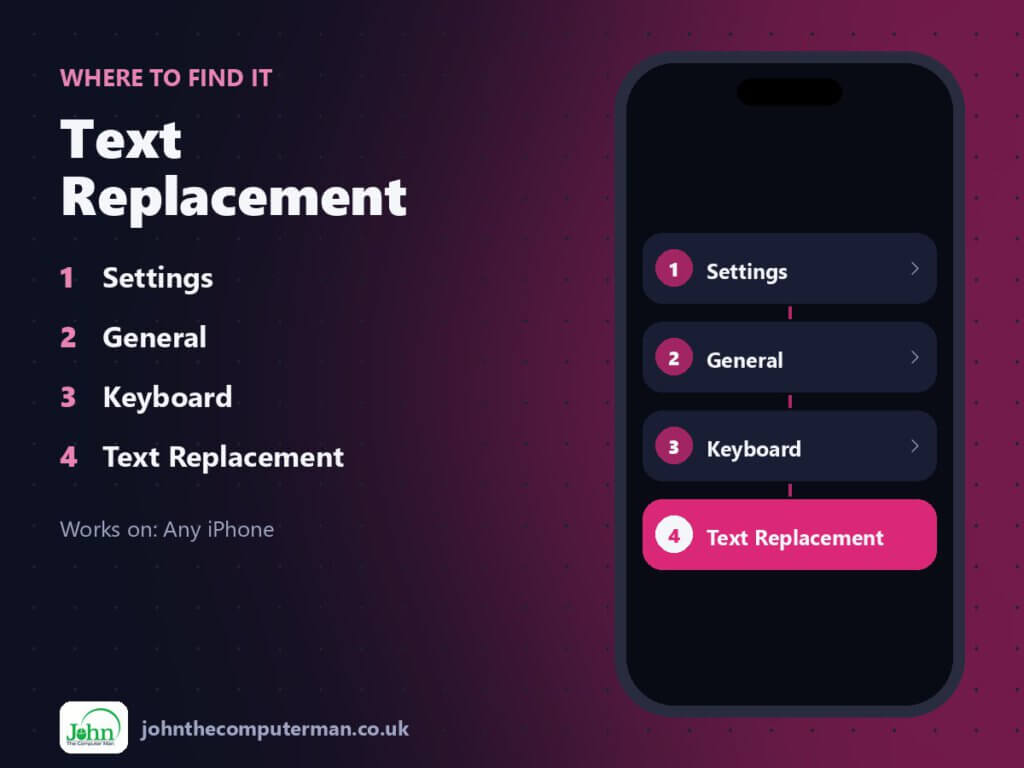
Settings > General > Keyboard > Text Replacement
Text Replacement: step by step
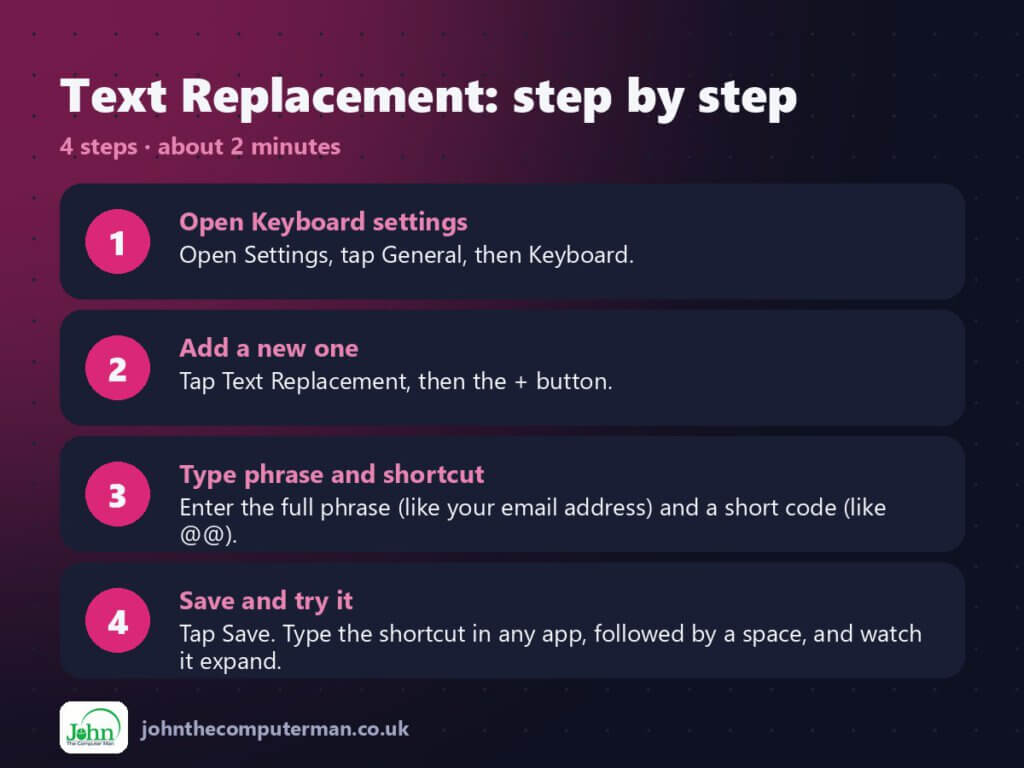
- Open Keyboard settings. Open Settings, tap General, then Keyboard.
- Add a new one. Tap Text Replacement, then the + button.
- Type phrase and shortcut. Enter the full phrase (like your email address) and a short code (like @@).
- Save and try it. Tap Save. Type the shortcut in any app, followed by a space, and watch it expand.
Pro tip
💡 Use shortcuts that aren’t real words, like ‘addr1’ or ‘@@’. Otherwise they’ll pop up when you don’t want them.
More tips
- Good ones to add: email address, home address, phone number, and ‘On my way!’.
- Leave the Phrase field blank and add an emoji to get quick emoji shortcuts.
- Your shortcuts sync to your iPad and Mac, so they work there too.
- Don’t use it for passwords. Use the Passwords app instead.
FAQ
Why isn’t my shortcut expanding?
Type a space or punctuation after it. If it still won’t work, check you’re using Apple’s keyboard, not a third-party one.
Can I undo an expansion?
Yes. Tap the suggestion above the keyboard to keep what you typed, or press delete straight after it expands.
Part of the iPhone tutorials series on johnthecomputerman.co.uk. Follow @johnthecomputerman on Instagram for more iPhone tips. Menu names were checked in September 2026 and can shift slightly between iOS versions.
