How to Cast Your Android Phone to Your TV
Holiday photos, a funny video or a film on your phone are all better on the big screen, and your phone can send them to your TV in a couple of taps.
There are two ways to do it. Casting sends just a video or app to the TV, and screen mirroring shows your whole phone screen. Here's how to use both.
Before you start: Android menus vary a little between phone makers. The steps below use Google Pixel / standard Android names, with Samsung Galaxy differences noted. If you can't find a setting, tap the search bar at the top of Settings and type its name.
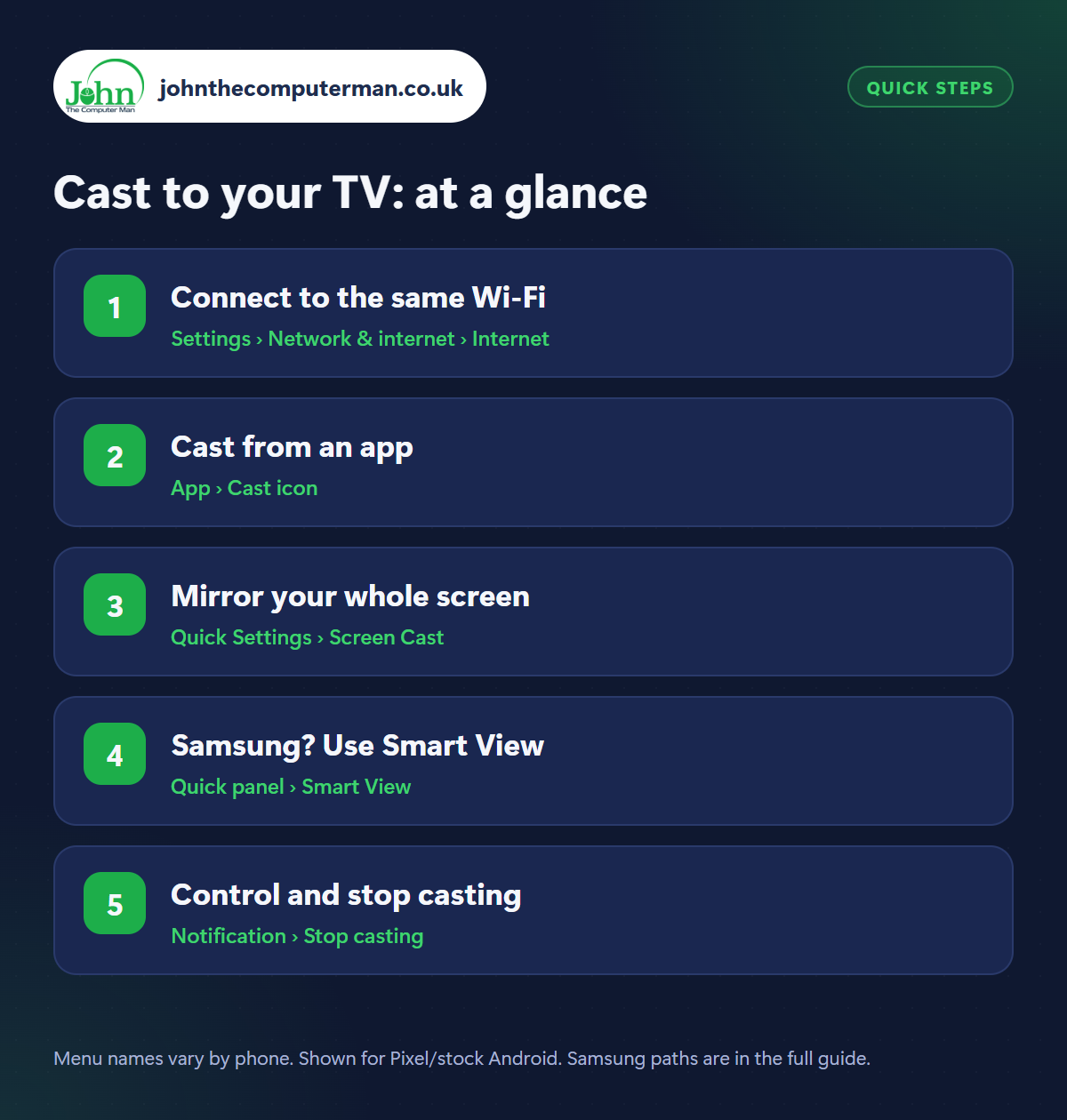
How to cast to your TV on Android
Step 1: Connect to the same Wi-Fi
Where: Settings › Network & internet › Internet
Casting works over your home Wi-Fi, so your phone and your TV (or Chromecast/Google TV device) must be on the same Wi-Fi network. Some routers have two networks (a 2.4 GHz one and a 5 GHz one), and being on different ones is the most common reason casting doesn't work. Check in Settings › Network & internet › Internet.
Step 2: Cast from an app
Where: App › Cast icon
Open YouTube, Netflix, BBC iPlayer, Disney+, Spotify, Google Photos or another supported app and tap the Cast icon (a rectangle with Wi-Fi waves in the corner). Choose your TV or Chromecast. The video plays on the TV while your phone becomes the remote, and you can even use your phone for other things while it plays.
Step 3: Mirror your whole screen
Where: Quick Settings › Screen Cast
To show everything on your phone (a website, a game, an app without a Cast button), use screen mirroring. Swipe down to Quick Settings and tap Screen Cast (or Cast), then choose your TV. You can also open the Google Home app, tap your TV and choose Cast my screen. Your phone's screen stays on while mirroring, so it uses more battery.
Step 4: Samsung? Use Smart View
Where: Quick panel › Smart View
Samsung phones use Smart View to mirror to Samsung TVs and many other smart TVs. Swipe down to open the Quick panel, tap Smart View, then choose your TV. The first time, your TV may ask you to allow the connection. For a wider picture, turn your phone sideways when playing videos.
Step 5: Control and stop casting
Where: Notification › Stop casting
While casting, your phone's volume buttons control the TV volume, and a notification gives you play/pause controls. To stop, tap Stop casting or Disconnect in the notification, tap the Cast icon in the app again, or tap the Screen Cast tile. If someone else in the house casts to the same TV, they can take over, which is handy for sharing videos.
Pro tip
💡 Turn on Do Not Disturb before mirroring your screen. Otherwise your messages pop up on the TV for everyone to read!
FAQ
Why can't my phone find my TV?
Make sure both are on the same Wi-Fi network, the TV is switched on (not in deep standby), and restart both if it still doesn't appear.
Does casting use my phone's battery?
Casting from an app uses little battery, as the TV streams the video directly. Screen mirroring uses much more.
Can I cast without Wi-Fi?
Most casting needs Wi-Fi. For a TV without smart features, a USB-C to HDMI adapter can work with many phones.
The bottom line
Use the Cast button in apps whenever you can. It's smoother and saves battery. Save screen mirroring for things without a Cast button, and remember Do Not Disturb!
More Android tutorials:
• How to Save Mobile Data on Android: 5 Settings to Change
• How to Connect Your Android Phone to a Windows PC with Phone Link
• Android Apps Keep Crashing? 5 Fixes That Work
• How to Connect Your Android Phone to a Windows PC with Phone Link
• Android Apps Keep Crashing? 5 Fixes That Work
Part of the android phone tutorials series on johnthecomputerman.co.uk. Follow @johnthecomputerman on Instagram for more Android tips. Steps were checked on current Android and Samsung One UI versions in September 2026; menu names can change with updates.
