How to Save Mobile Data on Android: 5 Settings to Change
Hit your data limit halfway through the month? Before you pay for a bigger plan, it's worth finding out where it's all going.
Often, a few apps are quietly using far more than you'd expect, from video autoplaying on social media to app updates downloading over mobile data. These five settings fix it.
Before you start: Android menus vary a little between phone makers. The steps below use Google Pixel / standard Android names, with Samsung Galaxy differences noted. If you can't find a setting, tap the search bar at the top of Settings and type its name.
How to save mobile data on Android
Step 1: See which apps use the most
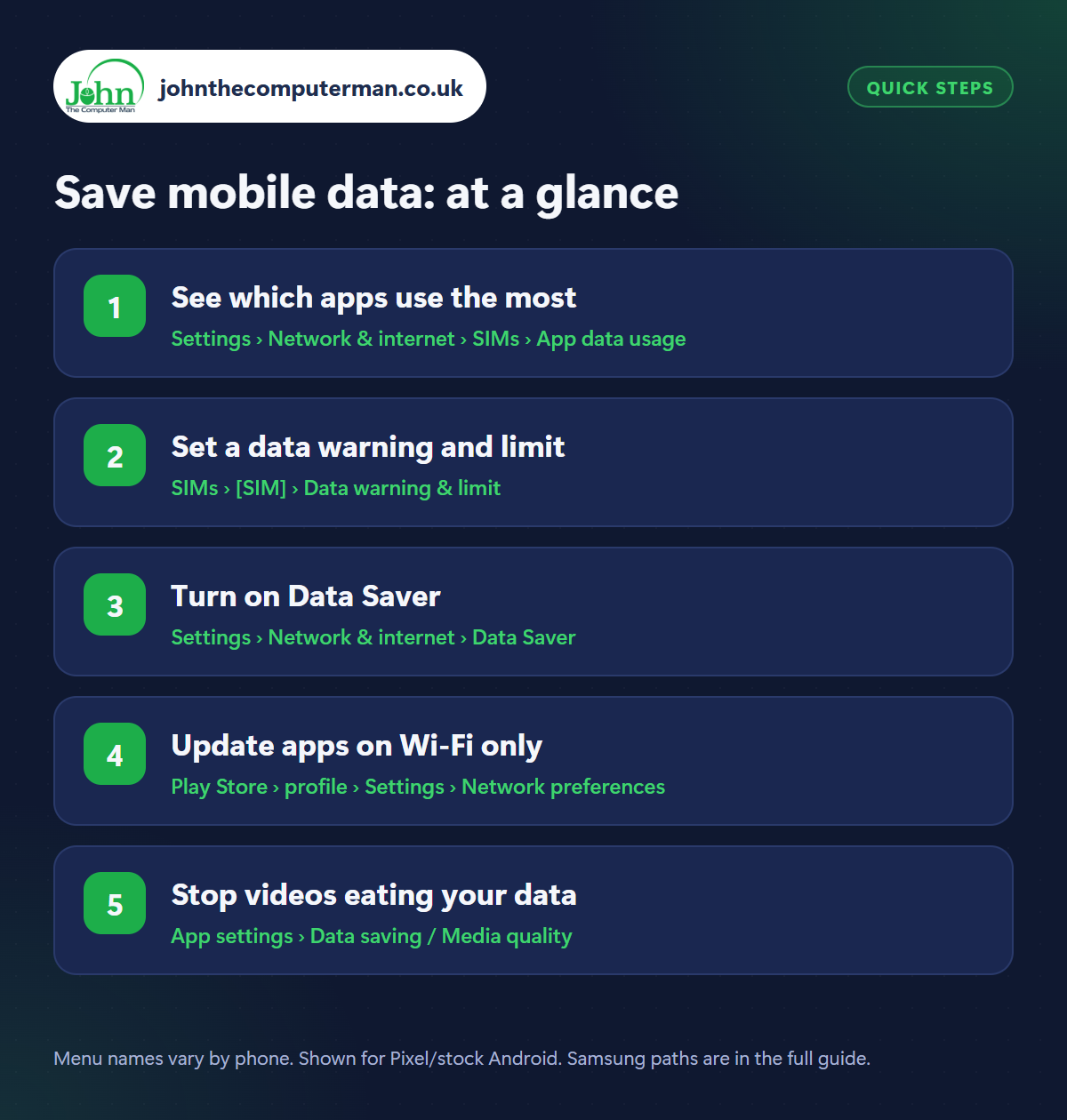
Where: Settings › Network & internet › SIMs › App data usage
Samsung: Settings › Connections › Data usage › Mobile data usage
Samsung: Settings › Connections › Data usage › Mobile data usage
Go to Settings › Network & internet › SIMs (or Mobile network), tap your SIM, then App data usage (Samsung: Settings › Connections › Data usage › Mobile data usage). You'll see how much data each app has used this billing cycle. Video and social apps are usually at the top. Tap an app to turn off Background data if it doesn't need to use data when you're not using it.
Step 2: Set a data warning and limit
Where: SIMs › [SIM] › Data warning & limit
Samsung: Data usage › Billing cycle and data warning
Samsung: Data usage › Billing cycle and data warning
In the same menu, tap Data warning & limit (Samsung: Billing cycle and data warning). Set your billing cycle start date to match your bill, then set a data warning a little below your allowance. You can also set a data limit, which turns mobile data off when you reach it, to guarantee you never go over. Your phone's count may differ slightly from your network's.
Step 3: Turn on Data Saver
Where: Settings › Network & internet › Data Saver
Samsung: Settings › Connections › Data usage › Data saver
Samsung: Settings › Connections › Data usage › Data saver
Data Saver stops most apps from using data in the background while you're on mobile data. It doesn't affect Wi-Fi. Turn it on in Settings › Network & internet › Data Saver (Samsung: Settings › Connections › Data usage › Data saver). You can allow exceptions for apps that need it, like WhatsApp, so you still get messages instantly.
Step 4: Update apps on Wi-Fi only
Where: Play Store › profile › Settings › Network preferences
App updates can be huge. In the Play Store, tap your profile picture › Settings › Network preferences and set Auto-update apps to Over Wi-Fi only. Set App download preference to Over Wi-Fi only or Ask me every time too. System updates on most phones only download over Wi-Fi by default.
Step 5: Stop videos eating your data
Where: App settings › Data saving / Media quality
Video is the biggest data user by far. In YouTube, go to Settings › Video quality preferences and choose Data saver on mobile networks. Instagram, Facebook and TikTok have data saver options in their settings that stop videos autoplaying in high quality. In WhatsApp, go to Settings › Storage and data › Media auto-download and stop videos downloading on mobile data.
Pro tip
💡 Download films, playlists and podcasts on Wi-Fi before a trip. Netflix, Spotify, YouTube Premium and BBC Sounds all let you watch or listen offline.
FAQ
How much data do I actually need?
Messaging and browsing use very little. It's video that eats data: roughly 0.5–3 GB an hour depending on quality. Check your usage for a month before choosing a plan.
Does Wi-Fi calling use mobile data?
No. Wi-Fi calling uses your Wi-Fi connection, not your mobile data allowance.
Why does my network say I've used more than my phone does?
Networks count slightly differently and may include hotspot use. Set your warning a bit below your allowance to be safe.
The bottom line
Check which apps use the most, set a data warning, and change the video settings in your top apps. Most people halve their data use without noticing any difference.
More Android tutorials:
• How to Connect Your Android Phone to a Windows PC with Phone Link
• Android Apps Keep Crashing? 5 Fixes That Work
• Android Phone Not Charging (or Charging Slowly)? 5 Fixes
• Android Apps Keep Crashing? 5 Fixes That Work
• Android Phone Not Charging (or Charging Slowly)? 5 Fixes
Part of the android phone tutorials series on johnthecomputerman.co.uk. Follow @johnthecomputerman on Instagram for more Android tips. Steps were checked on current Android and Samsung One UI versions in September 2026; menu names can change with updates.
