How to Connect Your Android Phone to a Windows PC with Phone Link
Picking up your phone every time it buzzes breaks your concentration when you're working on a computer.
Microsoft's free Phone Link app connects your Android phone to your Windows PC. You can read and reply to texts, answer calls, see notifications and grab photos, all without touching your phone. Here's how to set it up.
Before you start: Android menus vary a little between phone makers. The steps below use Google Pixel / standard Android names, with Samsung Galaxy differences noted. If you can't find a setting, tap the search bar at the top of Settings and type its name.
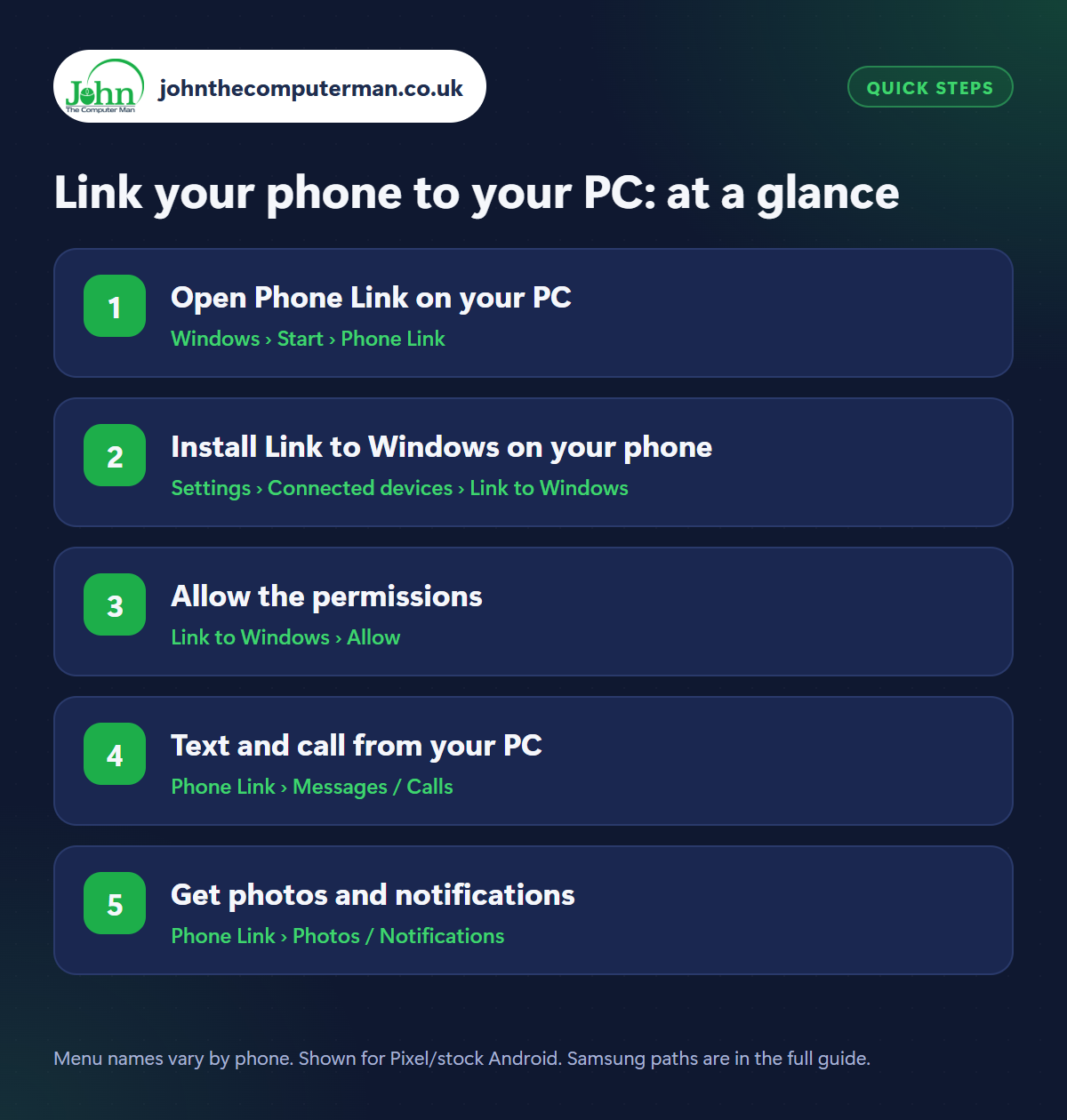
How to link your phone to your PC on Android
Step 1: Open Phone Link on your PC
Where: Windows › Start › Phone Link
Phone Link comes pre-installed on Windows 11 and most Windows 10 PCs. Click Start, type Phone Link and open it (if it's missing, get it free from the Microsoft Store). Choose Android and sign in with your Microsoft account. A QR code appears on the screen, so keep it open for the next step.
Step 2: Install Link to Windows on your phone
Where: Settings › Connected devices › Link to Windows
Scan the QR code with your phone's camera. It takes you to the Link to Windows app in the Play Store. Install it and sign in with the same Microsoft account. Samsung and some other phones have it built in: go to Settings › Connected devices › Link to Windows (the exact location varies). Follow the prompts to pair the two.
Step 3: Allow the permissions
Where: Link to Windows › Allow
Your phone asks for permissions for contacts, messages, photos, notifications and phone calls. Allow the ones for features you want to use. For calls, your PC also needs Bluetooth and will ask to pair with your phone. You can change these later in Phone Link › Settings on your PC.
Step 4: Text and call from your PC
Where: Phone Link › Messages / Calls
In Phone Link, click Messages to read and reply to your texts using your PC's keyboard. Photos and group chats work too. Click Calls to dial a number or answer incoming calls through your PC's speakers and microphone (or headset). Your phone can stay in your bag or on charge while you work.
Step 5: Get photos and notifications
Where: Phone Link › Photos / Notifications
Click Photos to see your phone's recent pictures and screenshots. Drag them straight into an email or document, or right-click to save. Notifications from your phone appear on your PC, where you can read and dismiss them. Some phones (including many Samsungs) can also run your phone's apps in a window on your PC.
Pro tip
💡 Samsung users: turn on ‘Copy and paste between devices’ in Link to Windows settings to copy text on your phone and paste it on your PC.
FAQ
Does Phone Link work with a Mac?
No, Phone Link is Windows only. On a Mac, Quick Share and apps like Google Messages for web are good alternatives.
Can I send big files with Phone Link?
You can drag files between devices on supported phones. For large files, Quick Share for Windows is faster. See our Quick Share guide.
Does it drain my phone's battery?
A little. Link to Windows uses Wi-Fi to sync. If you notice drain, turn off features you don't use in its settings.
The bottom line
Phone Link takes five minutes to set up and means fewer distractions while you work. Texts, calls and photos, all without picking up your phone.
More Android tutorials:
• Android Apps Keep Crashing? 5 Fixes That Work
• Android Phone Not Charging (or Charging Slowly)? 5 Fixes
• Lost Your Android Phone? How to Find, Lock or Erase It
• Android Phone Not Charging (or Charging Slowly)? 5 Fixes
• Lost Your Android Phone? How to Find, Lock or Erase It
Part of the android phone tutorials series on johnthecomputerman.co.uk. Follow @johnthecomputerman on Instagram for more Android tips. Steps were checked on current Android and Samsung One UI versions in September 2026; menu names can change with updates.
