Lost Your Android Phone? How to Find, Lock or Erase It
That sinking feeling when you pat your pocket and your phone isn't there. Don't panic. If Find Hub is set up, there's a good chance you'll find it.
Google's Find Hub (it used to be called Find My Device) lets you see your phone on a map, make it ring even on silent, lock it and show a message, or erase it completely. Here's what to do, and what to set up now just in case.
Before you start: Android menus vary a little between phone makers. The steps below use Google Pixel / standard Android names, with Samsung Galaxy differences noted. If you can't find a setting, tap the search bar at the top of Settings and type its name.
How to find a lost phone on Android
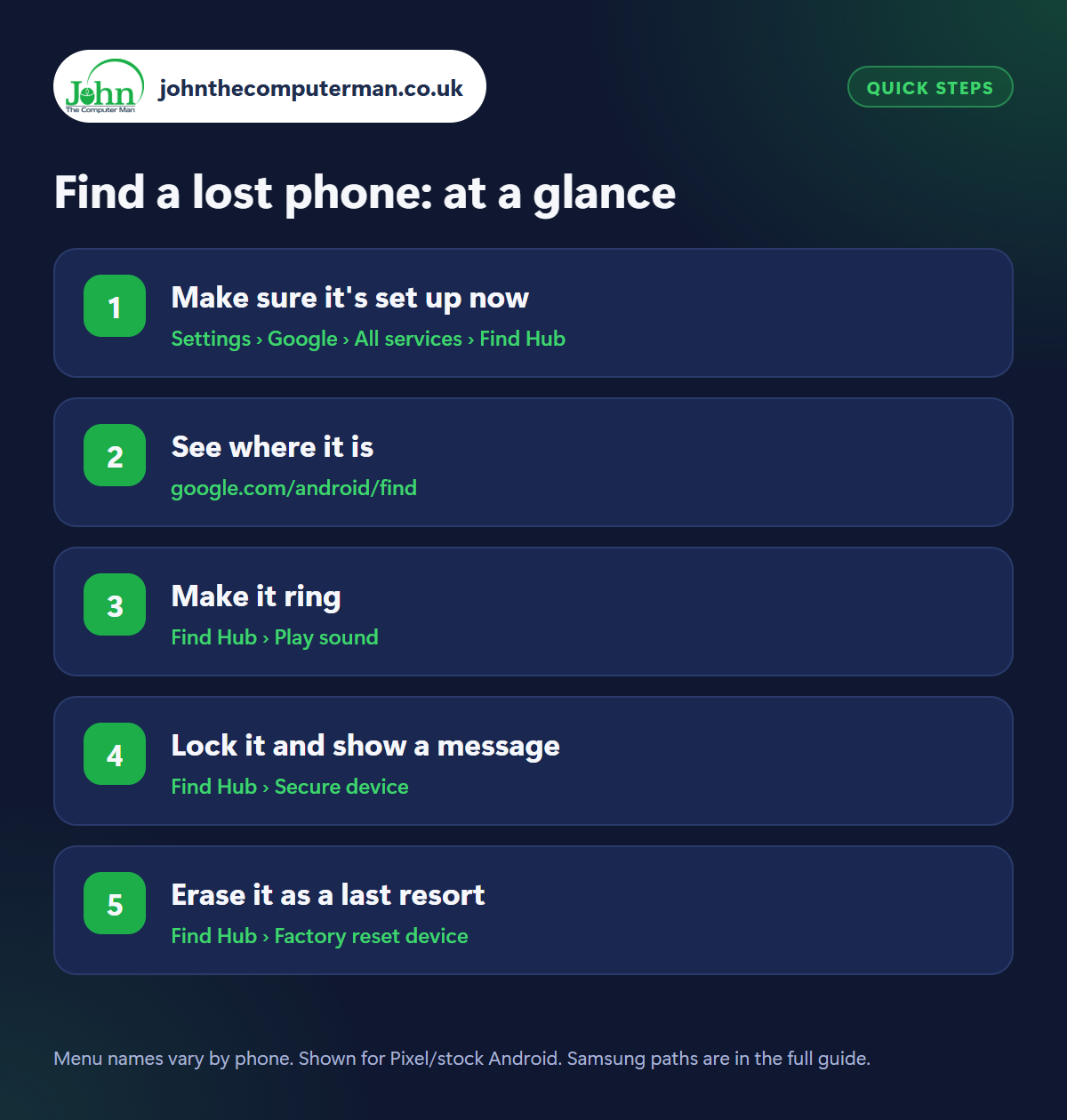
Step 1: Make sure it's set up now
Where: Settings › Google › All services › Find Hub
Find Hub only works if it was on before you lost your phone. Check now: go to Settings › Google › All services and look for Find Hub (called Find My Device on some phones), or search Settings for ‘Find’. Make sure it's on, and that Location is switched on. Turn on Find your offline devices too, which lets your phone be found using other Android phones nearby even without signal.
Step 2: See where it is
Where: google.com/android/find
On a computer, tablet or a friend's phone, go to google.com/android/find (or use the Find Hub app on another Android phone) and sign in with your Google account. Choose your phone and you'll see its location on a map, its battery level and when it was last seen. If it's somewhere you've been, like a café, you may just need to go back.
Step 3: Make it ring
Where: Find Hub › Play sound
Think it's down the back of the sofa or in another room? Tap Play sound. Your phone rings at full volume for five minutes, even if it's set to silent or vibrate. Once you find it, press the power button to stop the sound.
Step 4: Lock it and show a message
Where: Find Hub › Secure device
If you can't get to it, tap Secure device (or Lock). This locks the phone and signs you out of your Google account on it. You can add a message and a contact number, like ‘This phone is lost, please call 07…’, which appears on the lock screen. Most people who find a phone want to return it. This makes it easy.
Step 5: Erase it as a last resort
Where: Find Hub › Factory reset device
If the phone is stolen or you're sure it's gone, choose Factory reset device to erase everything on it. Once erased, you can't locate it any more, so do this last. Then call your mobile network to block the SIM (and the phone's IMEI number, so it can't be used on any network), report it to the police if stolen, and change your Google password.
Pro tip
💡 Samsung owners have a second option too: SmartThings Find at smartthingsfind.samsung.com, which can find some Galaxy phones even when they're offline.
FAQ
Can I find my phone if it's switched off or the battery's dead?
It depends on the phone. Some newer phones (like recent Pixels) can be found for a while after switching off, and Find Hub shows the last known location.
Will a factory reset stop a thief using my phone?
Yes. After an erase, the phone still needs your Google account password to be set up again (Factory Reset Protection), making it useless to a thief.
Does Find Hub work for my earbuds and watch too?
Yes. Many Bluetooth earbuds, watches and tracker tags now appear in Find Hub, so you can ring and find them as well.
The bottom line
Check Find Hub is on today, while you still have your phone. If the worst happens, ring it first, lock it with a message second, and only erase it as a last resort.
More Android tutorials:
• How to Take Better Photos with Your Android Phone (5 Simple Tips)
• How to Edit Photos on Android with Google Photos (Free)
• How to Use Split Screen on Android (and Other Multitasking Tricks)
• How to Edit Photos on Android with Google Photos (Free)
• How to Use Split Screen on Android (and Other Multitasking Tricks)
Part of the android phone tutorials series on johnthecomputerman.co.uk. Follow @johnthecomputerman on Instagram for more Android tips. Steps were checked on current Android and Samsung One UI versions in September 2026; menu names can change with updates.
