Android Phone Not Charging (or Charging Slowly)? 5 Fixes
Plugging your phone in and seeing it barely move (or not charge at all) is worrying. But it's very often not the phone itself.
A worn cable, a pocket-fluff-filled port or even a battery-protection setting can all stop your phone charging properly. Try these five fixes before booking a repair.
Before you start: Android menus vary a little between phone makers. The steps below use Google Pixel / standard Android names, with Samsung Galaxy differences noted. If you can't find a setting, tap the search bar at the top of Settings and type its name.
How to fix charging problems on Android
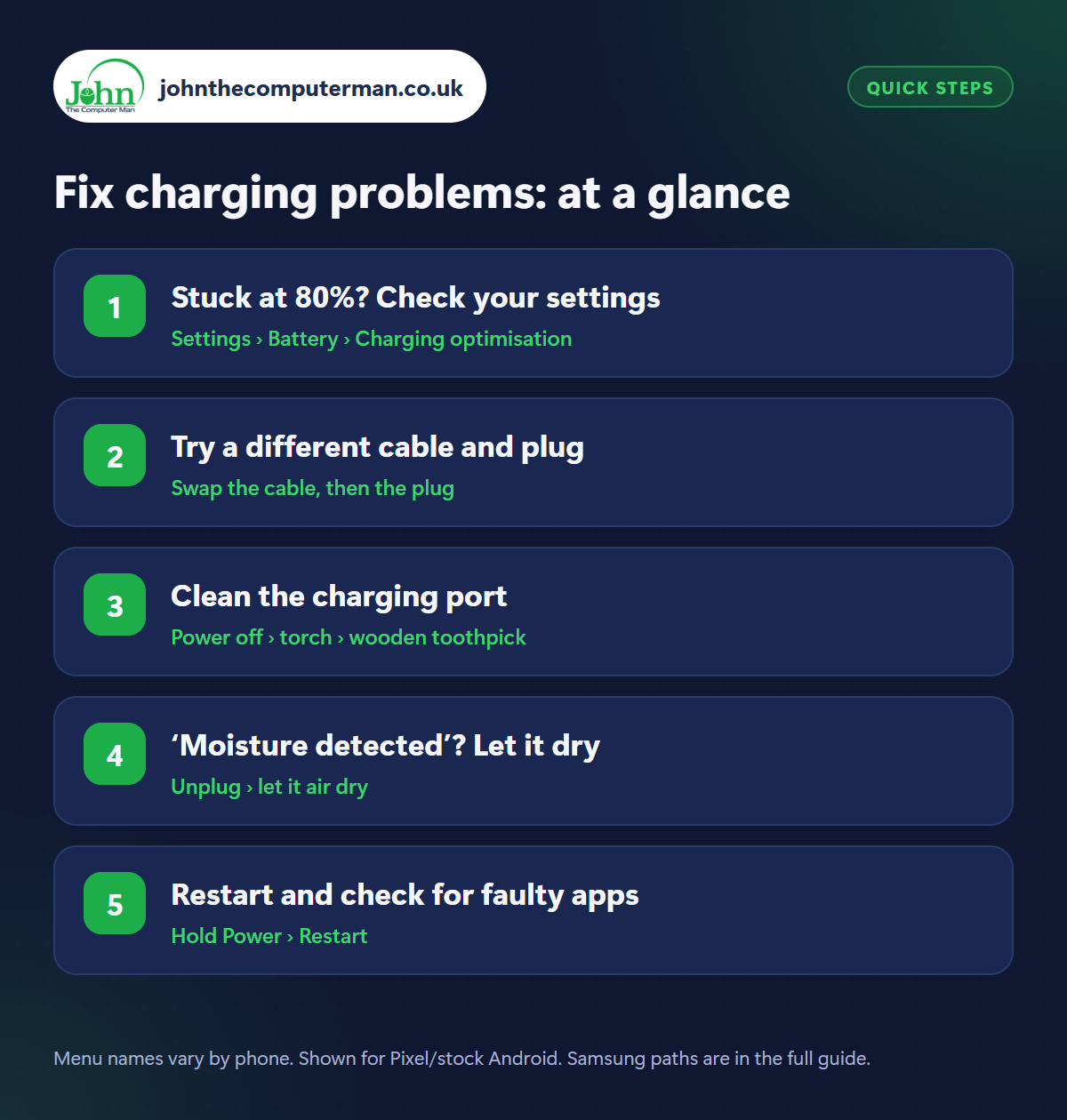
Step 1: Stuck at 80%? Check your settings
Where: Settings › Battery › Charging optimisation
Samsung: Settings › Battery › Battery protection
Samsung: Settings › Battery › Battery protection
If your phone always stops at exactly 80%, it's probably working as designed. Battery protection is switched on to keep your battery healthy. Check Settings › Battery › Charging optimisation on Pixel, or Settings › Battery › Battery protection on Samsung. If you need a full charge for a long day, switch it to Adaptive or turn it off temporarily. See our battery guide.
Step 2: Try a different cable and plug
Where: Swap the cable, then the plug
Cables are the most common culprit. They get bent and broken inside even when they look fine. Try a different cable, then a different plug, and a different wall socket. Use a good-quality USB-C charger rated for your phone. Cheap, unbranded chargers often charge very slowly and can be unsafe. Charging from a laptop's USB port is always slower.
Step 3: Clean the charging port
Where: Power off › torch › wooden toothpick
Pocket fluff and dust build up in the charging port and stop the cable pushing in fully. If the cable feels loose or doesn't ‘click’, this is likely the problem. Switch off your phone, shine a torch into the port, and gently ease out any fluff with a wooden or plastic toothpick. Never use metal (like a pin or paperclip), which can damage the contacts, and don't blow into it.
Step 4: ‘Moisture detected’? Let it dry
Where: Unplug › let it air dry
Many phones (especially Samsung) show a ‘Moisture detected’ warning and refuse to charge if the port is damp, to prevent damage. Unplug the cable, shake the phone gently with the port facing down and let it air dry for a few hours in a well-ventilated spot. Don't use a hairdryer or put it in rice. Rice doesn't help and leaves dust behind. Wireless charging usually still works in the meantime.
Step 5: Restart and check for faulty apps
Where: Hold Power › Restart
Restart your phone and try charging again, as a software glitch can stop charging. If it charges very slowly, an app may be using power faster than it can charge. Check Settings › Battery › Battery usage. Try Safe mode (hold Power, then long-press Power off): if it charges normally there, a recently installed app is to blame. Also take off thick cases, as phones slow charging when they get hot.
Pro tip
💡 Samsung phone charging slowly? Check Fast charging is switched on in Settings › Battery › More battery settings (the name varies by model).
FAQ
How do I know if my charging port is broken?
If different cables and chargers don't work, the port looks clean and the cable feels loose, the port may need replacing. That's usually a cheap repair.
Is it bad to use my phone while charging?
It's fine for light use. Heavy gaming or video while charging makes the phone hot, which slows charging and wears the battery.
Should I let my battery run down to 0%?
No. Modern batteries prefer staying between about 20% and 80%. Letting them hit 0% regularly wears them faster.
The bottom line
Check the 80% setting first, then swap the cable and clean the port. Those three fix the vast majority of charging problems without a trip to the repair shop.
More Android tutorials:
• Lost Your Android Phone? How to Find, Lock or Erase It
• How to Take Better Photos with Your Android Phone (5 Simple Tips)
• How to Edit Photos on Android with Google Photos (Free)
• How to Take Better Photos with Your Android Phone (5 Simple Tips)
• How to Edit Photos on Android with Google Photos (Free)
Part of the android phone tutorials series on johnthecomputerman.co.uk. Follow @johnthecomputerman on Instagram for more Android tips. Steps were checked on current Android and Samsung One UI versions in September 2026; menu names can change with updates.
