DockDoor: Free Dock Window Previews for Mac (Like the Windows Taskbar)
On Windows, hover over a taskbar icon and you see a preview of every window. On a Mac, you click the Dock icon and hope the right window comes forward.
DockDoor brings those previews to the Mac Dock. Hover over an app and pick exactly the window you want. It's free and open source.
What is DockDoor?
DockDoor is a free, open-source app that adds window previews to the macOS Dock. Hover over an app's icon to see thumbnails of all its open windows, including minimised ones, and click to switch. It also includes a keyboard window switcher and lets you customise preview size, delay and appearance.
Key features
Hover previews
Hover over any Dock icon to see all of that app's windows.
Minimised windows too
Find the window you minimised an hour ago, instantly.
Window switcher
A keyboard switcher with previews, similar to Windows' Alt-Tab.
How to get started with DockDoor
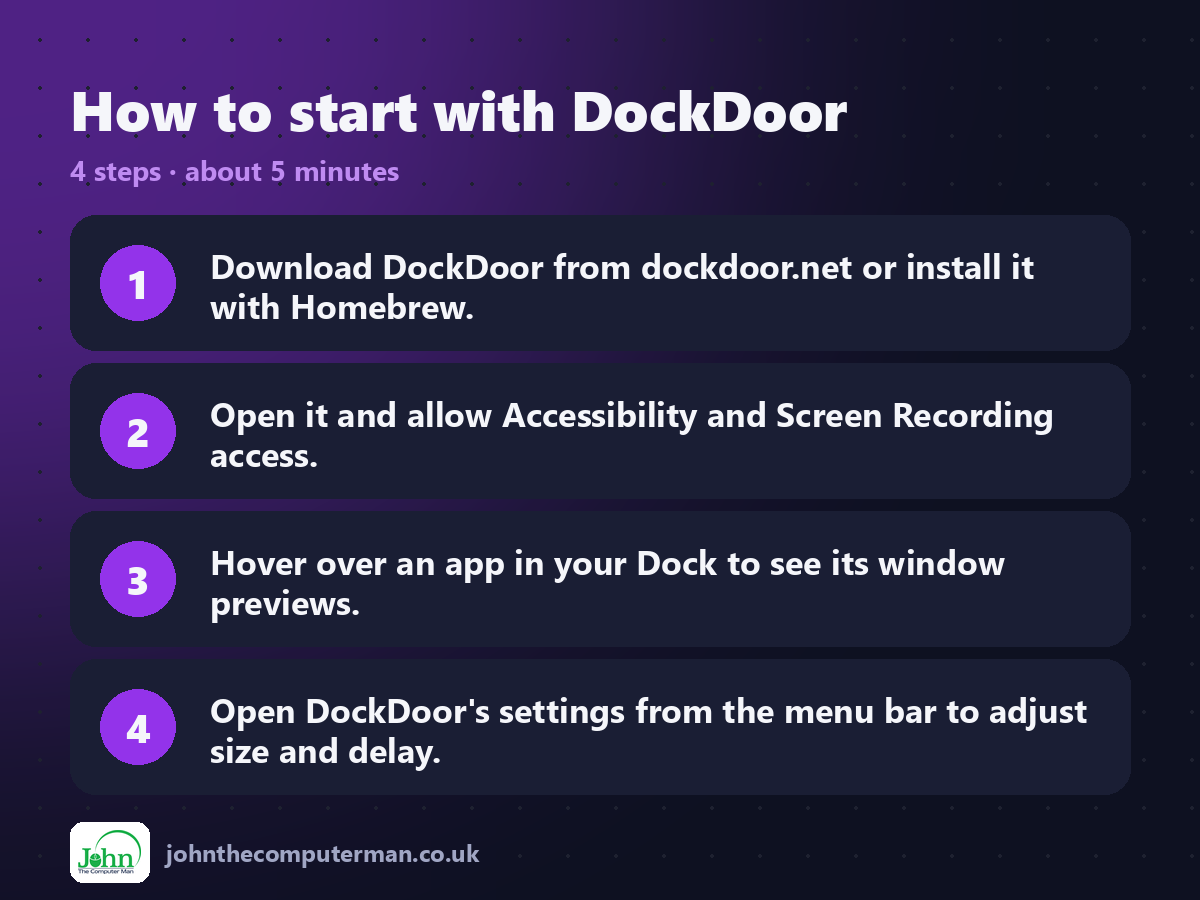
1. Download DockDoor from dockdoor.net or install it with Homebrew.
2. Open it and allow Accessibility and Screen Recording access.
3. Hover over an app in your Dock to see its window previews.
4. Open DockDoor's settings from the menu bar to adjust size and delay.
2. Open it and allow Accessibility and Screen Recording access.
3. Hover over an app in your Dock to see its window previews.
4. Open DockDoor's settings from the menu bar to adjust size and delay.
Prefer the command line? If you use Homebrew, the free package manager for Mac, open Terminal and run:
brew install --cask dockdoor
Tips to get more out of it
• Shorten the hover delay in settings if previews feel slow to appear.
• Use the built-in window switcher, or pair DockDoor with AltTab if you prefer.
• Screen Recording permission is only used to draw previews. Nothing is recorded.
• Right-click a preview for options like closing or minimising the window.
• Use the built-in window switcher, or pair DockDoor with AltTab if you prefer.
• Screen Recording permission is only used to draw previews. Nothing is recorded.
• Right-click a preview for options like closing or minimising the window.
Is it really free?
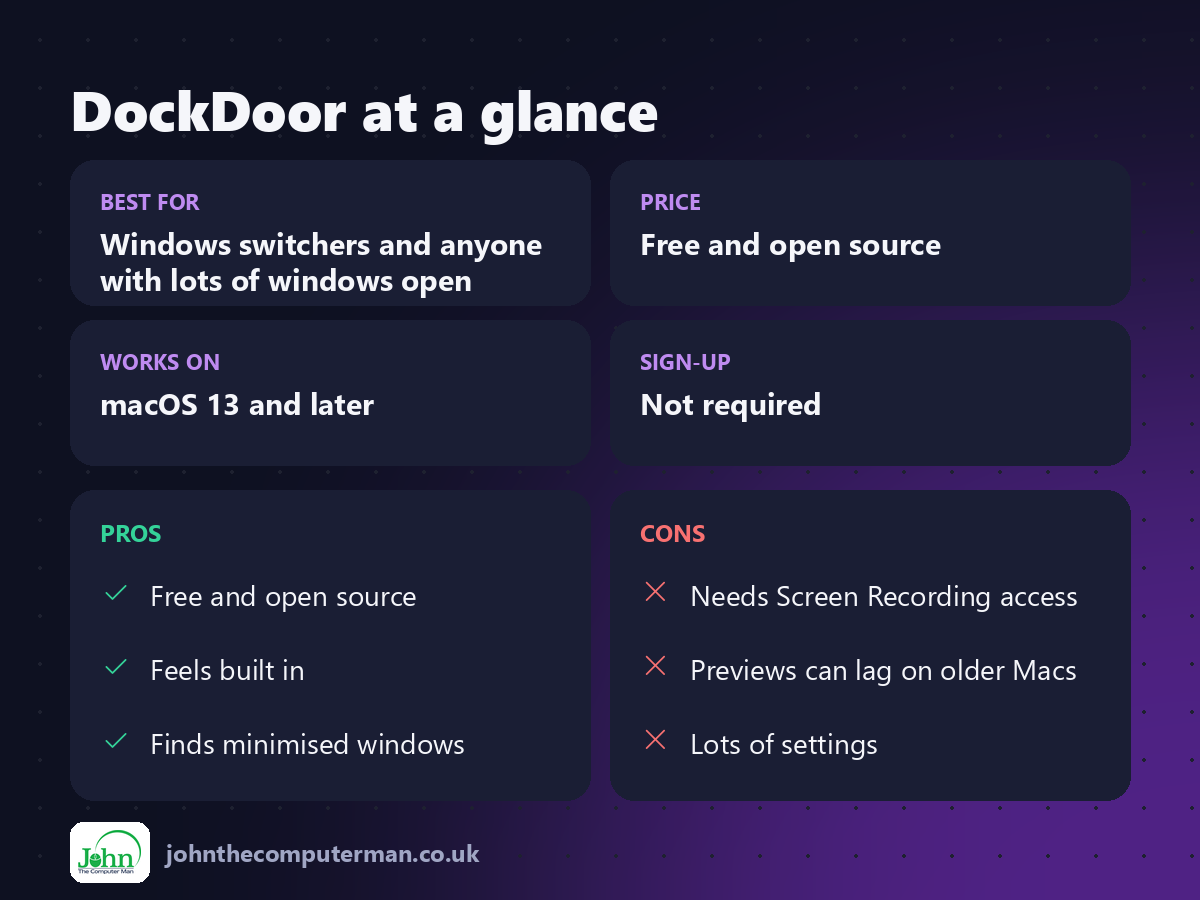
Free and open source. No ads and no paid version. Donations are welcome.
Pros and cons
| 👍 Pros | 👎 Cons |
|---|---|
| Free and open source | Needs Screen Recording access |
| Feels built in | Previews can lag on older Macs |
| Finds minimised windows | Lots of settings |
Who is it for?
Best for: Windows switchers and anyone with lots of windows open. Works on: macOS 13 and later. Sign-up: Not required.
DockDoor alternatives
• AltTab: Windows-style window switching with previews from the keyboard.
• Mission Control: built in: swipe up with three fingers to see all windows.
• App Exposé: built in: swipe down on an app to see just its windows.
• Mission Control: built in: swipe up with three fingers to see all windows.
• App Exposé: built in: swipe down on an app to see just its windows.
FAQ
Why does DockDoor need Screen Recording?
To draw window previews. It doesn't record or send anything.
Does it slow my Mac down?
Not noticeably on modern Macs. If previews lag, lower their size or quality in settings.
The verdict
DockDoor makes the Dock work the way many people expect it to. If you've ever lost a window on your Mac, it's a must.
👉 Try it: dockdoor.net
Part of the hidden-gem mac apps series on johnthecomputerman.co.uk. Follow @johnthecomputerman on Instagram for a new free Mac tool every Monday, Wednesday and Friday. Pricing and features were checked in September 2026 and can change, so check the tool's own site for the latest.
