GrandPerspective: Find What's Filling Your Mac's Storage (Free)

Your Mac says the disk is almost full, and System Settings blames 'System Data' or 'Other'. Helpful.
GrandPerspective shows you exactly where the space has gone. It draws every file as a block, sized by how big it is, so the huge forgotten downloads and old backups jump straight out at you.
What is GrandPerspective?
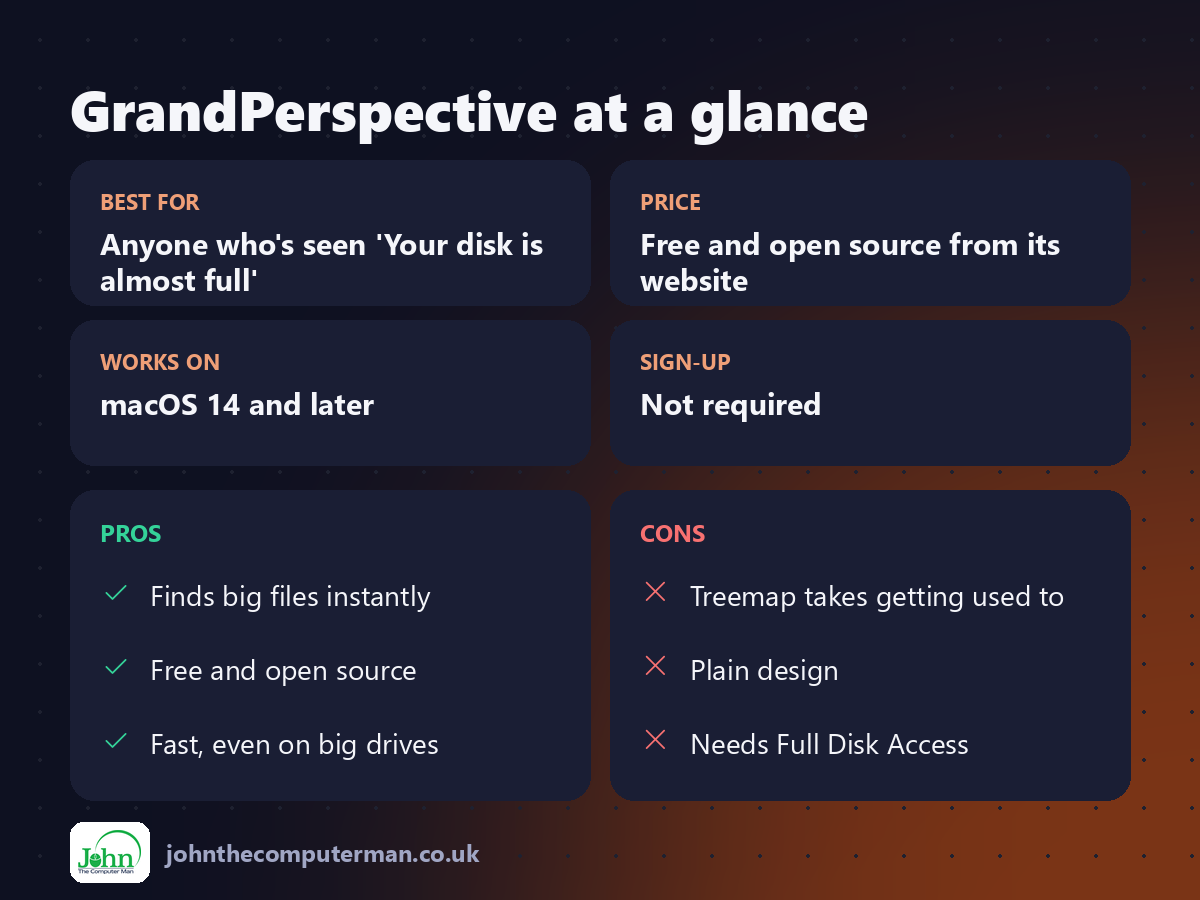
GrandPerspective is a free, open-source disk space viewer for macOS. It scans a drive or folder and shows the result as a treemap: every file is a coloured rectangle, and the bigger the file, the bigger the rectangle. Hover over any block to see what it is, then reveal it in Finder or move it to the Bin. It's free from its website, with a paid Mac App Store version to support the developer.
Key features
See space at a glance
Every file is a block sized by how much space it uses. The big ones are impossible to miss.
Hover to identify
Point at any block to see its name, size and location in the status bar.
Clean up in place
Reveal a file in Finder or move it to the Bin without leaving the map.
How to get started with GrandPerspective
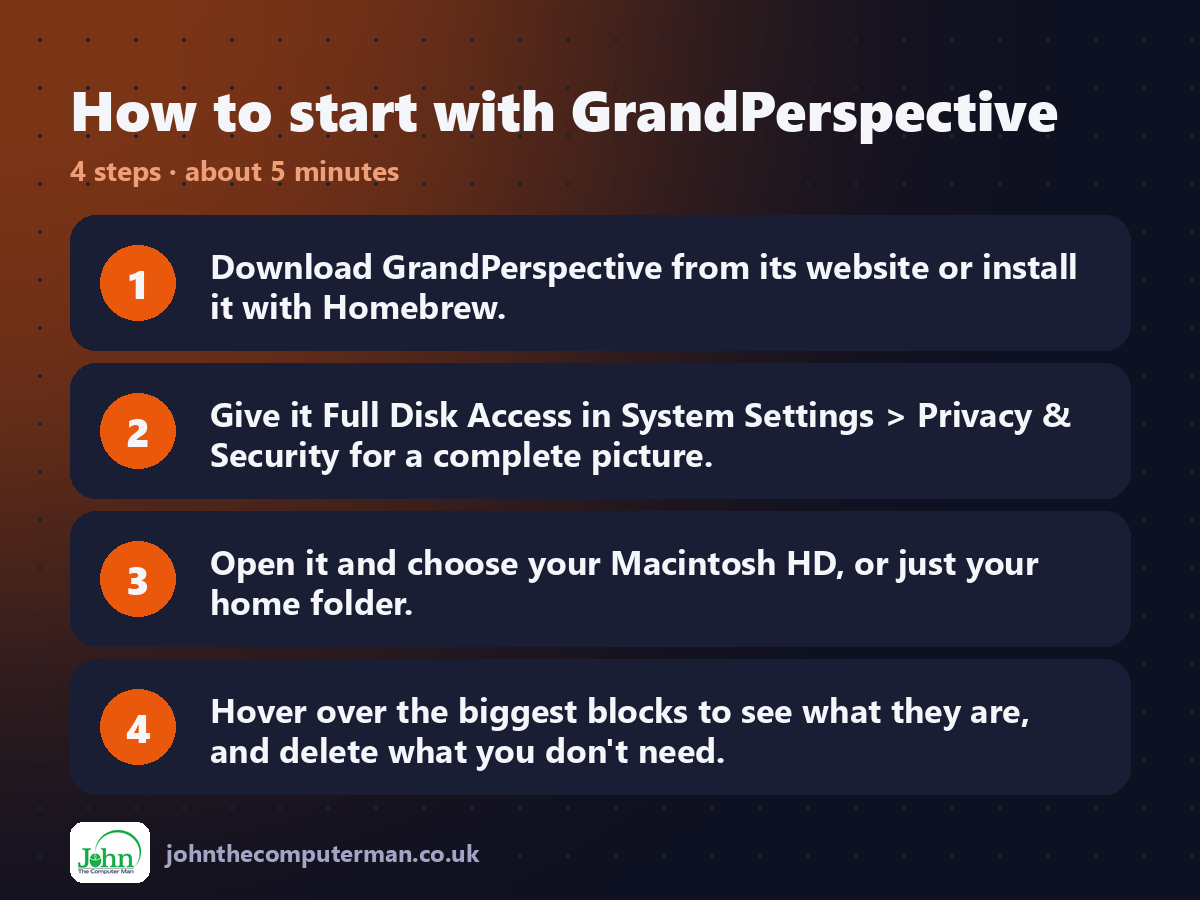
1. Download GrandPerspective from its website or install it with Homebrew.
2. Give it Full Disk Access in System Settings > Privacy & Security for a complete picture.
3. Open it and choose your Macintosh HD, or just your home folder.
4. Hover over the biggest blocks to see what they are, and delete what you don't need.
2. Give it Full Disk Access in System Settings > Privacy & Security for a complete picture.
3. Open it and choose your Macintosh HD, or just your home folder.
4. Hover over the biggest blocks to see what they are, and delete what you don't need.
Prefer the command line? If you use Homebrew, the free package manager for Mac, open Terminal and run:
brew install --cask grandperspective
Tips to get more out of it
• Scan your home folder first. That's where forgotten downloads, videos and old iPhone backups usually hide.
• Colour blocks by file type in the settings to spot all your videos at once.
• Check ~/Library/Application Support/MobileSync for old iPhone backups, which can be huge.
• Don't delete anything in System folders. Stick to files you recognise.
• Colour blocks by file type in the settings to spot all your videos at once.
• Check ~/Library/Application Support/MobileSync for old iPhone backups, which can be huge.
• Don't delete anything in System folders. Stick to files you recognise.
Is it really free?
Free and open source from its website. The Mac App Store version costs a little and is identical, to support the developer.
Pros and cons
| 👍 Pros | 👎 Cons |
|---|---|
| Finds big files instantly | Treemap takes getting used to |
| Free and open source | Plain design |
| Fast, even on big drives | Needs Full Disk Access |
Who is it for?
Best for: Anyone who's seen 'Your disk is almost full'. Works on: macOS 14 and later. Sign-up: Not required.
GrandPerspective alternatives
• macOS Storage settings: built in: System Settings > General > Storage gives recommendations, but less detail.
• OmniDiskSweeper: a free, simple list of folders sorted by size.
• DaisyDisk: a beautiful paid disk visualiser.
• OmniDiskSweeper: a free, simple list of folders sorted by size.
• DaisyDisk: a beautiful paid disk visualiser.
FAQ
Is GrandPerspective safe?
Yes. It's open source, it only reads your disk, and it only deletes what you tell it to, via the Bin.
Why doesn't it show everything?
Without Full Disk Access, macOS hides some folders. Grant it in System Settings > Privacy & Security and scan again.
Step-by-step tutorials
The verdict
GrandPerspective turns 'where's my storage gone?' into a two-minute job. It's free, fast and surprisingly satisfying to use.
👉 Try it: grandperspectiv.sourceforge.net
Part of the 10 more free mac tools series on johnthecomputerman.co.uk. Follow @johnthecomputerman on Instagram for a new free Mac tool every Monday, Wednesday and Friday. Pricing and features were checked in September 2026 and can change, so check the tool's own site for the latest.
