How to Free Up Storage Space on Your Mac (Free Tools, Step by Step)

Macs with 256 GB of storage fill up fast. Photos, videos, downloads, old iPhone backups and apps you tried once all add up, until your Mac starts nagging.
Here's how to find exactly what's taking the space, and clear it out safely, using your Mac's own settings and a few free apps.
Time needed: about 20 minutes · Cost: free
What you'll need
• GrandPerspective: a free map of exactly what's filling your Mac's storage
• AppCleaner: free uninstaller that removes the files apps leave behind
• HandBrake: the free video converter that shrinks and converts any video
• About 20 minutes
• A backup of anything important before you delete
• AppCleaner: free uninstaller that removes the files apps leave behind
• HandBrake: the free video converter that shrinks and converts any video
• About 20 minutes
• A backup of anything important before you delete
The quick way (nothing to install)
Start with System Settings > General > Storage. It shows what's using space and offers recommendations like emptying the Bin automatically.
Step by step
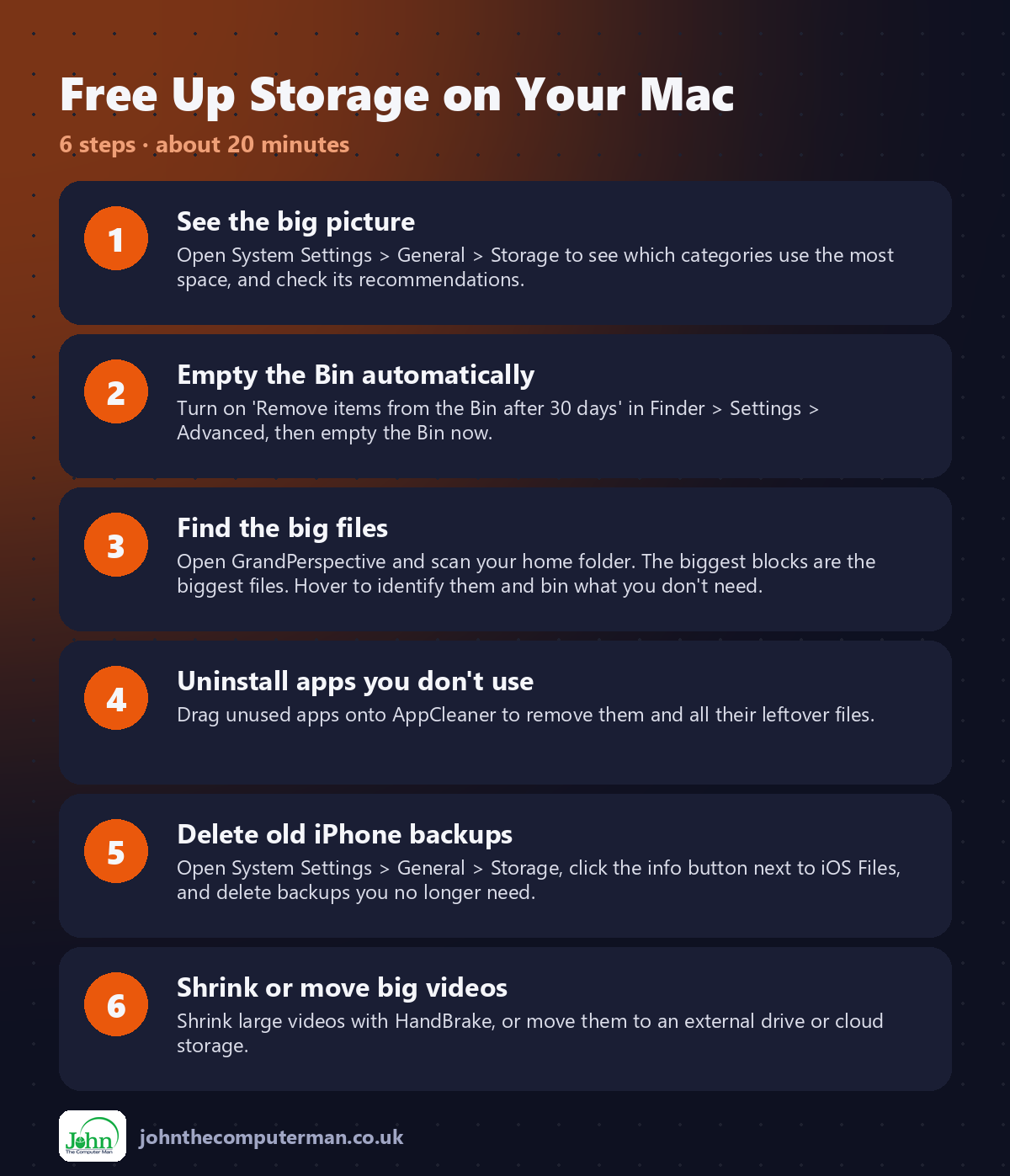
Step 1: See the big picture
Open System Settings > General > Storage to see which categories use the most space, and check its recommendations.
Step 2: Empty the Bin automatically
Turn on 'Remove items from the Bin after 30 days' in Finder > Settings > Advanced, then empty the Bin now.
Step 3: Find the big files
Open GrandPerspective and scan your home folder. The biggest blocks are the biggest files. Hover to identify them and bin what you don't need.
Step 4: Uninstall apps you don't use
Drag unused apps onto AppCleaner to remove them and all their leftover files.
Step 5: Delete old iPhone backups
Open System Settings > General > Storage, click the info button next to iOS Files, and delete backups you no longer need.
Step 6: Shrink or move big videos
Shrink large videos with HandBrake, or move them to an external drive or cloud storage.
Prefer Terminal? If you use Homebrew, install every app for this tutorial in one go:
brew install --cask grandperspective appcleaner handbrake-app
Tips
• Check your Downloads folder first. It's often full of installers you'll never need again.
• Give GrandPerspective Full Disk Access for a complete picture.
• Don't delete anything in System or Library folders unless you know what it is.
• Restart your Mac afterwards. It clears temporary files and can shrink 'System Data'.
• Give GrandPerspective Full Disk Access for a complete picture.
• Don't delete anything in System or Library folders unless you know what it is.
• Restart your Mac afterwards. It clears temporary files and can shrink 'System Data'.
If something goes wrong
'System Data' is still huge
Restart your Mac, then check again. Time Machine local snapshots and caches often clear themselves.
I deleted files but space didn't change
Empty the Bin. Files stay there until you do.
GrandPerspective doesn't show everything
Grant it Full Disk Access in System Settings > Privacy & Security and scan again.
FAQ
Is it safe to delete iPhone backups?
Yes, if you back up to iCloud or no longer need that backup. Your iPhone's data isn't affected.
Should I use a Mac cleaner app?
Usually not. Most promise more than they deliver. Built-in settings plus the free apps here cover almost everything.
Wrapping up
Twenty minutes, a couple of free apps and your Mac's own settings can often free up tens of gigabytes. Do a quick check every few months and the warning never comes back.
More Mac tutorials: Convert HEIC to JPG · Record Your Screen With Sound · Run Windows 11 on a Mac · Snap Windows Side by Side · Send Files Mac to Android · Secure Your Mac in 30 Minutes · Shrink a Video for Email · Make Your MacBook Battery Last · Windows Keyboard on a Mac
Part of the free Mac tools series on johnthecomputerman.co.uk. Follow @johnthecomputerman on Instagram for free Mac tips every Monday, Wednesday and Friday. Steps were checked in September 2026. Menus can move between macOS versions, so look for similar wording if yours differs.
