ImageOptim: Shrink Images on Your Mac for Free (and Strip Hidden Location Data)
Big images slow down websites, fill up email inboxes and eat storage. And photos from your phone can quietly include the GPS location where they were taken.
ImageOptim fixes both. Drag images onto it and it shrinks them, usually without any visible difference, and strips out hidden data like location. It's free and open source.
What is ImageOptim?
ImageOptim is a free, open-source image optimiser for macOS. Drop JPEG, PNG, GIF or SVG files onto its window and it runs them through several compression tools to make them as small as possible, replacing the originals. By default it's lossless, and it also removes metadata such as camera details and GPS location. Optional lossy settings save even more space.
Key features
Smaller files
Often cuts image sizes significantly, with no visible difference.
Strips hidden data
Removes camera details and GPS location before you share photos.
Drag and drop
Drop a whole folder on the window and it's done.
How to get started with ImageOptim
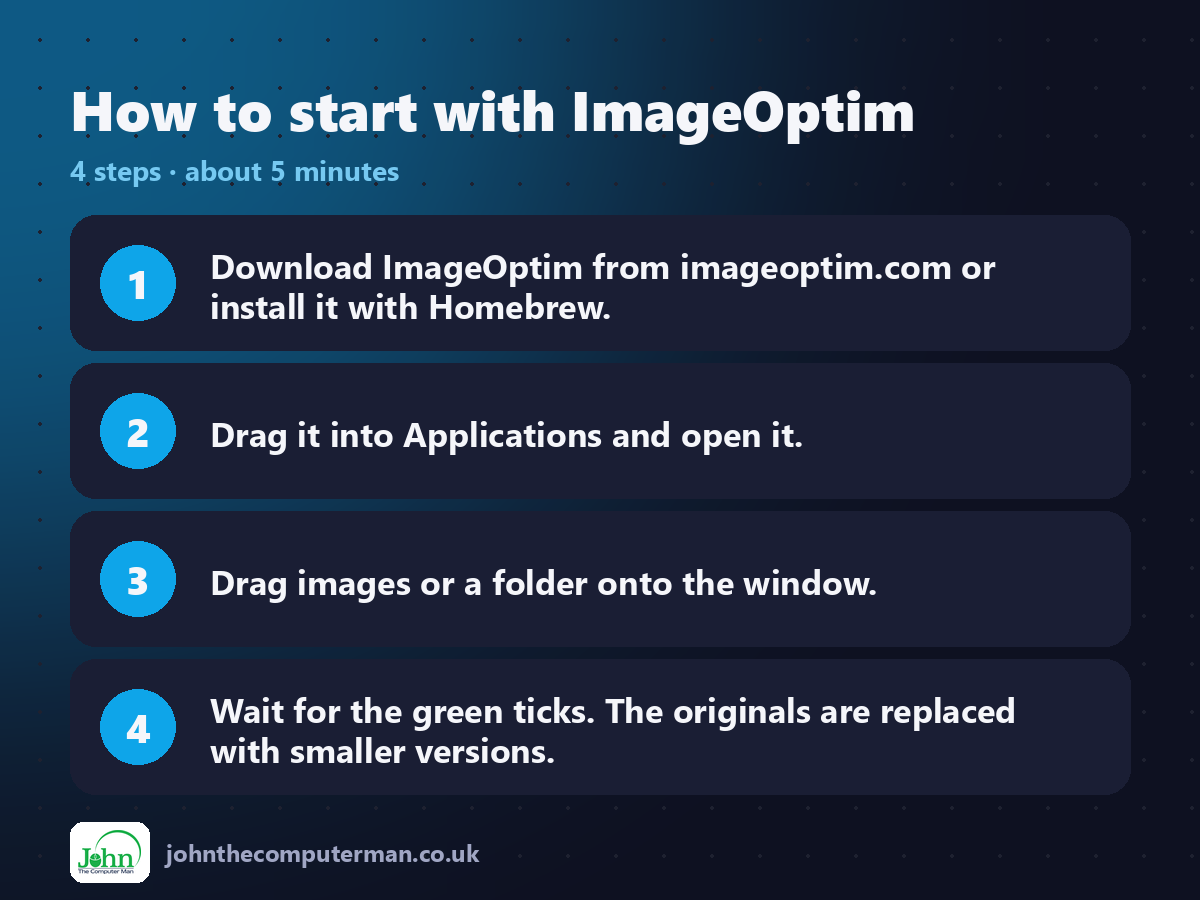
1. Download ImageOptim from imageoptim.com or install it with Homebrew.
2. Drag it into Applications and open it.
3. Drag images or a folder onto the window.
4. Wait for the green ticks. The originals are replaced with smaller versions.
2. Drag it into Applications and open it.
3. Drag images or a folder onto the window.
4. Wait for the green ticks. The originals are replaced with smaller versions.
Prefer the command line? If you use Homebrew, the free package manager for Mac, open Terminal and run:
brew install --cask imageoptim
Tips to get more out of it
• Work on copies. ImageOptim replaces the original files.
• Turn on lossy minification in settings for much bigger savings on web images.
• Run it on website images before uploading to speed up your pages.
• Strip location data from photos before posting them online.
• Turn on lossy minification in settings for much bigger savings on web images.
• Run it on website images before uploading to speed up your pages.
• Strip location data from photos before posting them online.
Is it really free?
Free and open source. No ads, no account and no paid version.
Pros and cons
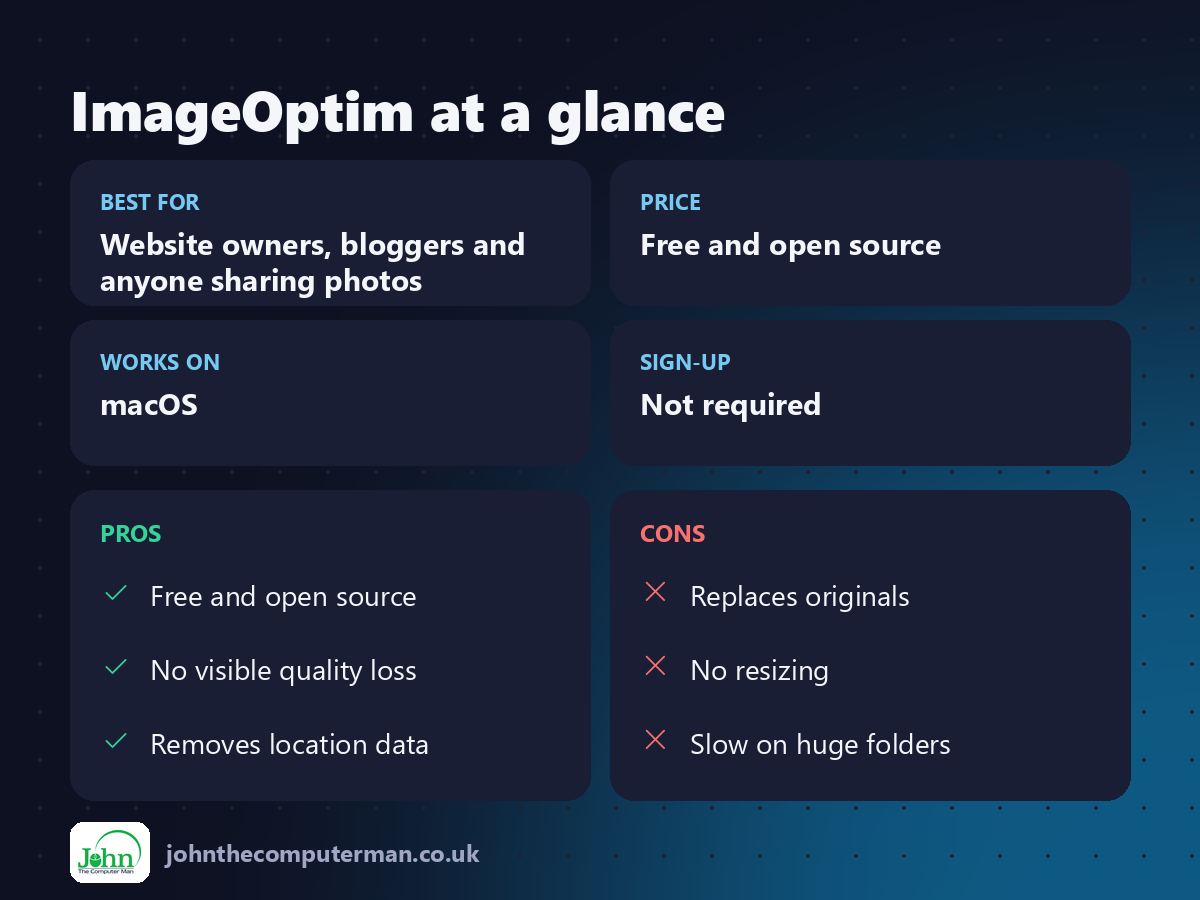
| 👍 Pros | 👎 Cons |
|---|---|
| Free and open source | Replaces originals |
| No visible quality loss | No resizing |
| Removes location data | Slow on huge folders |
Who is it for?
Best for: Website owners, bloggers and anyone sharing photos. Works on: macOS. Sign-up: Not required.
ImageOptim alternatives
• Squoosh: a free browser tool from Google for compressing one image at a time.
• TinyPNG: a popular web service with a free allowance.
• XnConvert: free batch resizing and converting, which ImageOptim doesn't do.
• TinyPNG: a popular web service with a free allowance.
• XnConvert: free batch resizing and converting, which ImageOptim doesn't do.
FAQ
Does ImageOptim reduce quality?
Not by default. It's lossless, so images look identical. Lossy options save more space with a small quality trade-off.
Can it convert HEIC photos?
No. It optimises JPEG, PNG, GIF and SVG. Use XnConvert or Preview to convert HEIC to JPG first.
The verdict
ImageOptim is one of those apps that just does its job perfectly. Keep it in your Dock and drop every image on it before it goes online.
👉 Try it: imageoptim.com/mac
Part of the free creative apps for mac series on johnthecomputerman.co.uk. Follow @johnthecomputerman on Instagram for a new free Mac tool every Monday, Wednesday and Friday. Pricing and features were checked in September 2026 and can change, so check the tool's own site for the latest.
