XnConvert for Mac: Batch Resize, Convert and Watermark Photos for Free
iPhone photos save as HEIC, which some websites and Windows PCs won't open. Or you need to resize 200 photos for a website, or add your logo to all of them.
XnConvert does it all in one go. Pick your photos, add actions like resize, convert and watermark, and let it process the whole batch. It's free for home use.
What is XnConvert?
XnConvert is a cross-platform batch image processor from XnSoft. It reads over 500 image formats, including HEIC and RAW, and writes to around 70. You build a list of actions, such as resize, crop, rotate, adjust colours, add a text or image watermark and strip metadata, then apply them to hundreds of images at once, with a live preview. It's free for private and educational use.
Key features
Convert anything
HEIC to JPG, PNG to WebP and hundreds more formats.
Batch actions
Resize, crop, rotate and adjust hundreds of photos in one go.
Add watermarks
Put your logo or name on every image automatically.
How to get started with XnConvert
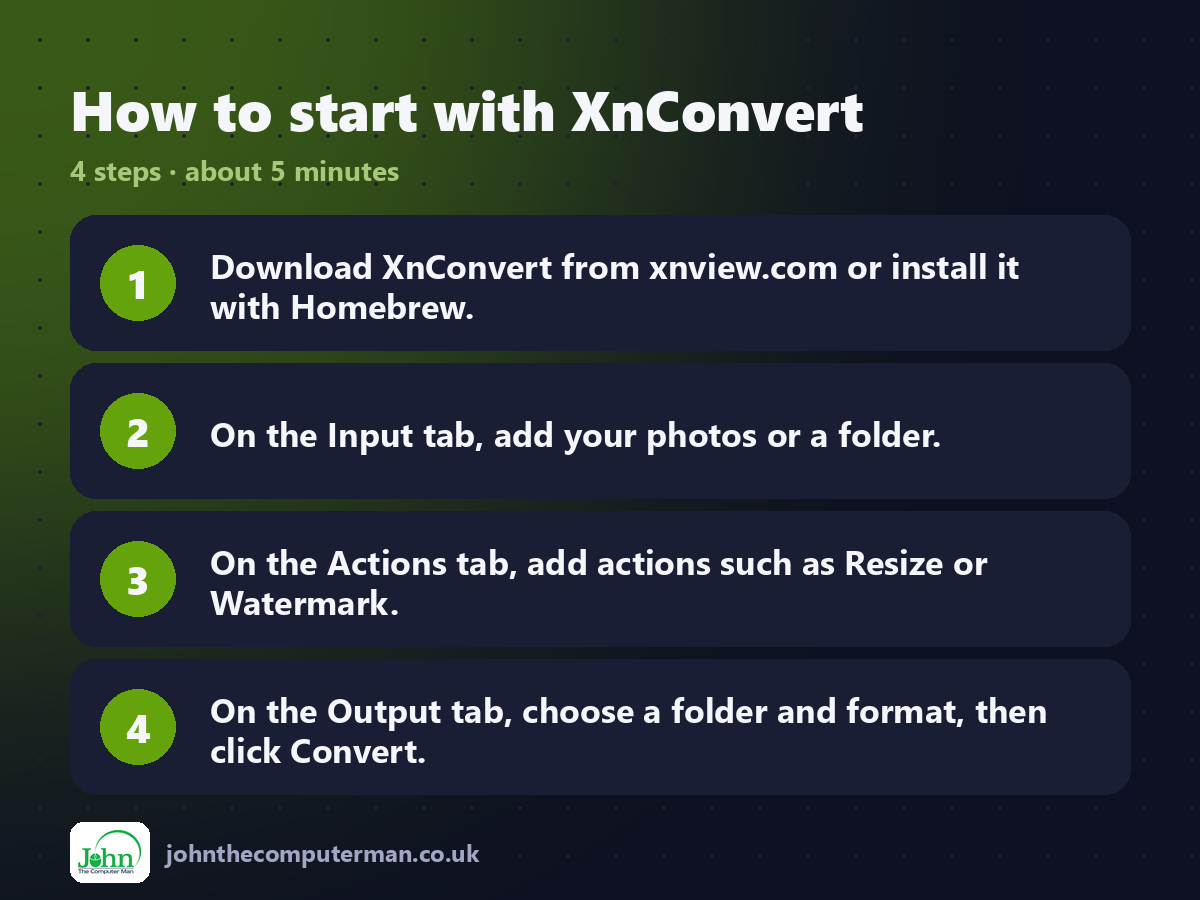
1. Download XnConvert from xnview.com or install it with Homebrew.
2. On the Input tab, add your photos or a folder.
3. On the Actions tab, add actions such as Resize or Watermark.
4. On the Output tab, choose a folder and format, then click Convert.
2. On the Input tab, add your photos or a folder.
3. On the Actions tab, add actions such as Resize or Watermark.
4. On the Output tab, choose a folder and format, then click Convert.
Prefer the command line? If you use Homebrew, the free package manager for Mac, open Terminal and run:
brew install --cask xnconvert
Tips to get more out of it
• To convert iPhone HEIC photos, choose JPG as the output format.
• Save your action list as a preset to reuse it next time.
• Use the Rename option in Output to number files neatly.
• Output to a new folder so your originals stay untouched.
• Save your action list as a preset to reuse it next time.
• Use the Rename option in Output to number files neatly.
• Output to a new folder so your originals stay untouched.
Is it really free?
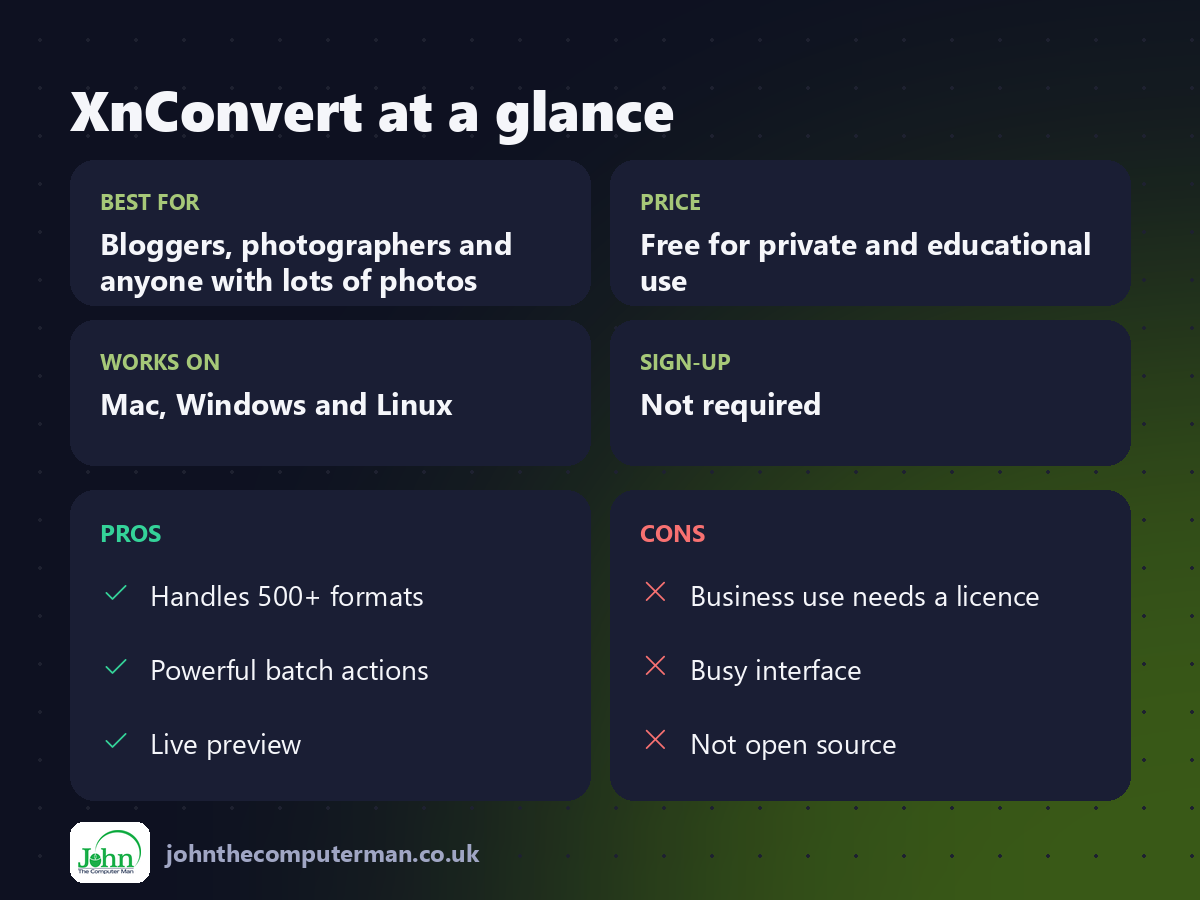
Free for private and educational use. Businesses need a paid licence.
Pros and cons
| 👍 Pros | 👎 Cons |
|---|---|
| Handles 500+ formats | Business use needs a licence |
| Powerful batch actions | Busy interface |
| Live preview | Not open source |
Who is it for?
Best for: Bloggers, photographers and anyone with lots of photos. Works on: Mac, Windows and Linux. Sign-up: Not required.
XnConvert alternatives
• Preview: built in: select several images and use File > Export for simple conversions.
• ImageOptim: free lossless compression, but no resizing or converting.
• Shortcuts: built into macOS: the Convert Image action can batch convert.
• ImageOptim: free lossless compression, but no resizing or converting.
• Shortcuts: built into macOS: the Convert Image action can batch convert.
FAQ
Can XnConvert convert HEIC to JPG?
Yes. Add your HEIC photos, choose JPG on the Output tab, and click Convert.
Is it free for my small business?
Not officially. It's free for private and educational use; businesses should buy a licence.
Step-by-step tutorials
The verdict
XnConvert turns an afternoon of photo admin into a couple of minutes. Save a preset for your usual jobs and never resize by hand again.
👉 Try it: www.xnview.com/en/xnconvert/
Part of the free creative apps for mac series on johnthecomputerman.co.uk. Follow @johnthecomputerman on Instagram for a new free Mac tool every Monday, Wednesday and Friday. Pricing and features were checked in September 2026 and can change, so check the tool's own site for the latest.
