MeetingBar: Join Zoom, Teams and Meet Calls From Your Mac's Menu Bar (Free)

A meeting starts in two minutes. You open your calendar, find the event, scroll to the link, click it, and arrive late anyway.
MeetingBar shows your next meeting and a countdown in the menu bar. One click opens the call, whether it's Zoom, Google Meet, Teams or dozens of others. It's free and open source.
What is MeetingBar?
MeetingBar is a free, open-source menu bar app for macOS. It reads your calendars and shows your next meeting's name and time in the menu bar. It finds the video link in the event and joins it with one click, supporting Zoom, Google Meet, Microsoft Teams, Webex and many more, and can notify you before meetings start.
Key features
Next meeting at a glance
The title and time until your next meeting sit in your menu bar.
One-click join
Finds the Zoom, Meet or Teams link and opens it instantly.
Works with your calendars
Uses the calendars already on your Mac, or Google directly.
How to get started with MeetingBar
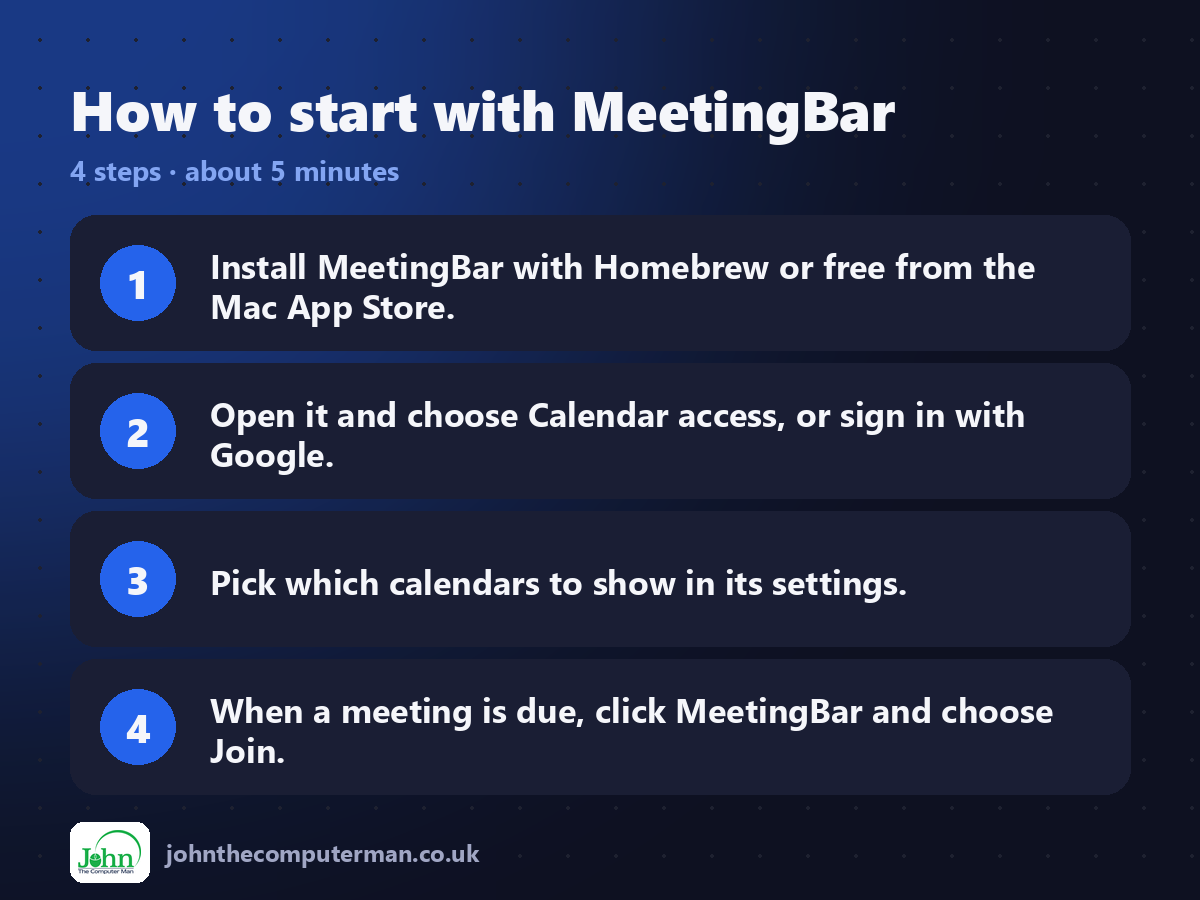
1. Install MeetingBar with Homebrew or free from the Mac App Store.
2. Open it and choose Calendar access, or sign in with Google.
3. Pick which calendars to show in its settings.
4. When a meeting is due, click MeetingBar and choose Join.
2. Open it and choose Calendar access, or sign in with Google.
3. Pick which calendars to show in its settings.
4. When a meeting is due, click MeetingBar and choose Join.
Prefer the command line? If you use Homebrew, the free package manager for Mac, open Terminal and run:
brew install --cask meetingbar
Tips to get more out of it
• Set a keyboard shortcut to join your next meeting instantly.
• Hide all-day events and events without video links to keep it tidy.
• Shorten long meeting names in settings so your menu bar isn't crowded.
• Turn on a notification a minute before meetings start.
• Hide all-day events and events without video links to keep it tidy.
• Shorten long meeting names in settings so your menu bar isn't crowded.
• Turn on a notification a minute before meetings start.
Is it really free?
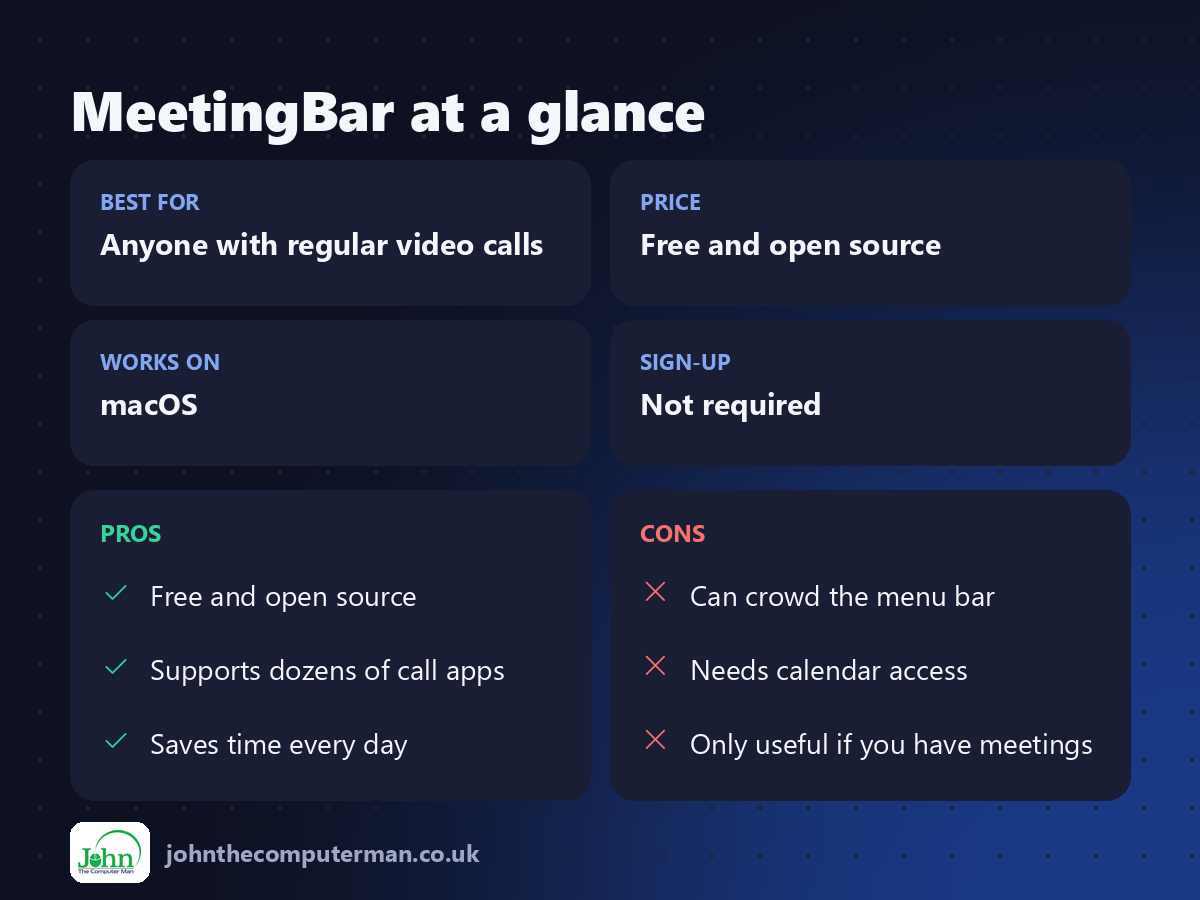
Free and open source. No ads and no paid version.
Pros and cons
| 👍 Pros | 👎 Cons |
|---|---|
| Free and open source | Can crowd the menu bar |
| Supports dozens of call apps | Needs calendar access |
| Saves time every day | Only useful if you have meetings |
Who is it for?
Best for: Anyone with regular video calls. Works on: macOS. Sign-up: Not required.
MeetingBar alternatives
• Itsycal: a free menu bar calendar showing your upcoming events.
• Notion Calendar: a free calendar app with meeting joining.
• Fantastical: a paid calendar app with a menu bar view.
• Notion Calendar: a free calendar app with meeting joining.
• Fantastical: a paid calendar app with a menu bar view.
FAQ
Does MeetingBar work with Teams?
Yes. It recognises Microsoft Teams, Zoom, Google Meet, Webex and many other services.
Is it safe?
Yes. It's open source and only reads your calendar events to find meeting links.
The verdict
MeetingBar is a tiny app that makes every meeting start a little smoother. If you live in video calls, install it today.
👉 Try it: github.com/leits/MeetingBar
Part of the hidden-gem mac apps series on johnthecomputerman.co.uk. Follow @johnthecomputerman on Instagram for a new free Mac tool every Monday, Wednesday and Friday. Pricing and features were checked in September 2026 and can change, so check the tool's own site for the latest.
