OBS Studio on Mac: Free Screen Recording and Streaming (Beginner's Guide)
Your Mac can record the screen with Shift+Command+5. It's handy, but you can't add your webcam in the corner, mix audio sources or stream live.
OBS Studio can. It's the same free, open-source software used by huge numbers of streamers and YouTubers, and it runs well on Mac, including recording your Mac's own sound.
What is OBS Studio?
OBS Studio (Open Broadcaster Software) is free, open-source software for screen recording and live streaming on Mac, Windows and Linux. You build scenes from sources such as your screen, an app window, a webcam, images and microphones, then record to a file or stream to YouTube, Twitch and others. On recent versions of macOS it can capture system and app audio directly, with no extra software.
Key features
Scenes and sources
Combine your screen, webcam, images and text into layouts and switch between them live.
Records your Mac's sound
Capture app and system audio on modern macOS, no extra plugins needed.
Stream anywhere
Go live on YouTube, Twitch and more straight from OBS.
How to get started with OBS Studio
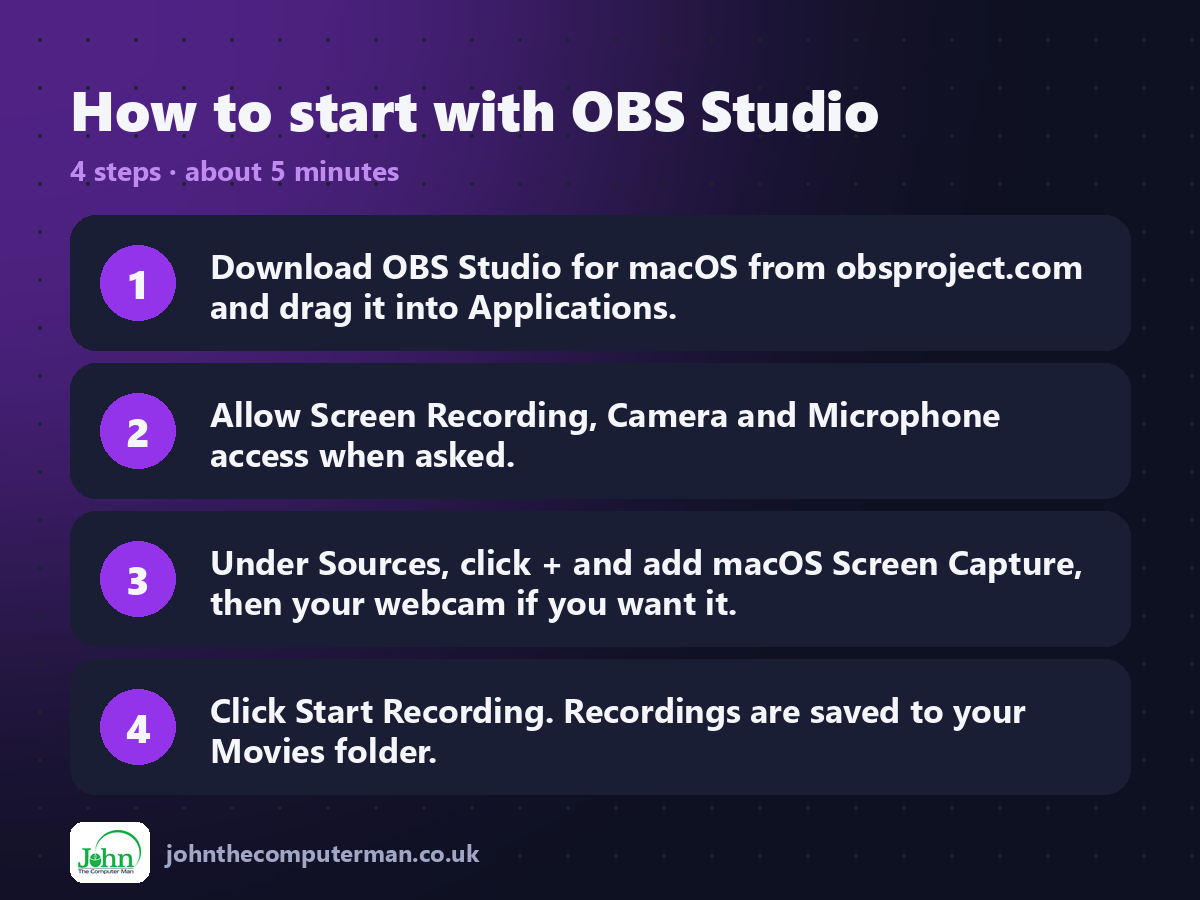
1. Download OBS Studio for macOS from obsproject.com and drag it into Applications.
2. Allow Screen Recording, Camera and Microphone access when asked.
3. Under Sources, click + and add macOS Screen Capture, then your webcam if you want it.
4. Click Start Recording. Recordings are saved to your Movies folder.
2. Allow Screen Recording, Camera and Microphone access when asked.
3. Under Sources, click + and add macOS Screen Capture, then your webcam if you want it.
4. Click Start Recording. Recordings are saved to your Movies folder.
Prefer the command line? If you use Homebrew, the free package manager for Mac, open Terminal and run:
brew install --cask obs
Tips to get more out of it
• Use the Auto-Configuration Wizard in the Tools menu for sensible settings.
• Record as Hybrid MP4 or MKV in Settings > Output, so a crash doesn't lose the whole recording.
• Right-click a source and choose Filters to crop your webcam or remove its background colour.
• Set hotkeys for start and stop recording in Settings > Hotkeys.
• Record as Hybrid MP4 or MKV in Settings > Output, so a crash doesn't lose the whole recording.
• Right-click a source and choose Filters to crop your webcam or remove its background colour.
• Set hotkeys for start and stop recording in Settings > Hotkeys.
Is it really free?
Free and open source. No watermark, no time limit and no paid version.
Pros and cons
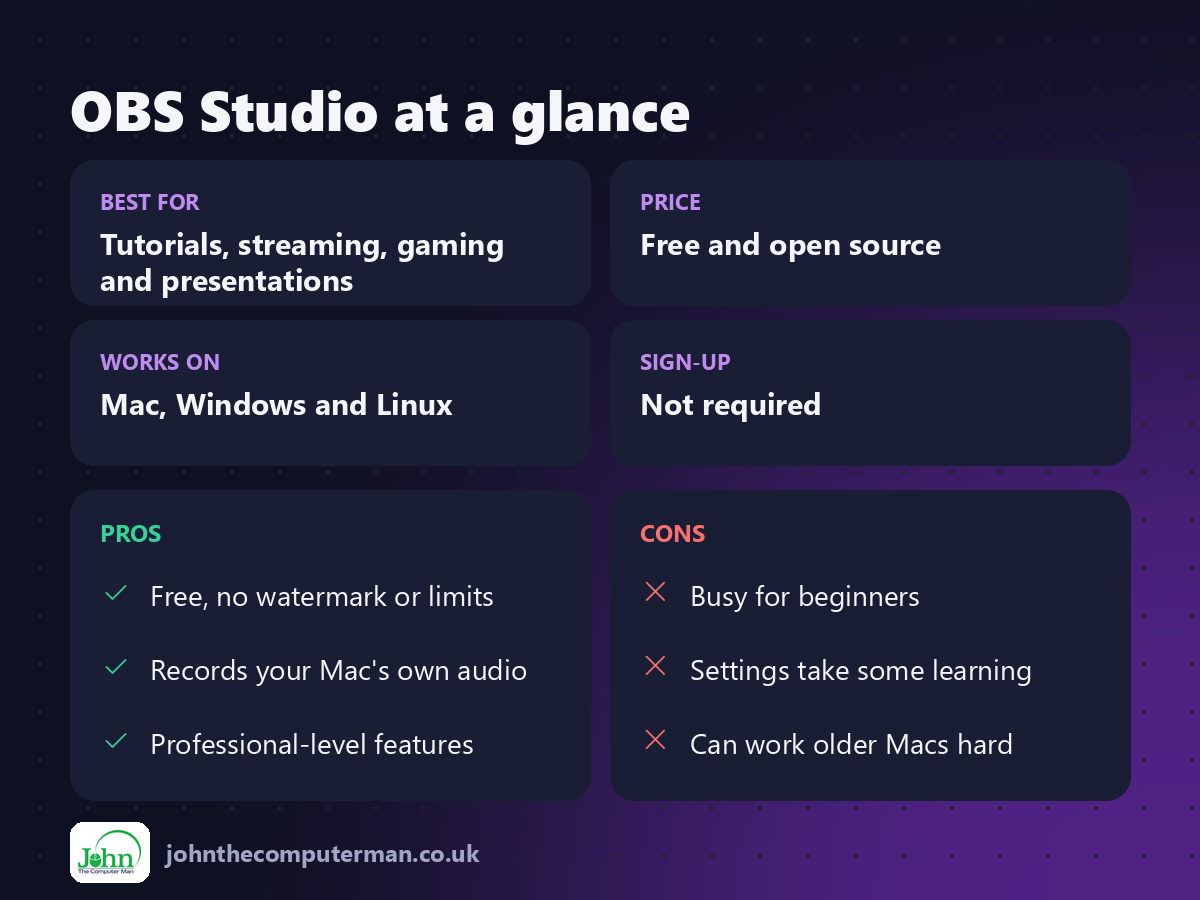
| 👍 Pros | 👎 Cons |
|---|---|
| Free, no watermark or limits | Busy for beginners |
| Records your Mac's own audio | Settings take some learning |
| Professional-level features | Can work older Macs hard |
Who is it for?
Best for: Tutorials, streaming, gaming and presentations. Works on: Mac, Windows and Linux. Sign-up: Not required.
OBS Studio alternatives
• macOS Screenshot toolbar: built in: press Shift+Command+5 for quick recordings.
• QuickTime Player: built in, simple screen and webcam recording.
• Loom: quick shareable recordings, with a limited free plan.
• QuickTime Player: built in, simple screen and webcam recording.
• Loom: quick shareable recordings, with a limited free plan.
FAQ
Does OBS add a watermark?
No. OBS is completely free with no watermark, no time limit and no paid version.
How do I record my Mac's sound?
Use the macOS Screen Capture source, or add a macOS Audio Capture source. Both capture system audio on recent macOS versions.
Step-by-step tutorials
The verdict
OBS Studio can look intimidating, but add one screen source and press record and you're away. It's the best free way to record or stream your Mac.
👉 Try it: obsproject.com
Part of the 10 more free mac tools series on johnthecomputerman.co.uk. Follow @johnthecomputerman on Instagram for a new free Mac tool every Monday, Wednesday and Friday. Pricing and features were checked in September 2026 and can change, so check the tool's own site for the latest.
