How to Screen Record on a Mac With Sound (Free, Including System Audio)
Press Shift+Command+5 and your Mac records the screen. But it can only record your microphone, not the sound from videos, apps or calls. Record a tutorial or a clip, and it's silent.
OBS Studio fixes that for free. On recent versions of macOS it can capture your Mac's own sound directly, alongside your microphone and even your webcam, with no watermark and no time limit.
Time needed: about 15 minutes · Cost: free
What you'll need
• OBS Studio: free, professional screen recording and live streaming
• macOS 13 Ventura or later for built-in system audio capture
• A microphone (your Mac's built-in one is fine)
• macOS 13 Ventura or later for built-in system audio capture
• A microphone (your Mac's built-in one is fine)
The quick way (nothing to install)
Just need the picture, or your voice? Press Shift+Command+5, choose Record Entire Screen or Record Selected Portion, and pick your microphone under Options. It won't capture the sound your Mac plays, though.
Step by step
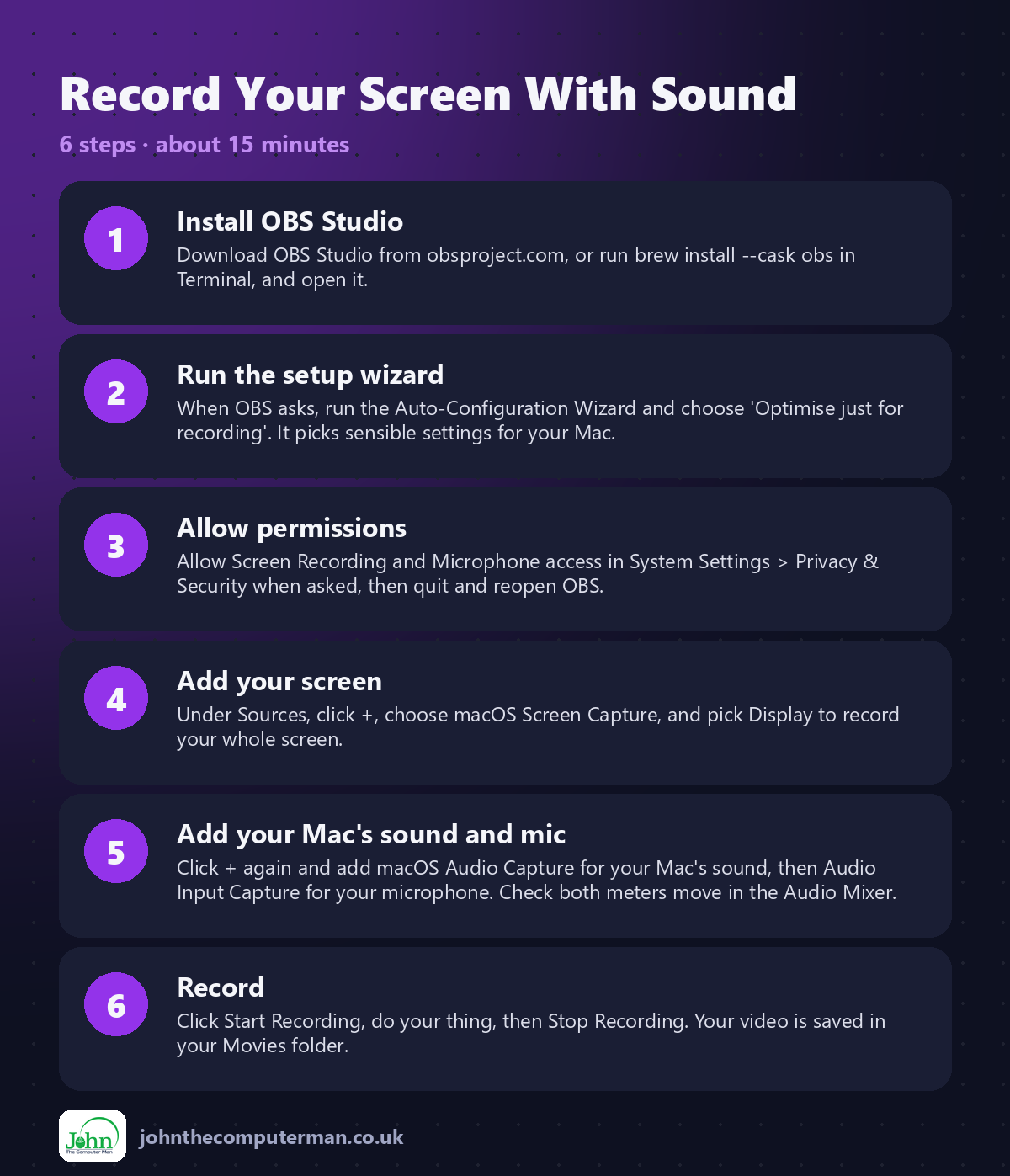
Step 1: Install OBS Studio
Download OBS Studio from obsproject.com, or run brew install --cask obs in Terminal, and open it.
Step 2: Run the setup wizard
When OBS asks, run the Auto-Configuration Wizard and choose 'Optimise just for recording'. It picks sensible settings for your Mac.
Step 3: Allow permissions
Allow Screen Recording and Microphone access in System Settings > Privacy & Security when asked, then quit and reopen OBS.
Step 4: Add your screen
Under Sources, click +, choose macOS Screen Capture, and pick Display to record your whole screen.
Step 5: Add your Mac's sound and mic
Click + again and add macOS Audio Capture for your Mac's sound, then Audio Input Capture for your microphone. Check both meters move in the Audio Mixer.
Step 6: Record
Click Start Recording, do your thing, then Stop Recording. Your video is saved in your Movies folder.
Prefer Terminal? If you use Homebrew, install the app for this tutorial in one go:
brew install --cask obs
Tips
• In Settings > Output, record as Hybrid MP4 so a crash doesn't lose your recording.
• Add Video Capture Device to put your webcam in the corner.
• Set start and stop hotkeys in Settings > Hotkeys so you don't have to click OBS.
• Turn on Do Not Disturb before recording so notifications don't pop up in your video.
• Add Video Capture Device to put your webcam in the corner.
• Set start and stop hotkeys in Settings > Hotkeys so you don't have to click OBS.
• Turn on Do Not Disturb before recording so notifications don't pop up in your video.
If something goes wrong
The recording is just a black screen
OBS doesn't have Screen Recording permission. Turn it on in System Settings > Privacy & Security, then restart OBS.
There's no sound from my Mac
Check the macOS Audio Capture source is added and not muted in the Audio Mixer.
The video is choppy
In Settings > Video, lower the output resolution to 1080p and frame rate to 30.
FAQ
Does OBS add a watermark?
No. OBS Studio is free and open source, with no watermark and no time limit.
Can I record just one app's sound?
Yes. In the macOS Audio Capture source, choose a single application instead of all desktop audio.
Wrapping up
Five minutes of setup in OBS Studio, and you can record anything on your Mac with proper sound. Once your sources are set, it's one click every time.
📖 Full app guide: OBS Studio
More Mac tutorials: Convert HEIC to JPG · Run Windows 11 on a Mac · Free Up Storage on Your Mac · Snap Windows Side by Side · Send Files Mac to Android · Secure Your Mac in 30 Minutes · Shrink a Video for Email · Make Your MacBook Battery Last · Windows Keyboard on a Mac
Part of the free Mac tools series on johnthecomputerman.co.uk. Follow @johnthecomputerman on Instagram for free Mac tips every Monday, Wednesday and Friday. Steps were checked in September 2026. Menus can move between macOS versions, so look for similar wording if yours differs.
