Pinta for Mac: A Simple, Free Image Editor (Paint.NET Alternative)
Preview can crop and resize, and GIMP can do almost anything. But what about the in-between jobs: blur a face, add an arrow and some text, combine two pictures?
Pinta is made for exactly that. It's simple like Microsoft Paint but has layers, effects and unlimited undo. If you've used Paint.NET on Windows, you'll feel at home.
What is Pinta?
Pinta is a free, open-source image editor for Mac, Windows and Linux, inspired by Paint.NET. It offers drawing tools, shapes, text, selections, layers, adjustments such as brightness and curves, effects like blur and sharpen, and an unlimited history so you can undo anything. It's designed to be quick and easy to learn.
Key features
Simple and quick
Open, edit and save in seconds, with no learning curve.
Layers and effects
Combine images on layers and add blur, sharpen and more.
Unlimited undo
Step back through every change in the History panel.
How to get started with Pinta
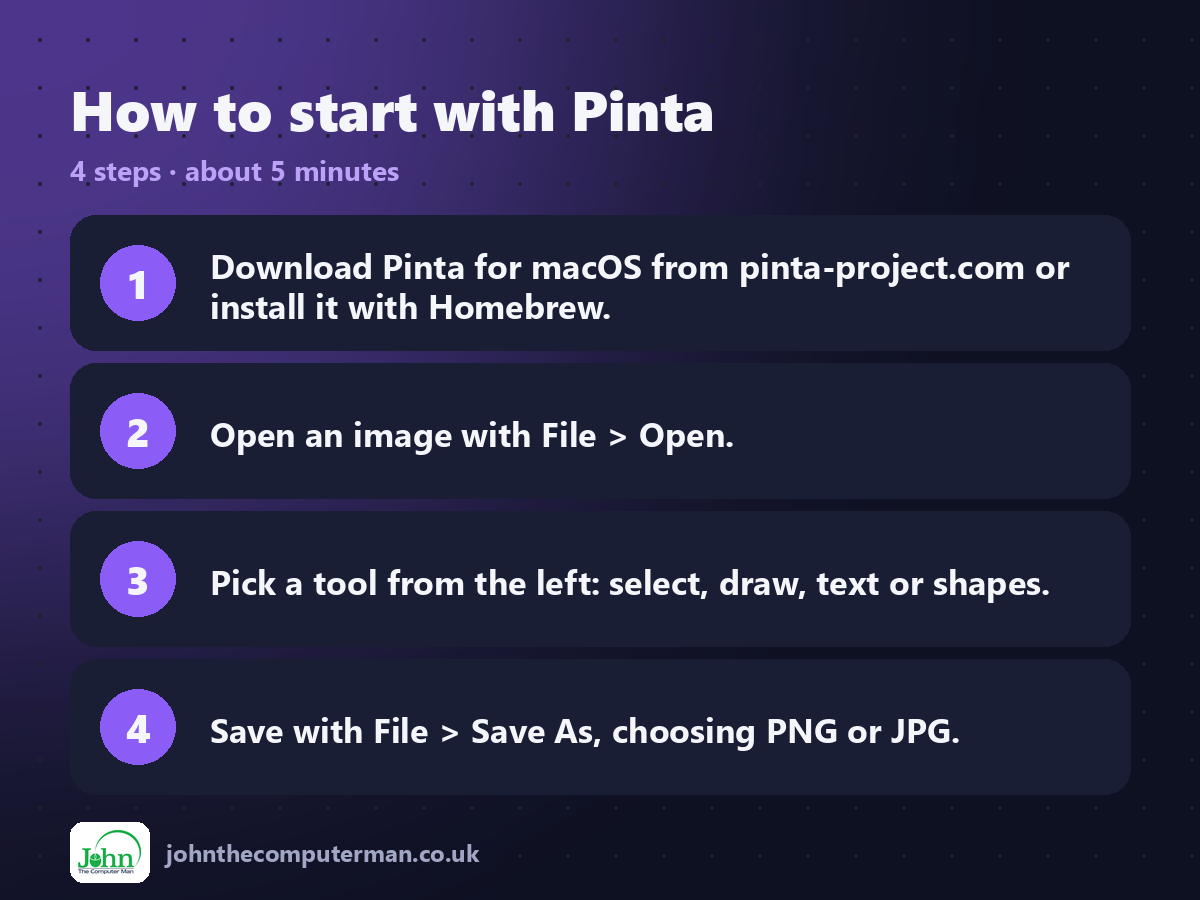
1. Download Pinta for macOS from pinta-project.com or install it with Homebrew.
2. Open an image with File > Open.
3. Pick a tool from the left: select, draw, text or shapes.
4. Save with File > Save As, choosing PNG or JPG.
2. Open an image with File > Open.
3. Pick a tool from the left: select, draw, text or shapes.
4. Save with File > Save As, choosing PNG or JPG.
Prefer the command line? If you use Homebrew, the free package manager for Mac, open Terminal and run:
brew install --cask pinta
Tips to get more out of it
• Use a rectangle selection plus Effects > Blur to hide faces or number plates.
• Add a new layer for text so you can move it later.
• Click any step in History to jump back to it.
• Save as .ora to keep layers for later editing.
• Add a new layer for text so you can move it later.
• Click any step in History to jump back to it.
• Save as .ora to keep layers for later editing.
Is it really free?
Free and open source. No ads, no account and no paid version.
Pros and cons
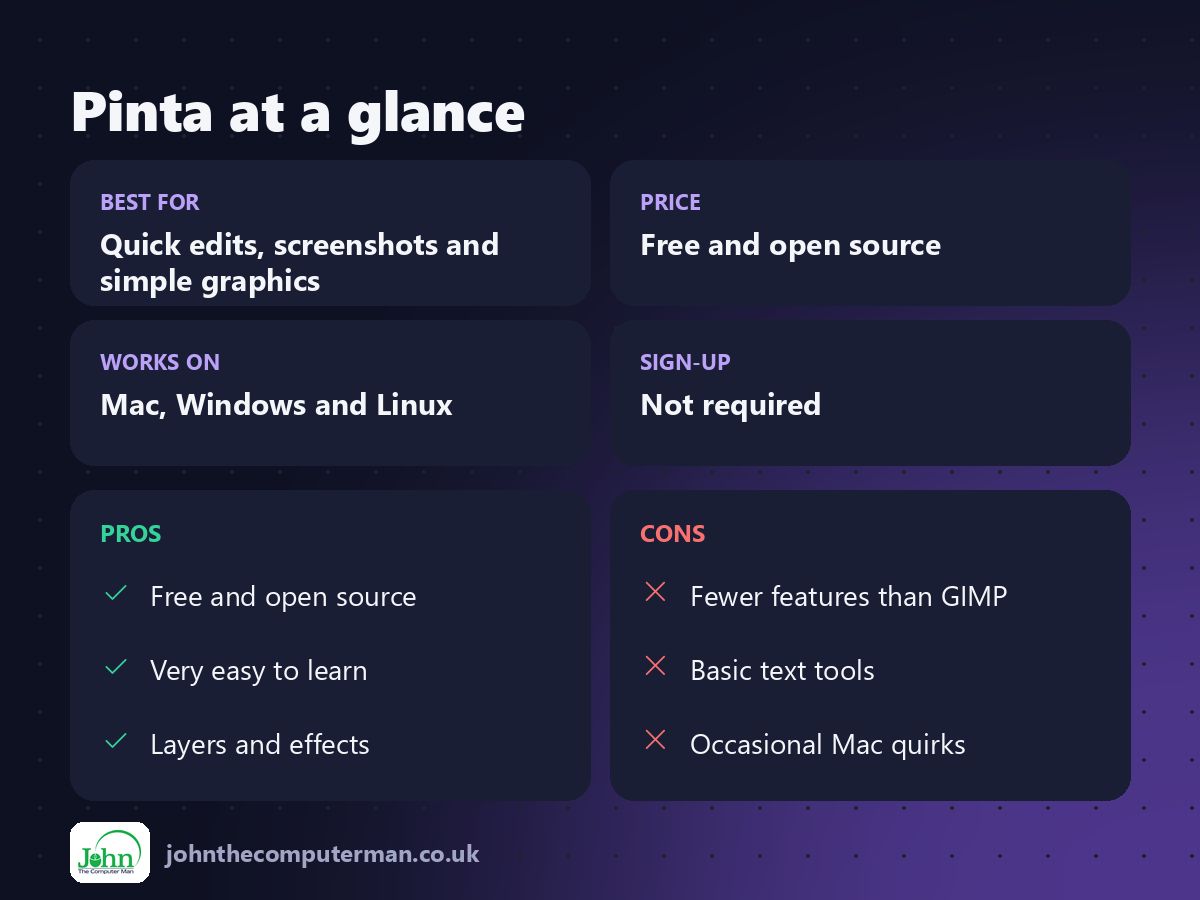
| 👍 Pros | 👎 Cons |
|---|---|
| Free and open source | Fewer features than GIMP |
| Very easy to learn | Basic text tools |
| Layers and effects | Occasional Mac quirks |
Who is it for?
Best for: Quick edits, screenshots and simple graphics. Works on: Mac, Windows and Linux. Sign-up: Not required.
Pinta alternatives
• Preview: built into macOS for cropping, resizing and simple markup.
• GIMP: free and far more powerful, with a steeper learning curve.
• Photopea: a Photoshop-style editor in your browser, free with ads.
• GIMP: free and far more powerful, with a steeper learning curve.
• Photopea: a Photoshop-style editor in your browser, free with ads.
FAQ
Is Pinta like Paint.NET?
Yes. It was inspired by Paint.NET and works in a very similar way.
Can Pinta open Photoshop files?
No. It opens common image formats like PNG, JPG and its own .ora format.
The verdict
Pinta is the free image editor for everyday jobs. Keep it for quick edits, and save GIMP for the big ones.
👉 Try it: www.pinta-project.com
Part of the free creative apps for mac series on johnthecomputerman.co.uk. Follow @johnthecomputerman on Instagram for a new free Mac tool every Monday, Wednesday and Friday. Pricing and features were checked in September 2026 and can change, so check the tool's own site for the latest.
