8 Microsoft Edge Tips That Make Browsing Easier
Microsoft Edge comes with every Windows 11 PC, and it has some useful features that many people never find. Whether Edge is your main browser or you only use it now and then, these eight tips are worth knowing.
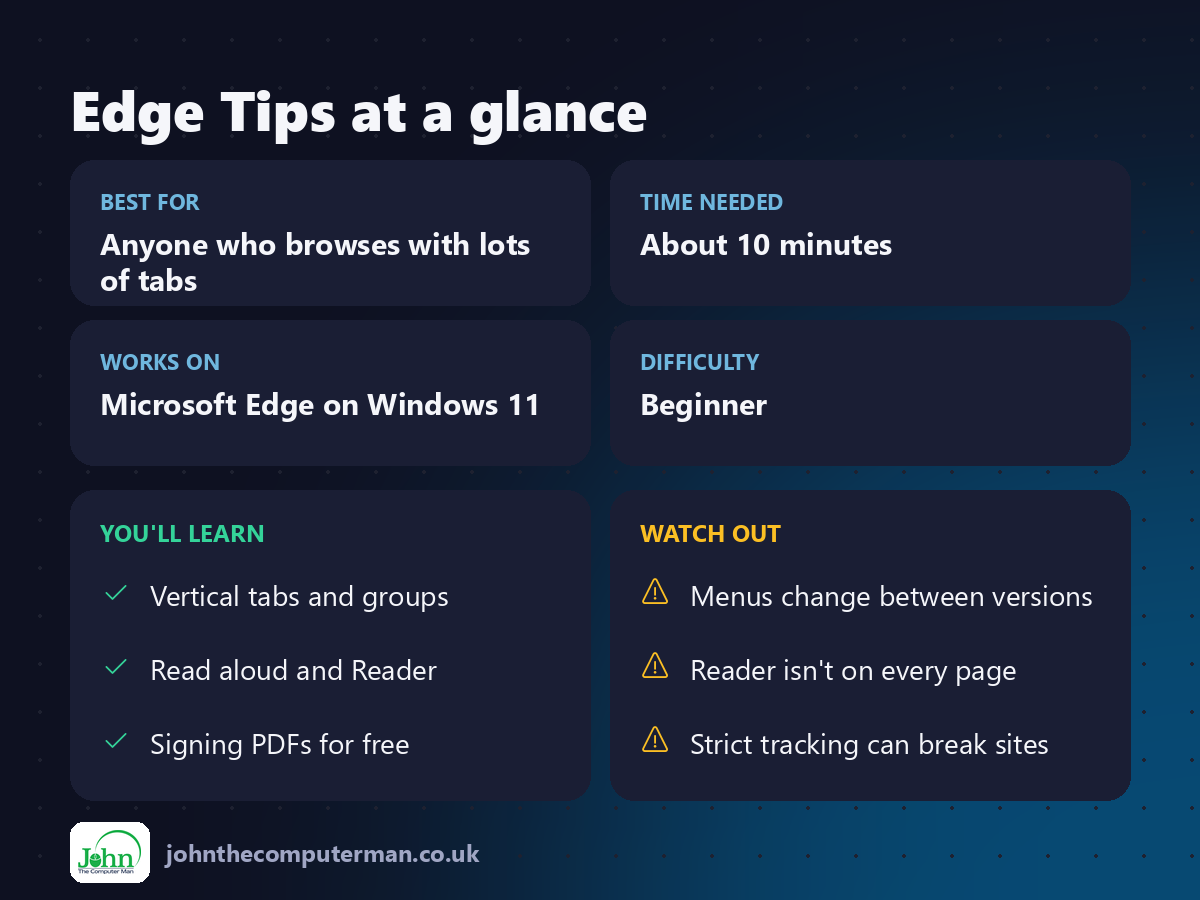
Microsoft updates Edge often, so a menu name may be slightly different on your PC.
1. Vertical tabs
If you keep lots of tabs open, the titles shrink until you can't read them. Vertical tabs move them to a list down the left side.
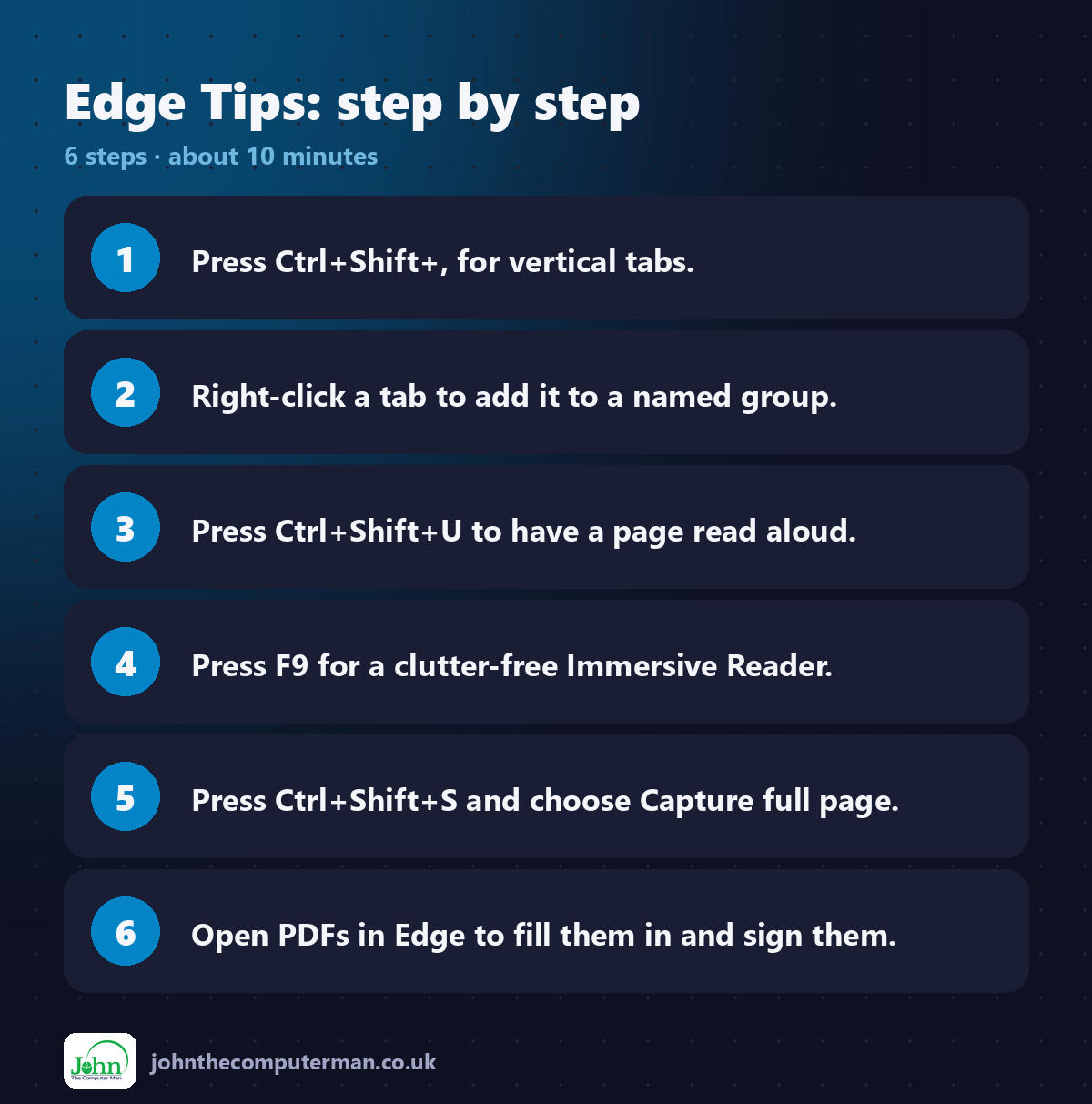
Press Ctrl + Shift + , (comma) to switch vertical tabs on or off.
2. Tab groups
Keep related tabs together, such as everything for a holiday you're planning.
1. Right-click a tab.
2. Choose Add tab to new group.
3. Give the group a name and a colour.
2. Choose Add tab to new group.
3. Give the group a name and a colour.
Click the group's name to collapse or expand it.
3. Sleeping tabs
Edge can put tabs you haven't used for a while to sleep, which saves memory and battery.
1. Go to Settings → System and performance.
2. Turn on Save resources with sleeping tabs.
3. Choose how long before a tab sleeps.
2. Turn on Save resources with sleeping tabs.
3. Choose how long before a tab sleeps.
A sleeping tab wakes as soon as you click it.
4. Read aloud
Let Edge read a web page or PDF to you.
Press Ctrl + Shift + U, or right-click the page and choose Read aloud. Click Voice options to change the voice and speed.
5. Immersive Reader
Strip away adverts, menus and clutter, leaving just the article.
Press F9, or click the book icon in the address bar. It only appears on pages that have an article.
6. Screenshot a whole web page
1. Press Ctrl + Shift + S.
2. Choose Capture full page.
3. Draw on it if you like, then save or copy it.
2. Choose Capture full page.
3. Draw on it if you like, then save or copy it.
7. Fill in and sign PDFs
Open a PDF in Edge and use the toolbar at the top to:
• Add text to fill in forms
• Draw to sign with your mouse or finger
• Highlight important lines
• Draw to sign with your mouse or finger
• Highlight important lines
Then click Save to keep your changes. No extra software needed.
8. Reopen a closed tab
Closed a tab by accident? Press Ctrl + Shift + T. Keep pressing to bring back earlier ones.
For anything older, press Ctrl + H to open your History.
Bonus: check your privacy settings
Go to Settings → Privacy, search and services and set Tracking prevention to Balanced or Strict. Strict blocks more trackers, but a few sites may not work properly.
Quick recap
Frequently asked questions
Is Edge as good as Chrome? They're built on the same foundations, so websites and most Chrome extensions work in both. Choose whichever you prefer. See: Change Your Default Apps.
Can I move my bookmarks from Chrome? Yes. Go to Settings → Profiles → Import browser data.
Related: Every Way to Screenshot · 12 Keyboard Shortcuts

John The Computer Man: plain-English computer help. 🌐 johnthecomputerman.co.uk · 📸 Instagram @johnthecomputerman
