8 Windows 11 Privacy Settings Worth Changing
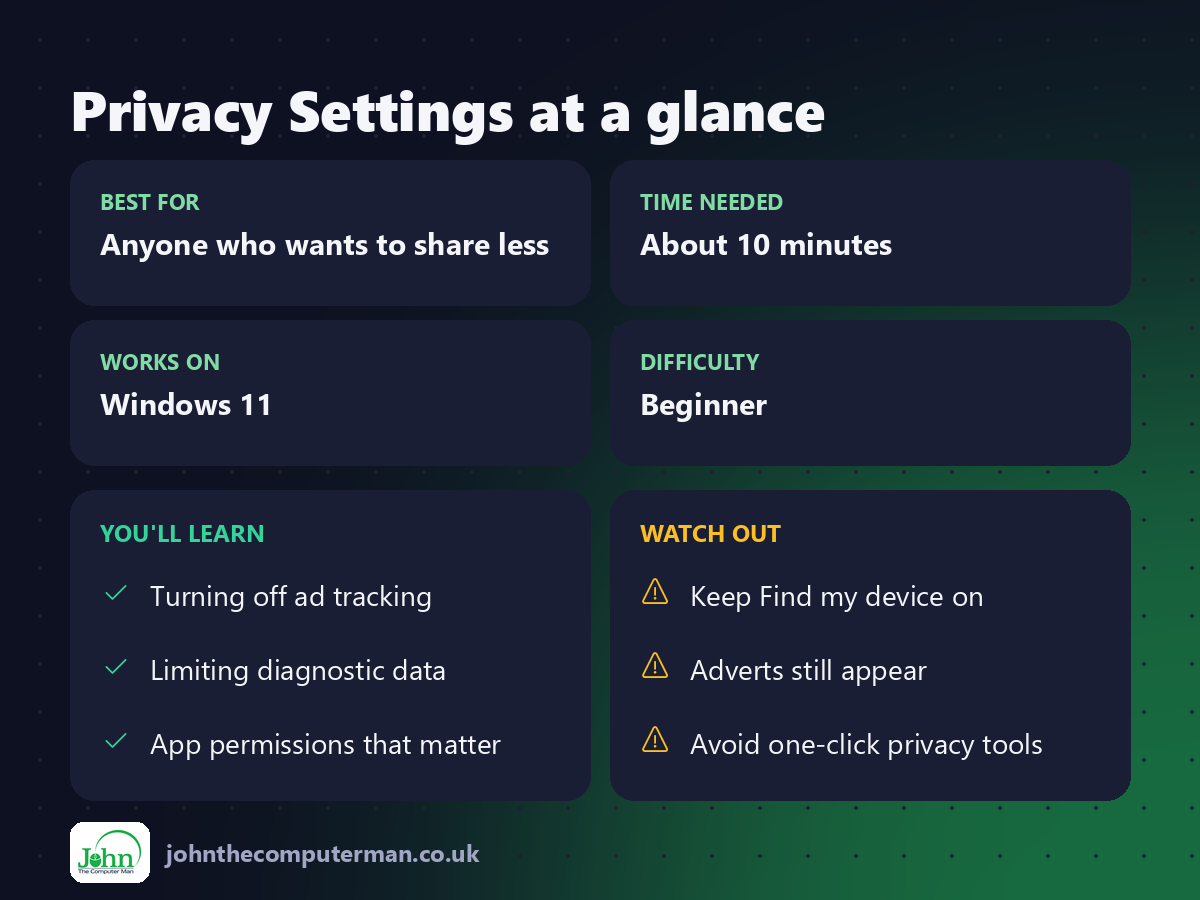
Out of the box, Windows 11 shares more about how you use your PC than most people realise. None of it is sinister, but you're entitled to switch off what you don't want. All of these settings are built in, free, and take about ten minutes in total.
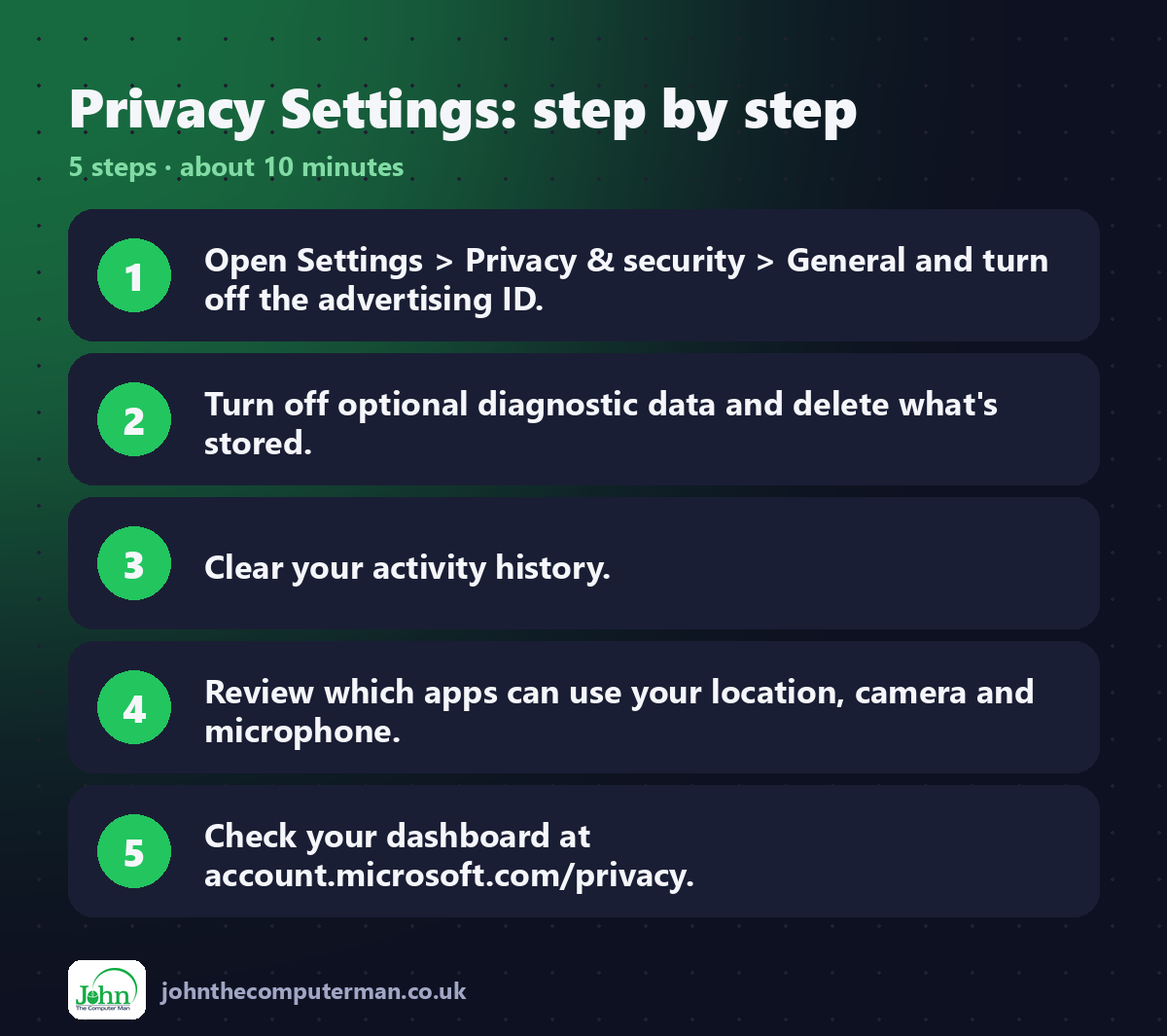
Open Settings (Win + I) and click Privacy & security.
1. Turn off the advertising ID
1. Click General.
2. Turn off Let apps show me personalised ads by using my advertising ID.
2. Turn off Let apps show me personalised ads by using my advertising ID.
You'll still see adverts in some apps, but they won't be based on a profile of what you do.
2. Turn off suggested content and app tracking
Still in General, turn off:
• Let Windows improve Start and search results by tracking app launches
• Show me suggested content in the Settings app
• Show me suggested content in the Settings app
3. Send only required diagnostic data
1. Click Diagnostics & feedback.
2. Turn off Send optional diagnostic data.
3. Turn off Tailored experiences.
4. Click Delete diagnostic data to clear what's already been collected.
2. Turn off Send optional diagnostic data.
3. Turn off Tailored experiences.
4. Click Delete diagnostic data to clear what's already been collected.
Windows still sends the basic data it needs to stay secure and up to date.
4. Clear your activity history
1. Click Activity history.
2. Turn off Store my activity history on this device.
3. Click Clear history.
2. Turn off Store my activity history on this device.
3. Click Clear history.
5. Choose which apps can use your location
1. Click Location.
2. Leave Location services on if you use maps, weather or Find my device.
3. Go down the list and turn off any app that doesn't need to know where you are.
2. Leave Location services on if you use maps, weather or Find my device.
3. Go down the list and turn off any app that doesn't need to know where you are.
6. Check camera and microphone access
1. Click Camera, then Microphone.
2. Turn off access for apps that have no reason to use them.
2. Turn off access for apps that have no reason to use them.
Each page shows when an app last used your camera or microphone, which is a handy way to spot anything unexpected.
7. Tidy up search
1. Click Search permissions.
2. Under Cloud content search, turn off the accounts you don't want Windows to search.
3. Turn off Search history on this device and click Clear device search history.
2. Under Cloud content search, turn off the accounts you don't want Windows to search.
3. Turn off Search history on this device and click Clear device search history.
8. Check your Microsoft account's privacy dashboard
Some data is stored online against your Microsoft account. Go to account.microsoft.com/privacy, sign in, and review or clear your search, browsing and location history.
What should I leave on?
• Find my device: you'll be glad of it if your laptop goes missing.
• Windows Security and Windows Update: these protect you.
• Location for apps you actually use, such as Maps and Weather.
• Windows Security and Windows Update: these protect you.
• Location for apps you actually use, such as Maps and Weather.
Quick recap
Frequently asked questions
Will turning these off break anything? No. Windows works the same. You'll just see fewer personalised suggestions.
Do I need a "privacy tool" to do this? No. Everything in this guide is built into Windows. Tools that promise to switch off hundreds of settings at once can cause problems that are hard to undo.
Related: Windows Security Settings · Encrypt Your PC

John The Computer Man: plain-English computer help. 🌐 johnthecomputerman.co.uk · 📸 Instagram @johnthecomputerman
