Is Your PC Encrypted? Device Encryption and BitLocker in Windows 11
If your laptop is lost or stolen, a password alone won't protect your files. Someone can take out the drive and read it in another computer. Encryption scrambles everything on the drive, so it's unreadable without your sign-in.
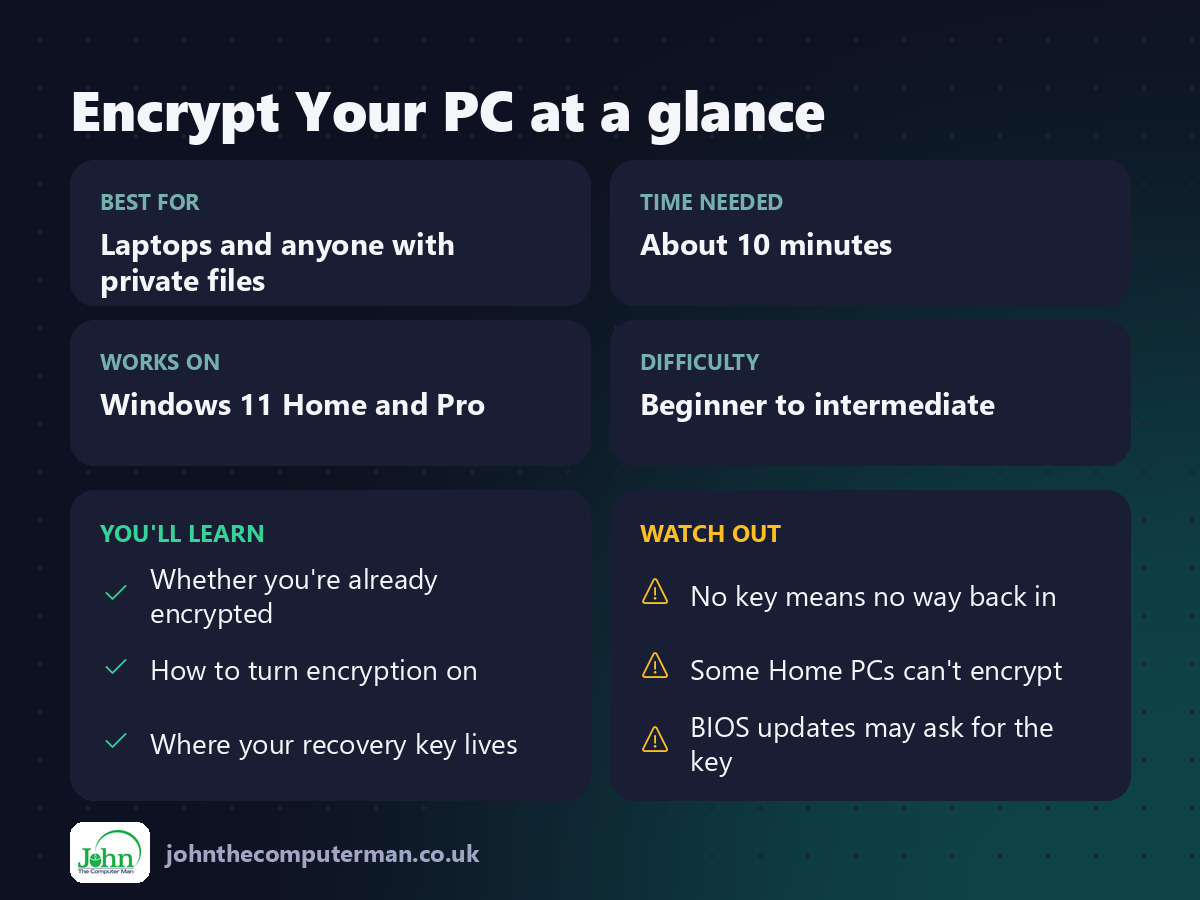
Windows 11 has encryption built in. Many PCs already have it switched on, which makes it even more important to know where your recovery key is.
1. Check whether your PC is encrypted
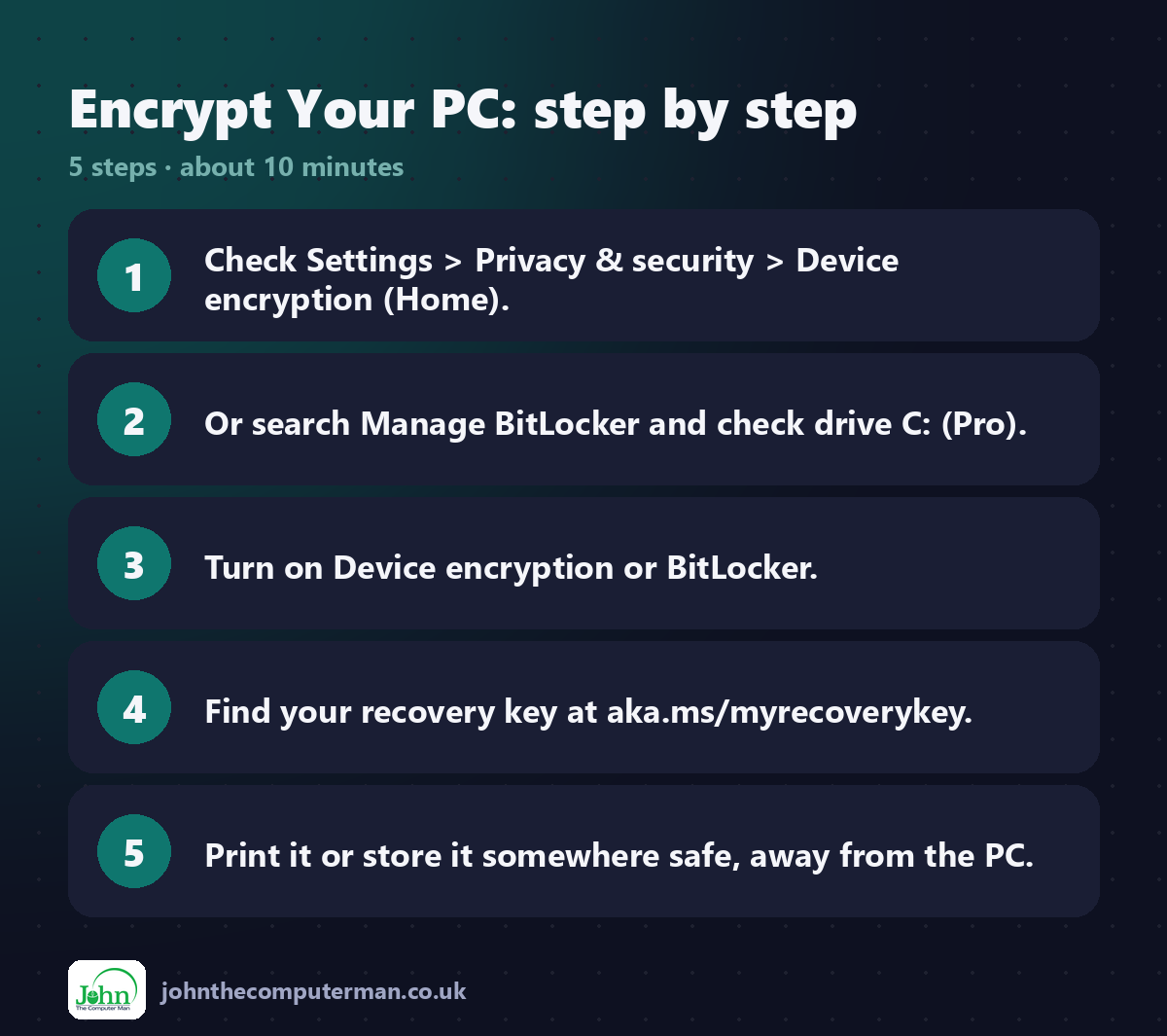
Windows 11 Home: Go to Settings → Privacy & security → Device encryption. If the option is there and On, you're protected.
Windows 11 Pro: Search Start for Manage BitLocker and open it. Your C: drive shows BitLocker on or off.
Either edition: Right-click Start, choose Terminal (Admin) and type:
manage-bde -status C:
Look for Protection Status: Protection On.
2. Turn on encryption
Home (Device encryption):
1. Go to Settings → Privacy & security → Device encryption.
2. Turn it On.
2. Turn it On.
If you can't see the option, your PC's hardware doesn't support Device encryption.
Pro (BitLocker):
1. Open Manage BitLocker.
2. Click Turn on BitLocker next to C:.
3. Choose where to save your recovery key (see step 3).
4. Choose Encrypt used disk space only (fine for new PCs), then New encryption mode.
5. Click Start encrypting. You can keep using your PC while it works.
2. Click Turn on BitLocker next to C:.
3. Choose where to save your recovery key (see step 3).
4. Choose Encrypt used disk space only (fine for new PCs), then New encryption mode.
5. Click Start encrypting. You can keep using your PC while it works.
3. Back up your recovery key (important!)
If Windows ever can't confirm it's you, for example after a BIOS update, a hardware change or a repair, it asks for a 48-digit recovery key. Without it, your files cannot be recovered.
Where's my key?
• If you sign in with a Microsoft account, your key is usually saved online. Go to aka.ms/myrecoverykey on another device and sign in.
• On Pro, open Manage BitLocker and click Back up your recovery key to save it to your account, a file on a USB stick, or a printout.
• On Pro, open Manage BitLocker and click Back up your recovery key to save it to your account, a file on a USB stick, or a printout.
Keep a copy somewhere other than the PC itself, such as a printout in a safe place or your password manager.
4. What if I see the BitLocker recovery screen?
Don't panic.
1. On your phone or another computer, go to aka.ms/myrecoverykey.
2. Sign in with the same Microsoft account you use on the PC.
3. Match the Key ID shown on the blue screen.
4. Type the 48-digit key and press Enter.
2. Sign in with the same Microsoft account you use on the PC.
3. Match the Key ID shown on the blue screen.
4. Type the 48-digit key and press Enter.
Quick recap
Frequently asked questions
Does encryption slow my PC down? On modern PCs, the difference is too small to notice.
I'm selling my PC. Does encryption help? Yes. Choose Reset this PC → Remove everything. On an encrypted drive, the old data is effectively unreadable. See: Reset Windows.
Should I turn it off? Generally, no. Just make sure you know where your recovery key is.

John The Computer Man: plain-English computer help. 🌐 johnthecomputerman.co.uk · 📸 Instagram @johnthecomputerman
