How to Add Another User to Windows 11 (Family, Guest and Local Accounts)
If more than one person uses your PC, everyone should have their own account. Each person gets their own desktop, files, browser history and settings, and nobody can accidentally delete anyone else's work.
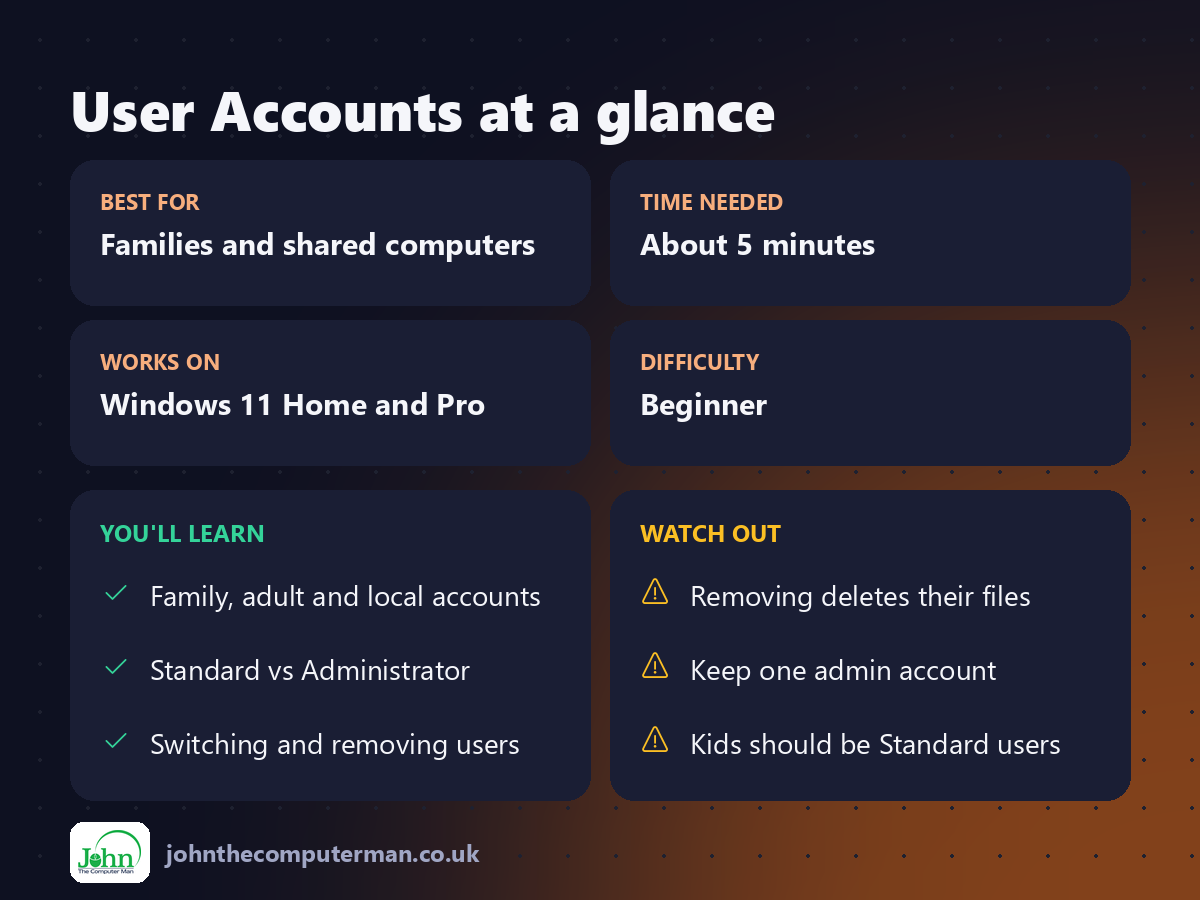
Which type of account?
Account type | Best for
Family member (Microsoft account) | Children and family: includes screen time limits and content filters
Other user (Microsoft account) | Adults who already have Outlook, Hotmail or Xbox accounts
Local account | Visitors, or anyone who doesn't want a Microsoft account
Family member (Microsoft account) | Children and family: includes screen time limits and content filters
Other user (Microsoft account) | Adults who already have Outlook, Hotmail or Xbox accounts
Local account | Visitors, or anyone who doesn't want a Microsoft account
1. Add a family member
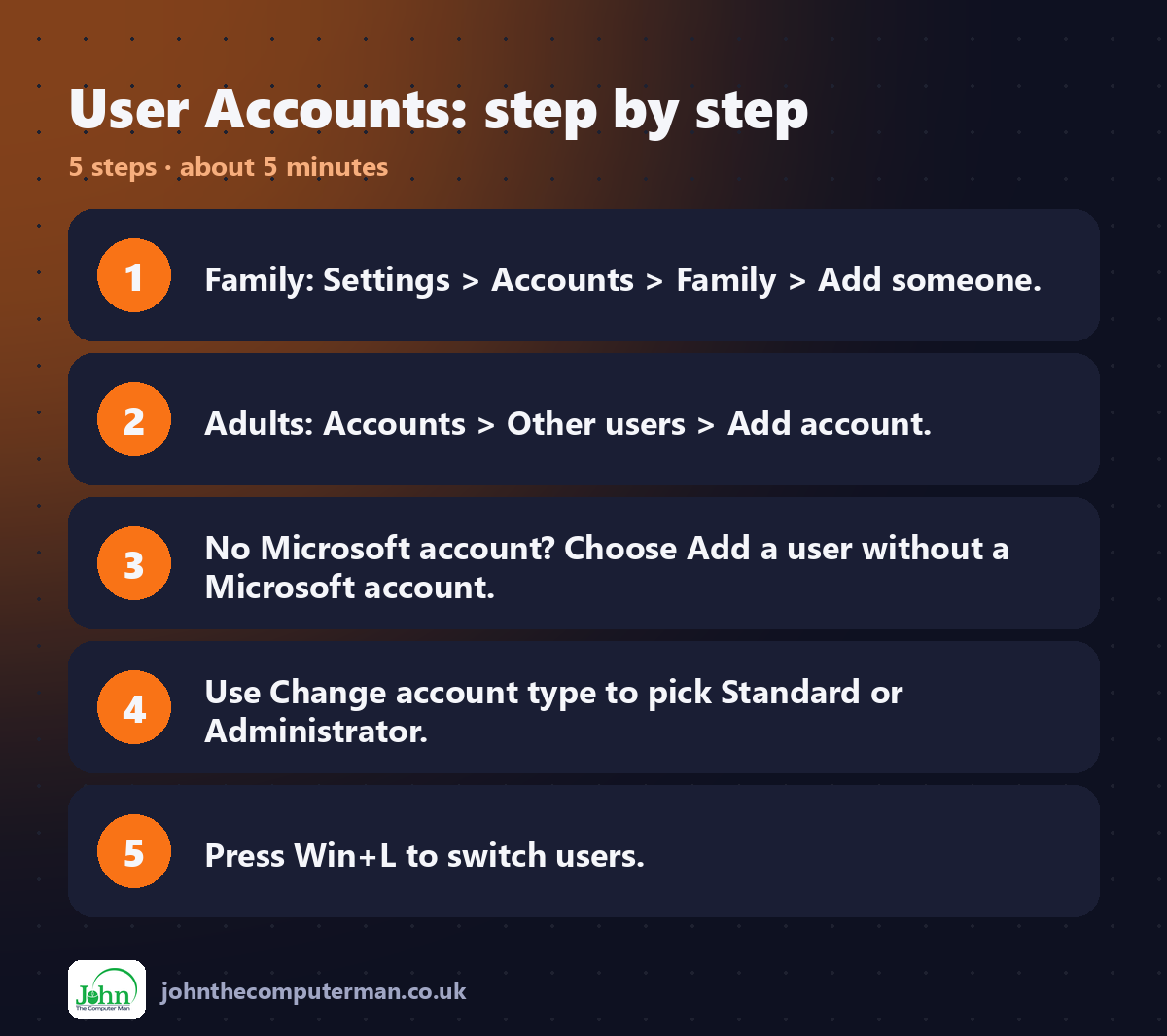
1. Go to Settings → Accounts → Family.
2. Click Add someone.
3. Enter their email address, or click Create one for a child.
4. Choose Member (child) or Organiser (adult who can manage settings).
2. Click Add someone.
3. Enter their email address, or click Create one for a child.
4. Choose Member (child) or Organiser (adult who can manage settings).
Manage screen time, app limits and web filters in the Microsoft Family Safety app or at family.microsoft.com.
2. Add another adult
1. Go to Settings → Accounts → Other users.
2. Click Add account.
3. Enter their Microsoft account email or phone number and follow the steps.
2. Click Add account.
3. Enter their Microsoft account email or phone number and follow the steps.
3. Add a local account (no Microsoft account needed)
1. Go to Settings → Accounts → Other users → Add account.
2. Click I don't have this person's sign-in information.
3. Click Add a user without a Microsoft account.
4. Enter a username, a password and three security questions.
2. Click I don't have this person's sign-in information.
3. Click Add a user without a Microsoft account.
4. Enter a username, a password and three security questions.
This is the closest thing Windows 11 has to a "guest" account.
4. Make someone an administrator (or not)
New accounts are Standard users by default. That's safer, because they can't install software or change system settings without an administrator's password.
To change it:
1. Go to Settings → Accounts → Other users.
2. Click the account, then Change account type.
3. Choose Administrator or Standard User and click OK.
2. Click the account, then Change account type.
3. Choose Administrator or Standard User and click OK.
Tip: Give children Standard accounts. Keep at least one Administrator account for yourself.
5. Switch between accounts
• Press Win + L to lock the PC, then click another user in the bottom-left corner.
• Or click Start, click your profile picture and choose another user.
• Or click Start, click your profile picture and choose another user.
6. Remove an account
1. Go to Settings → Accounts → Other users (or Family).
2. Click the account and choose Remove.
2. Click the account and choose Remove.
⚠️ This deletes that person's files from the PC, including their desktop, documents and downloads. Back them up first.
Quick recap
Frequently asked questions
Can two people be signed in at once? Yes. Switching user leaves the other person's apps open in the background, but it uses more memory.
Does each person need their own Microsoft 365 licence? Microsoft 365 Family covers up to six people, each with their own account and 1 TB of OneDrive storage.

John The Computer Man: plain-English computer help. 🌐 johnthecomputerman.co.uk · 📸 Instagram @johnthecomputerman
