New Windows 11 PC? 10 Things to Do First
A new PC is exciting, but it isn't quite ready to use when you first switch it on. It usually needs a pile of updates, it often comes with trial software you didn't ask for, and important safety features may be switched off.
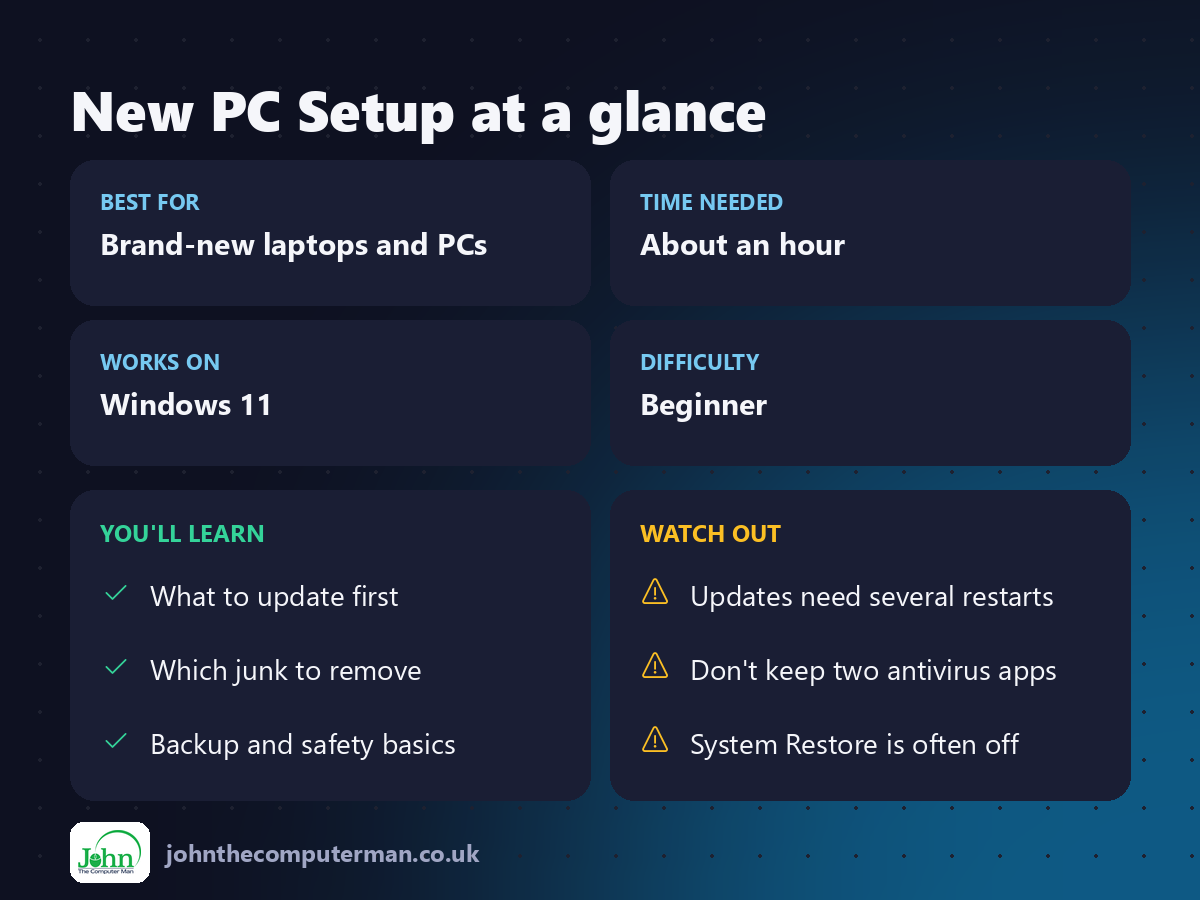
Spend an hour on this checklist on day one and your new PC will be faster, safer and backed up from the start.
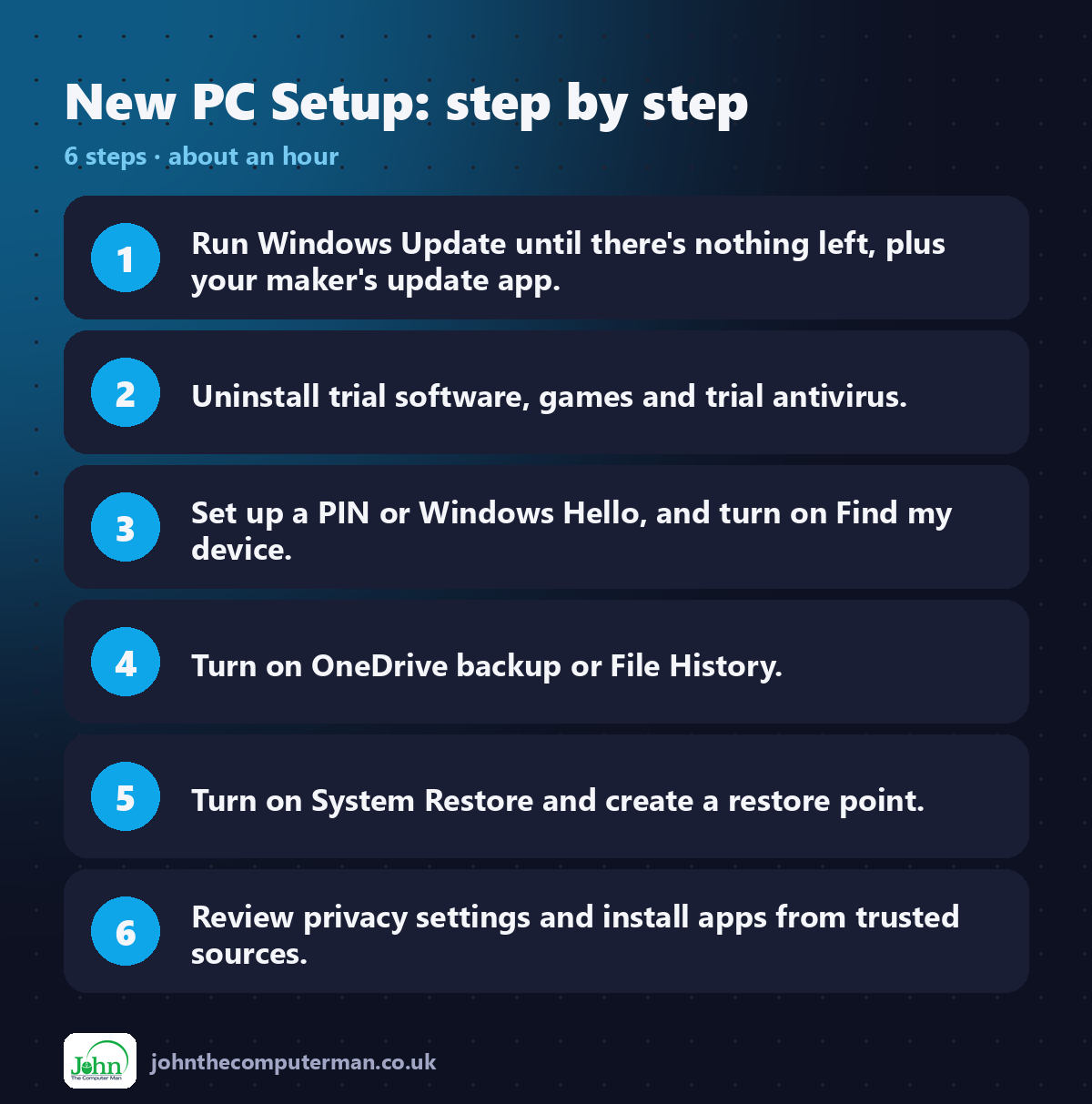
1. Run Windows Update (more than once)
1. Go to Settings → Windows Update.
2. Click Check for updates and install everything.
3. Restart, then check again. New PCs often need two or three rounds.
4. Look under Advanced options → Optional updates for driver updates too.
2. Click Check for updates and install everything.
3. Restart, then check again. New PCs often need two or three rounds.
4. Look under Advanced options → Optional updates for driver updates too.
2. Install your manufacturer's update app
Most brands have an app that updates the BIOS and drivers, such as Lenovo Vantage, HP Support Assistant, Dell SupportAssist or MyASUS. Open it and install any updates it finds.
3. Remove the junk
Go to Settings → Apps → Installed apps and uninstall trial software, games and anything you won't use.
Watch out for trial antivirus. If your PC came with an antivirus trial you don't plan to pay for, uninstall it. Windows Security takes over automatically.
4. Check Windows Security
Open Windows Security from Start and make sure everything has a green tick. See our guide: 6 Windows Security Settings to Check.
5. Set up Windows Hello
Go to Settings → Accounts → Sign-in options and set up a PIN, plus face or fingerprint sign-in if your PC supports it.
6. Turn on Find my device
Go to Settings → Privacy & security → Find my device and switch it on. If your laptop is lost or stolen, you can see its location on a map.
7. Set up a backup
Turn on OneDrive folder backup or File History before you have anything to lose. See: How to Back Up Your PC.
8. Turn on System Restore
System Restore is often switched off on new PCs.
1. Search Start for Create a restore point and open it.
2. Select your C: drive and click Configure.
3. Choose Turn on system protection, set the slider to about 5% and click OK.
4. Click Create to make your first restore point.
2. Select your C: drive and click Configure.
3. Choose Turn on system protection, set the slider to about 5% and click OK.
4. Click Create to make your first restore point.
9. Review your privacy settings
Go to Settings → Privacy & security → General and turn off anything you're not comfortable with, such as personalised ads using your advertising ID.
10. Install your apps safely
Get apps from the Microsoft Store or the developers' official websites, and avoid download sites full of fake "Download" buttons. See: How to Install Apps Safely.
Bonus: make it yours
Once the important jobs are done, switch on Dark mode, tidy up the Start menu and taskbar and learn a few keyboard shortcuts.
Quick recap
Frequently asked questions
Do I have to sign in with a Microsoft account? Windows 11 strongly encourages it during setup. It's worth using one, because it backs up your encryption recovery key and enables Find my device and OneDrive.
How do I move my files from my old PC? Copy them with an external drive, or sign in to OneDrive on both PCs and let it sync. The Windows Backup app can also restore your settings and app list from an old Windows PC.

John The Computer Man: plain-English computer help. 🌐 johnthecomputerman.co.uk · 📸 Instagram @johnthecomputerman
