How to Set Up a Second Monitor on Windows 11
A second screen is one of the best upgrades you can make. You can have your email on one screen and your work on the other, or a video call next to your notes. It's also easy to set up.
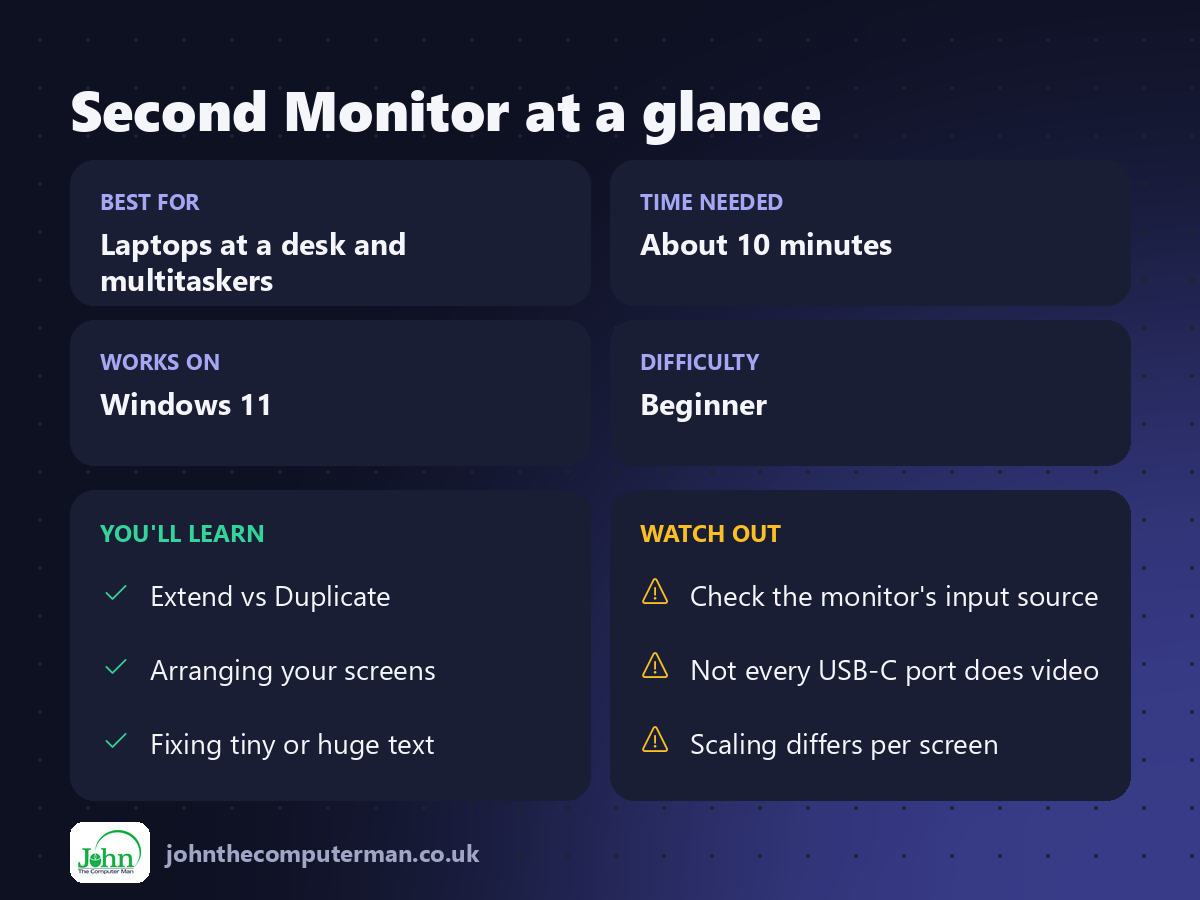
1. Connect the monitor
Plug the monitor into your PC or laptop with the right cable:
• HDMI: the most common, on almost every laptop and monitor.
• DisplayPort: common on desktop PCs and gaming monitors.
• USB-C: many modern laptops can send video over USB-C. Look for a DisplayPort or Thunderbolt symbol next to the port.
• DisplayPort: common on desktop PCs and gaming monitors.
• USB-C: many modern laptops can send video over USB-C. Look for a DisplayPort or Thunderbolt symbol next to the port.
Turn the monitor on. Windows usually detects it within a few seconds.
2. Choose how the screens work together
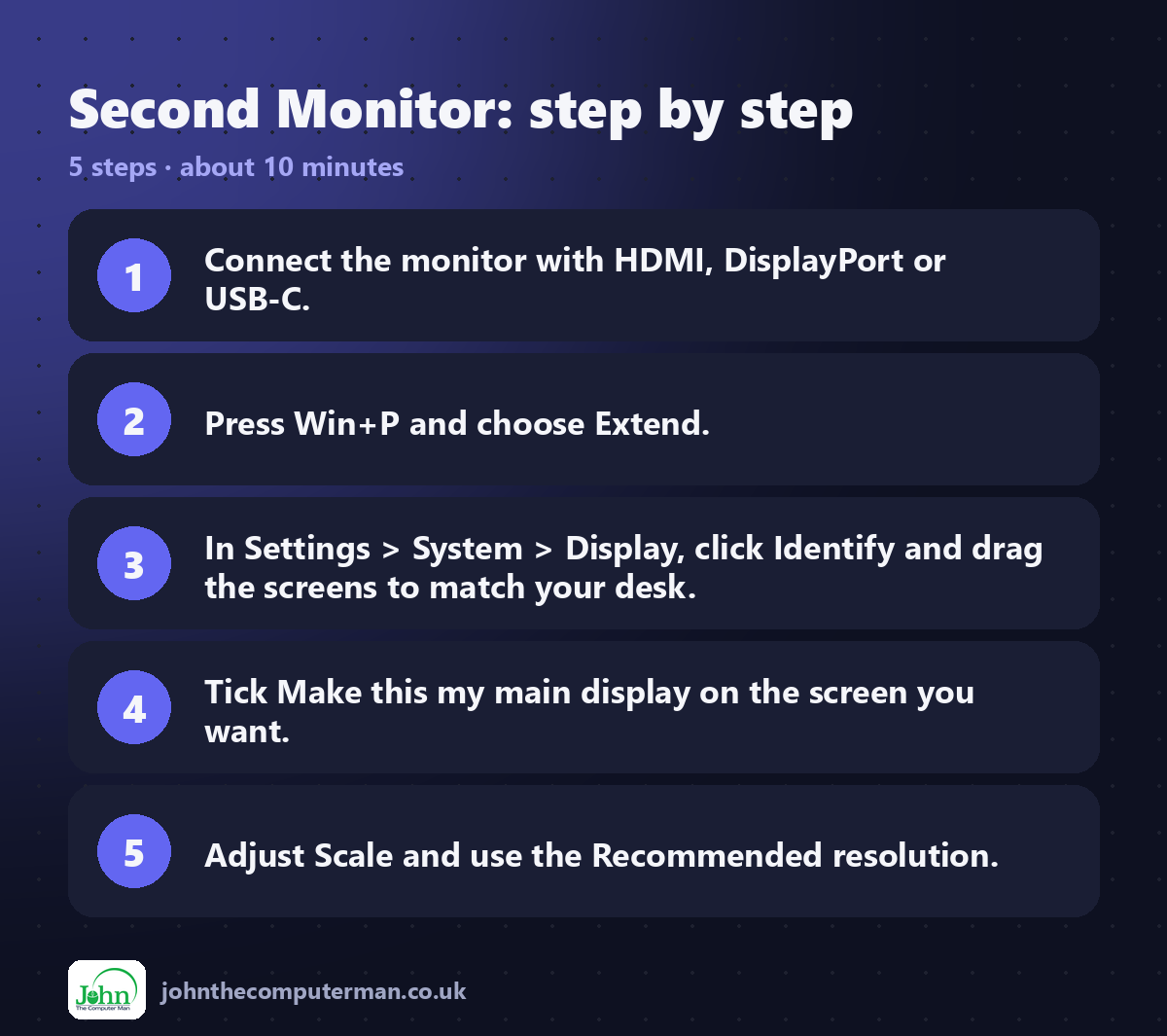
Press Win + P and choose:
Option | What it does
PC screen only | Only your main screen is used
Duplicate | Both screens show the same thing (great for presentations)
Extend | One big desktop across both screens (best for most people)
Second screen only | Only the external monitor is used (handy with a closed laptop)
PC screen only | Only your main screen is used
Duplicate | Both screens show the same thing (great for presentations)
Extend | One big desktop across both screens (best for most people)
Second screen only | Only the external monitor is used (handy with a closed laptop)
3. Arrange your screens
So your mouse moves naturally between screens, tell Windows where the monitor is physically sitting:
1. Go to Settings → System → Display.
2. Click Identify. A big number appears on each screen.
3. Drag the screen boxes to match your desk, for example monitor 2 to the left of 1.
4. Click Apply.
2. Click Identify. A big number appears on each screen.
3. Drag the screen boxes to match your desk, for example monitor 2 to the left of 1.
4. Click Apply.
4. Choose your main display
The main display gets the Start menu and taskbar notifications.
1. In Settings → System → Display, click the screen you want.
2. Scroll down and tick Make this my main display.
2. Scroll down and tick Make this my main display.
5. Fix tiny or huge text
If one screen looks too small or too big:
1. Click that screen in Settings → System → Display.
2. Change Scale (e.g. 100%, 125%, 150%).
3. Check Display resolution is set to the one marked (Recommended).
2. Change Scale (e.g. 100%, 125%, 150%).
3. Check Display resolution is set to the one marked (Recommended).
For gaming monitors, go to Advanced display and choose the highest refresh rate.
6. Taskbar and window tricks
• Taskbar on both screens: Settings → Personalisation → Taskbar → Taskbar behaviours → Show my taskbar on all displays.
• Move a window between screens: Win + Shift + ← or →.
• Remember window positions: in Settings → System → Display → Multiple displays, tick Remember window locations based on monitor connection.
• Move a window between screens: Win + Shift + ← or →.
• Remember window positions: in Settings → System → Display → Multiple displays, tick Remember window locations based on monitor connection.
Quick recap
Frequently asked questions
The monitor says "No signal". What now? Check that the cable is firmly connected at both ends, and that the monitor's input source (HDMI 1, HDMI 2, DisplayPort) matches the port you're using. Then press Win + P and choose Extend.
Can I use a wireless display? Yes, if your TV or adapter supports Miracast. Press Win + K and choose it from the list.
Can I close my laptop lid and only use the monitor? Yes. Go to Control Panel → Power Options → Choose what closing the lid does and set When I close the lid (plugged in) to Do nothing.
Related: Snap Layouts · Virtual Desktops

John The Computer Man: plain-English computer help. 🌐 johnthecomputerman.co.uk · 📸 Instagram @johnthecomputerman
