How to Control Windows Update in Windows 11 (Pause, Schedule and Fix)
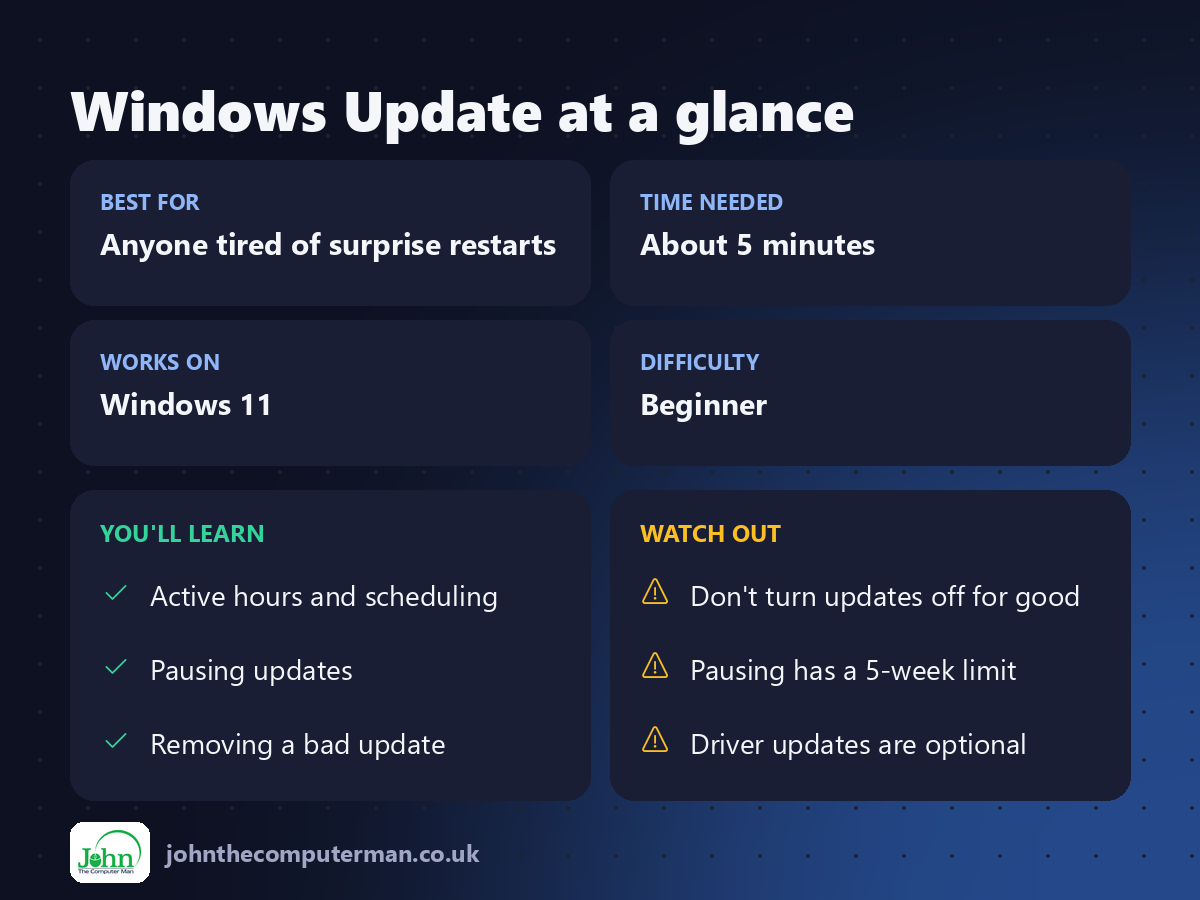
Windows updates keep your PC secure, but they have a habit of turning up at the worst possible moment. You can't switch them off completely, and you shouldn't, but you can decide when they install and when your PC restarts.
All of these settings are in Settings → Windows Update.
1. Check for updates yourself
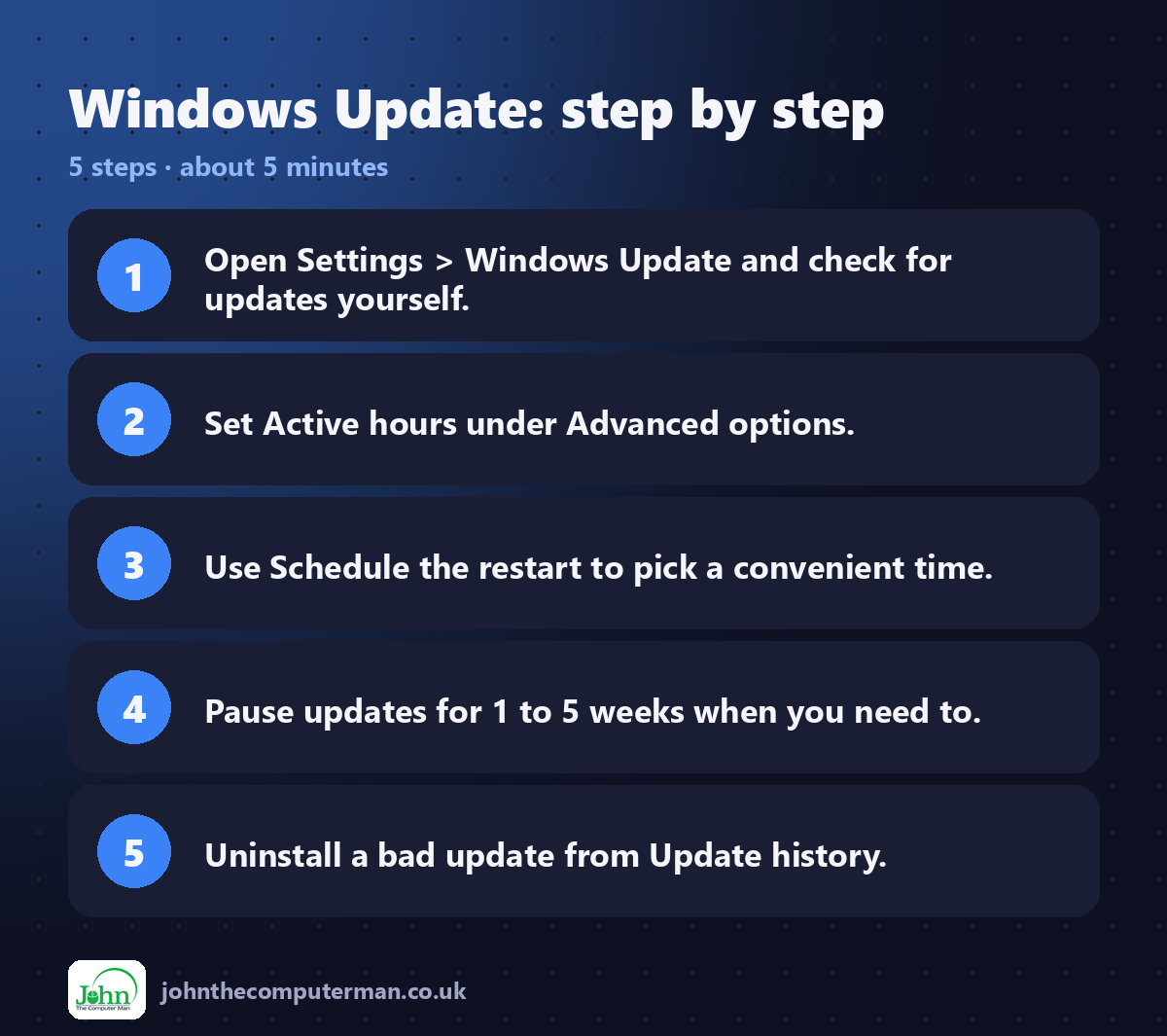
1. Press Win + I and click Windows Update.
2. Click Check for updates.
3. Install what it finds, and restart when it suits you.
2. Click Check for updates.
3. Install what it finds, and restart when it suits you.
Doing this once a month, on your own terms, means fewer surprise restarts.
2. Set your active hours
Active hours tell Windows when you normally use your PC, so it won't restart then.
1. Go to Windows Update → Advanced options.
2. Click Active hours.
3. Choose Automatically (Windows learns your routine) or Manually and set a start and end time.
2. Click Active hours.
3. Choose Automatically (Windows learns your routine) or Manually and set a start and end time.
You can set up to 18 hours as active.
3. Get a warning before restarts
In Advanced options, turn on Notify me when a restart is required to finish updating. You'll get a clear notification instead of a surprise.
4. Schedule the restart
When an update is waiting for a restart, the Windows Update page shows Restart now and Schedule the restart. Click Schedule the restart and pick a time, such as tonight after you've finished.
5. Pause updates
Going on holiday, or in the middle of an important project?
1. On the Windows Update page, find Pause updates.
2. Choose how long, from 1 week up to 5 weeks.
2. Choose how long, from 1 week up to 5 weeks.
Click Resume updates when you're ready. You'll need to install everything that's waiting before you can pause again.
6. Install optional updates (drivers)
Driver updates for things like graphics, Wi-Fi and printers often sit here, waiting to be chosen.
1. Go to Advanced options → Optional updates.
2. Tick the Driver updates you want.
3. Click Download & install.
2. Tick the Driver updates you want.
3. Click Download & install.
Worth checking if a device has been playing up.
7. Uninstall an update that caused problems
If something broke straight after an update:
1. Go to Windows Update → Update history.
2. Scroll down and click Uninstall updates.
3. Find the most recent update and click Uninstall.
2. Scroll down and click Uninstall updates.
3. Find the most recent update and click Uninstall.
Then pause updates for a week or two, to give Microsoft time to fix it.
Should I turn on "Get the latest updates as soon as they're available"?
That switch gives you new features early. Leave it off if you prefer a quiet life. You'll still get all security updates.
Quick recap
Frequently asked questions
Can I turn Windows Update off completely? Not on Windows 11 Home, and it isn't a good idea anyway. Most attacks use security holes that updates have already fixed.
An update is stuck or keeps failing. What now? Restart your PC and try again. If it still fails, go to Settings → System → Troubleshoot → Other troubleshooters and run Windows Update.

John The Computer Man: plain-English computer help. 🌐 johnthecomputerman.co.uk · 📸 Instagram @johnthecomputerman
