How to Repair Windows 11 With SFC, DISM and CHKDSK
Random crashes, apps that won't open, error messages that make no sense: these are often caused by damaged Windows system files. Before you reset your PC, try the three repair tools that are built into Windows. They look technical because you type them, but each one is a single line.
None of these commands touch your personal files.
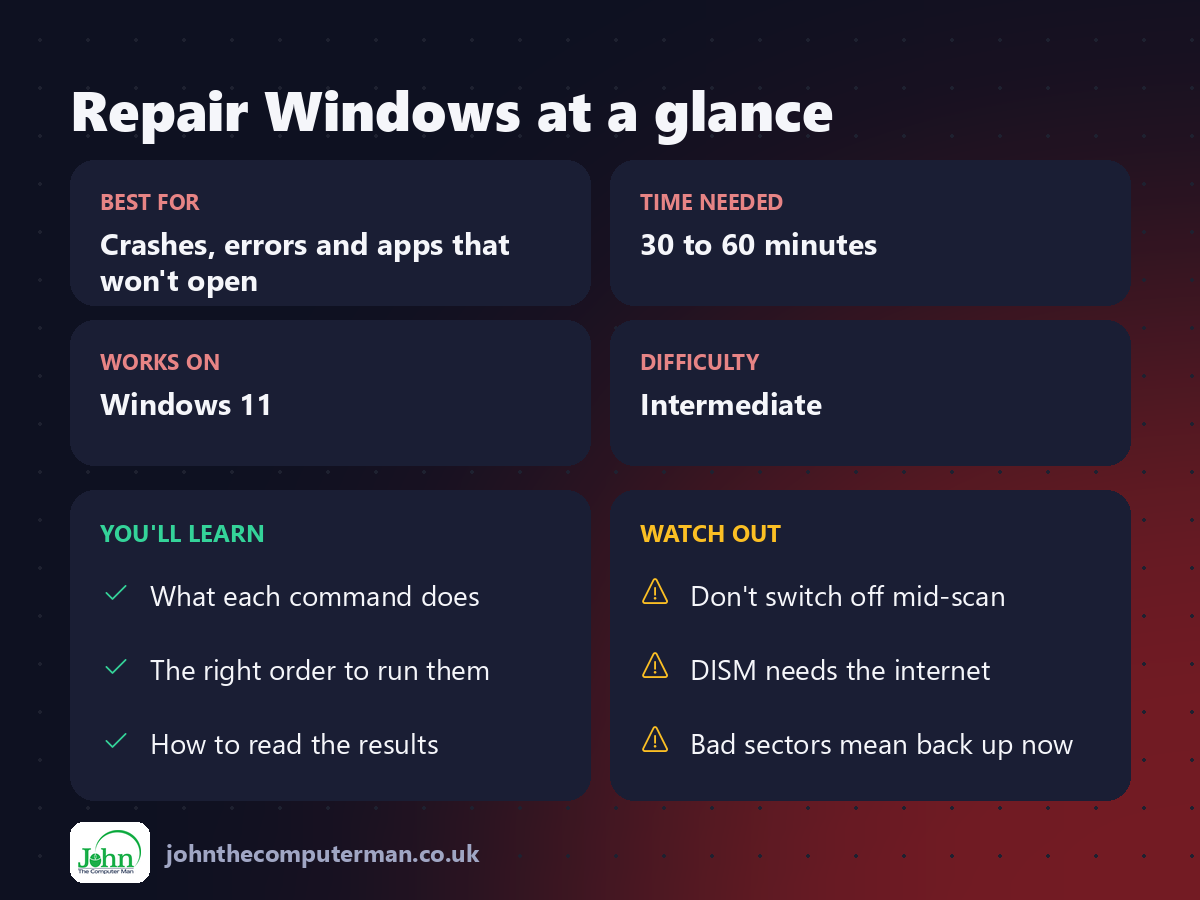
1. Open Terminal as administrator
1. Right-click the Start button.
2. Choose Terminal (Admin).
3. Click Yes when Windows asks for permission.
2. Choose Terminal (Admin).
3. Click Yes when Windows asks for permission.
Type each command exactly as shown, then press Enter.
2. Run SFC (System File Checker)
SFC checks Windows system files and replaces any that are damaged.
sfc /scannow
It takes 10 to 20 minutes. Leave the window open until it reaches 100%.
What the result means:
Message | Meaning
did not find any integrity violations | Your system files are fine
found corrupt files and successfully repaired them | Fixed. Restart your PC
found corrupt files but was unable to fix some of them | Go to step 3
did not find any integrity violations | Your system files are fine
found corrupt files and successfully repaired them | Fixed. Restart your PC
found corrupt files but was unable to fix some of them | Go to step 3
3. Run DISM
DISM repairs the hidden store of files that SFC uses for its repairs. It downloads fresh copies from Windows Update, so you need to be online.
DISM /Online /Cleanup-Image /RestoreHealth
This can take 20 minutes or more, and it often seems to pause at 20% or 62%. That's normal. Be patient.
4. Run SFC again
Once DISM has finished, run SFC a second time so it can complete its repairs:
sfc /scannow
Then restart your PC.
5. Check the drive with CHKDSK
If you suspect a problem with the drive itself, such as files going missing or very slow opening:
chkdsk C: /f
Windows will say the drive is in use and ask whether to check it at the next restart. Type Y, press Enter and restart. The check runs before Windows loads, and it can take a while.
The order to remember
1. SFC
2. If SFC can't fix everything: DISM, then SFC again
3. CHKDSK if you suspect the drive
4. Restart
2. If SFC can't fix everything: DISM, then SFC again
3. CHKDSK if you suspect the drive
4. Restart
If that doesn't fix it
• Go to Settings → System → Recovery and use Fix problems using Windows Update → Reinstall now. It reinstalls Windows and keeps your files, apps and settings.
• See: How to Reset Windows 11 Without Losing Your Files.
• See: How to Reset Windows 11 Without Losing Your Files.
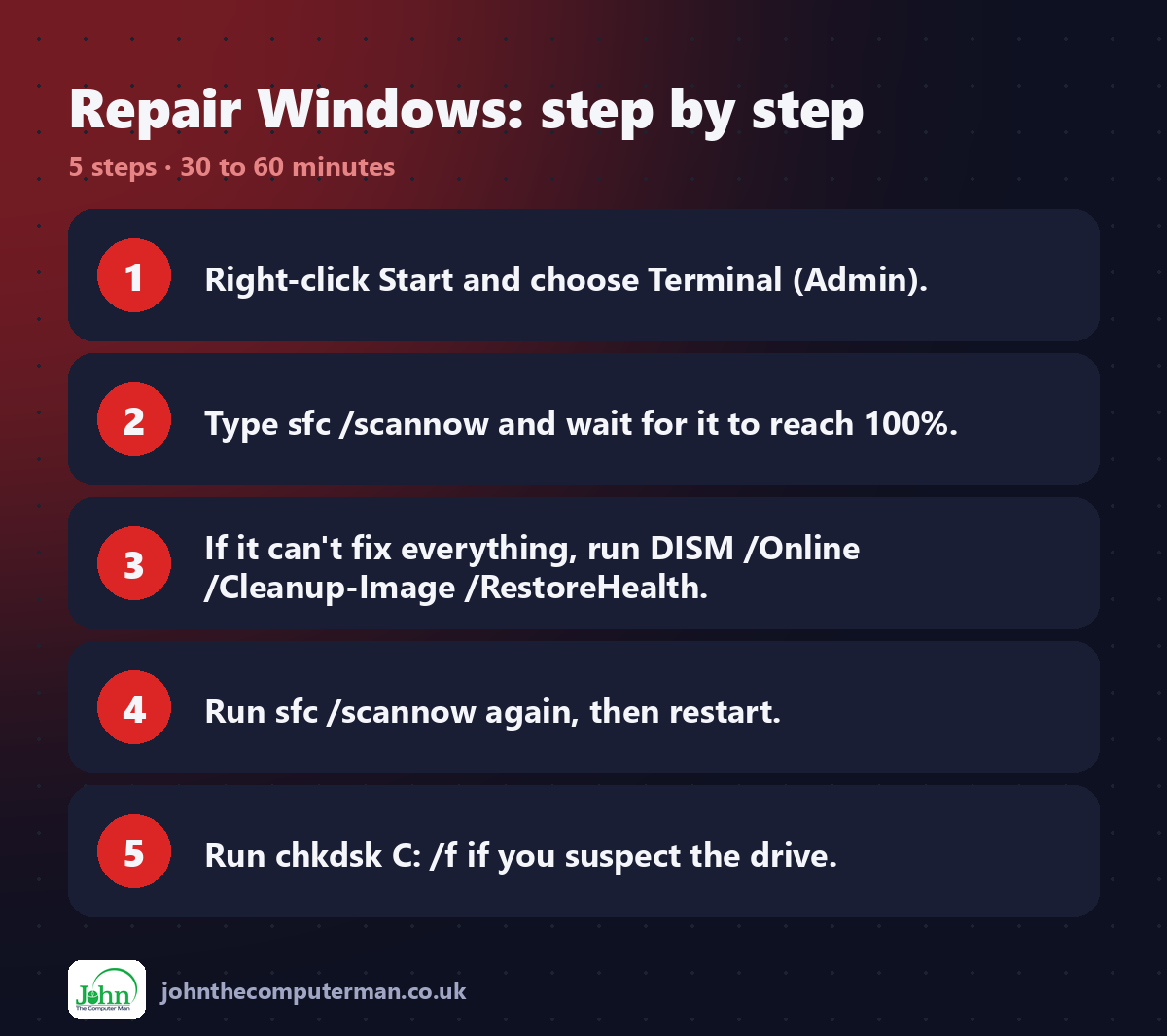
Quick recap
Frequently asked questions
Is it safe to run these? Yes. They're official Microsoft tools, and they don't delete personal files. Just don't switch the PC off while they're running.
Should I run them regularly? There's no need. Use them when something is actually wrong.
CHKDSK found "bad sectors". What does that mean? The drive may be failing. Back up your files straight away and plan to replace it. See: Back Up Your PC.

John The Computer Man: plain-English computer help. 🌐 johnthecomputerman.co.uk · 📸 Instagram @johnthecomputerman
