How to Help Family With Their PC Remotely Using Quick Assist
If you're the person your family rings when the computer "does something weird", Quick Assist will save you hours. It lets you see their screen, and take control of it with their permission, from your own PC, wherever you both are.
It's built into Windows 11 and Windows 10, it's free, and the person you're helping doesn't need to install anything.
What you need
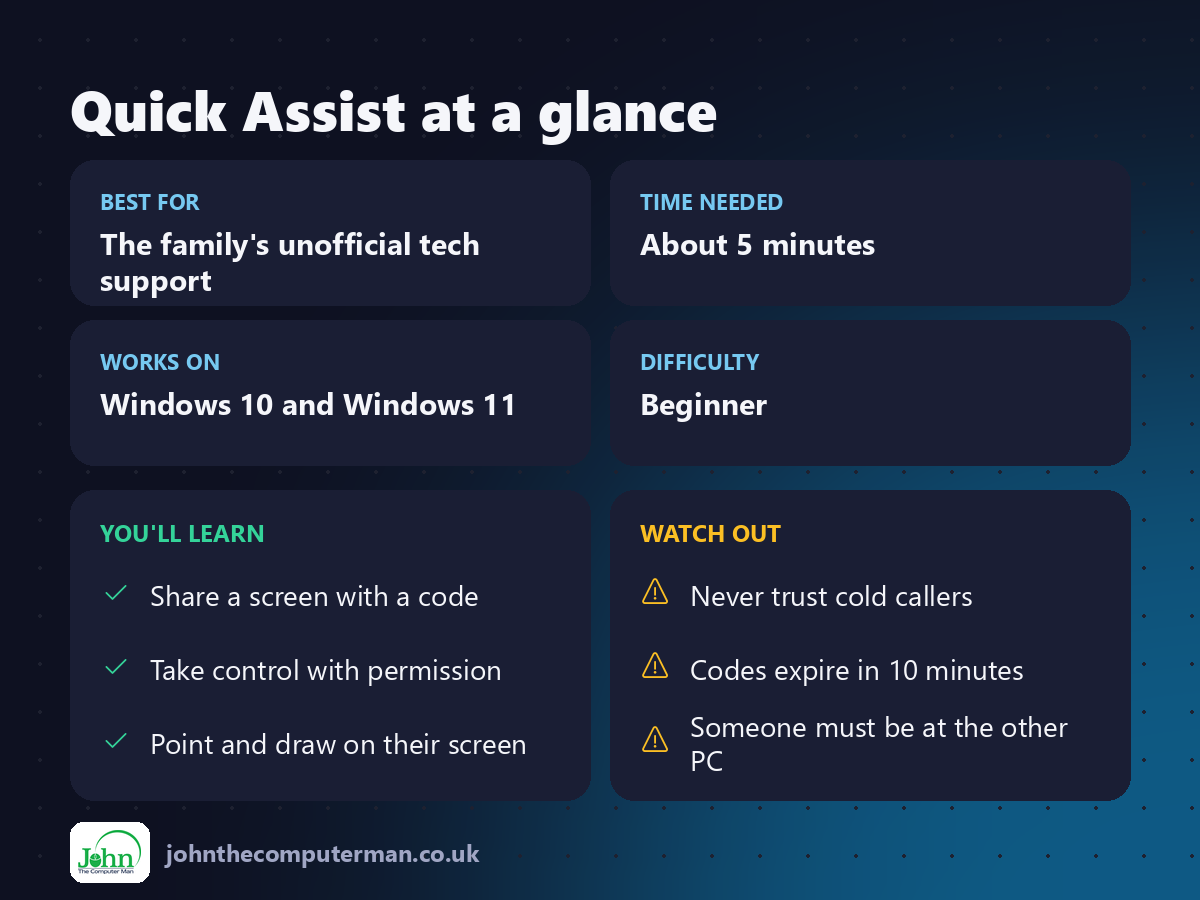
• Both PCs running Windows 10 or 11, with an internet connection.
• The helper needs a Microsoft account. The person being helped doesn't need to sign in.
• A phone call or video call at the same time helps a lot.
• The helper needs a Microsoft account. The person being helped doesn't need to sign in.
• A phone call or video call at the same time helps a lot.
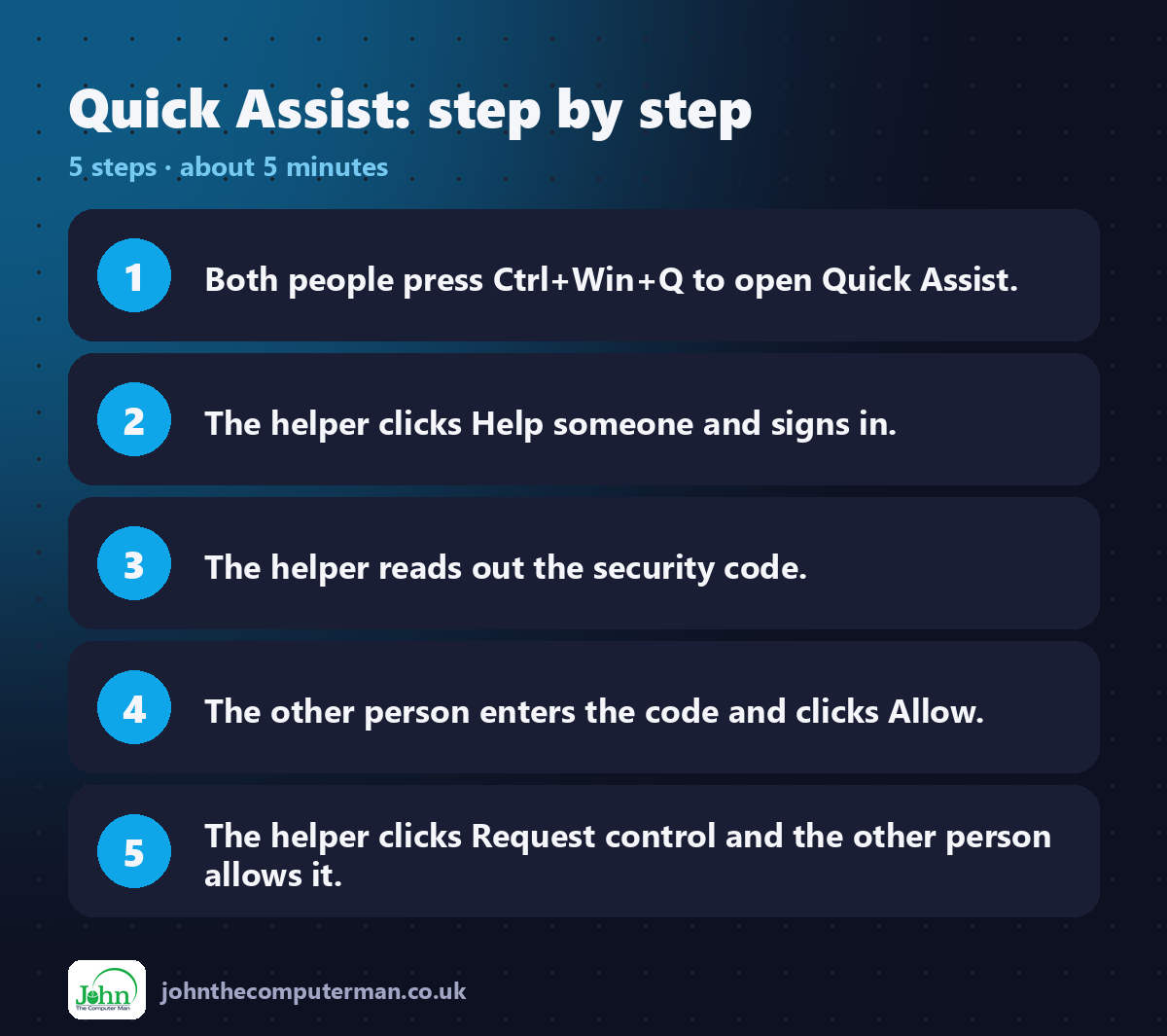
1. Both people: open Quick Assist
Press Ctrl + Win + Q, or click Start and search for Quick Assist.
2. Helper: get a security code
1. Under Help someone, click Help someone.
2. Sign in with your Microsoft account.
3. You'll get a security code. It's valid for 10 minutes.
4. Read the code to the other person over the phone.
2. Sign in with your Microsoft account.
3. You'll get a security code. It's valid for 10 minutes.
4. Read the code to the other person over the phone.
3. Person being helped: enter the code
1. Under Get help, type the security code.
2. Click Submit.
3. Check the helper's name is correct, then click Allow to share the screen.
2. Click Submit.
3. Check the helper's name is correct, then click Allow to share the screen.
The helper can now see the screen, but can't control anything yet.
4. Helper: request control
1. Click Request control at the top.
2. The other person clicks Allow.
2. The other person clicks Allow.
You can now use their mouse and keyboard as if you were sitting there.
5. Useful tools while you're connected
• Laser pointer and annotation: point at or draw on their screen to show where to click, without taking control.
• Chat: type messages to each other.
• Pause: the person being helped can pause sharing at any time.
• Chat: type messages to each other.
• Pause: the person being helped can pause sharing at any time.
6. End the session
Either person can click Leave or simply close Quick Assist. The connection ends immediately, and the code can't be reused.
⚠️ Stay safe: the Quick Assist scam
Scammers love remote-access tools. Share these rules with the person you help:
• Never enter a code from someone who phoned you unexpectedly, even if they say they're from Microsoft, your bank or your broadband provider. Microsoft will never ring you about a problem with your PC.
• Only use Quick Assist with someone you know, when you asked for the help.
• If anything feels wrong, close Quick Assist or turn the PC off.
• Only use Quick Assist with someone you know, when you asked for the help.
• If anything feels wrong, close Quick Assist or turn the PC off.
Quick recap
Frequently asked questions
Can I connect when nobody is at the other PC? No. Someone must be there to enter the code and click Allow every time. That's a safety feature.
The helper can't click on admin prompts. Why? Windows hides security prompts from remote helpers. The person at the PC needs to click Yes themselves.

John The Computer Man: plain-English computer help. 🌐 johnthecomputerman.co.uk · 📸 Instagram @johnthecomputerman
