How to Install Apps Safely on Windows 11 (and Avoid Fake Downloads)
A lot of malware gets onto PCs the same way: someone searches for a free app, clicks the wrong "Download" button, and installs something nasty along with it.
The good news is that installing apps safely is easy once you know where to look. Here are the three safest ways, in order.
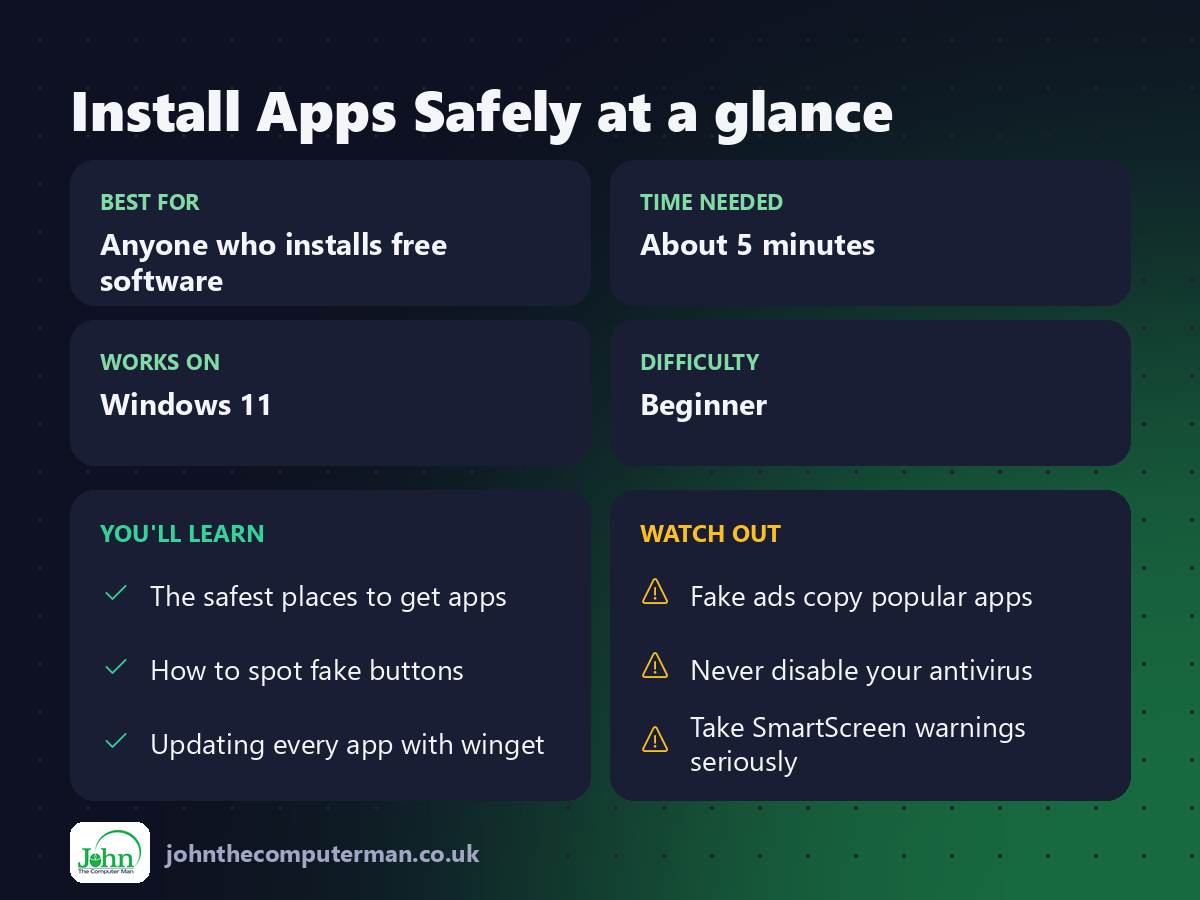
1. Use the Microsoft Store first
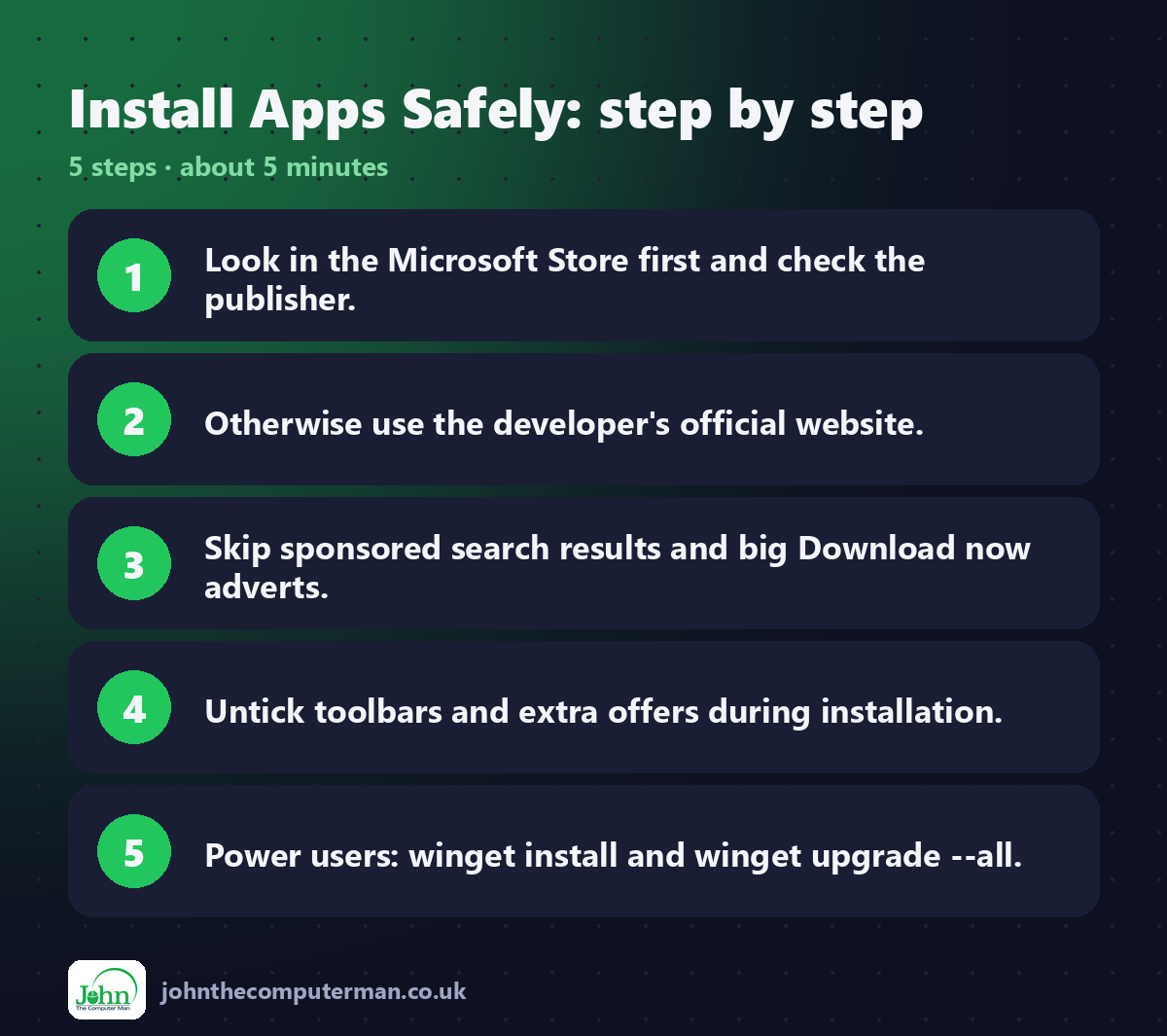
The Microsoft Store is built into Windows 11, and apps there are checked by Microsoft. Many popular free apps are available, including VLC, Spotify, WhatsApp, Zoom, iTunes and Firefox.
1. Click Start and open Microsoft Store.
2. Search for the app.
3. Check the publisher name is the real developer (e.g. VideoLAN for VLC).
4. Click Get or Install.
2. Search for the app.
3. Check the publisher name is the real developer (e.g. VideoLAN for VLC).
4. Click Get or Install.
Store apps also update themselves automatically.
2. Otherwise, go to the official website
If an app isn't in the Store, download it from the developer's own website, not a download site.
How to spot the real site:
• Look for the official site in search results, and skip the "Sponsored" results at the top. Fake ads for popular apps are common.
• Check the web address carefully, e.g. videolan.org, not vlc-download-free.com.
• If in doubt, find the link on the app's Wikipedia page.
• Check the web address carefully, e.g. videolan.org, not vlc-download-free.com.
• If in doubt, find the link on the app's Wikipedia page.
On the download page:
• Ignore big flashing "Download now" adverts. The real link is usually smaller and names the app and version.
• During installation, untick extra offers such as browser toolbars, "PC optimisers" and other antivirus trials.
• During installation, untick extra offers such as browser toolbars, "PC optimisers" and other antivirus trials.
3. For power users: winget
Windows 11 includes winget, a command-line tool that installs apps straight from trusted sources.
1. Right-click Start and choose Terminal.
2. Search for an app:
2. Search for an app:
winget search vlc
3. Install it using the Id from the results:
winget install VideoLAN.VLC
4. Bonus: update all your apps in one go:
winget upgrade --all
Red flags: stop and don't install
• The site asks you to disable your antivirus first.
• A pop-up says your PC is infected and you must download a "cleaner".
• The download is called something like Setup_VLC_Free_Crack.exe, or is a .zip containing an .exe with a different name.
• Windows Security or SmartScreen shows a warning. Don't click Run anyway unless you're sure.
• A pop-up says your PC is infected and you must download a "cleaner".
• The download is called something like Setup_VLC_Free_Crack.exe, or is a .zip containing an .exe with a different name.
• Windows Security or SmartScreen shows a warning. Don't click Run anyway unless you're sure.
Quick recap
Frequently asked questions
Are download sites like Softonic safe? Some are better than others, but many wrap apps in their own installers with extra offers. The developer's site or the Microsoft Store is always the safer choice.
What does "Windows protected your PC" mean? That's SmartScreen. It warns you about apps that aren't widely known. It's not always malware, but if you weren't expecting the warning, don't run the file.

John The Computer Man: plain-English computer help. 🌐 johnthecomputerman.co.uk · 📸 Instagram @johnthecomputerman
