How to Record Your Screen in Windows 11 (No Extra Software)
Sometimes it's easier to show than to explain. You might want to record a how-to for a colleague, capture an error as it happens, or show a relative where to click. Windows 11 has three free ways to record your screen, and you don't need to install anything.
Which one should I use?
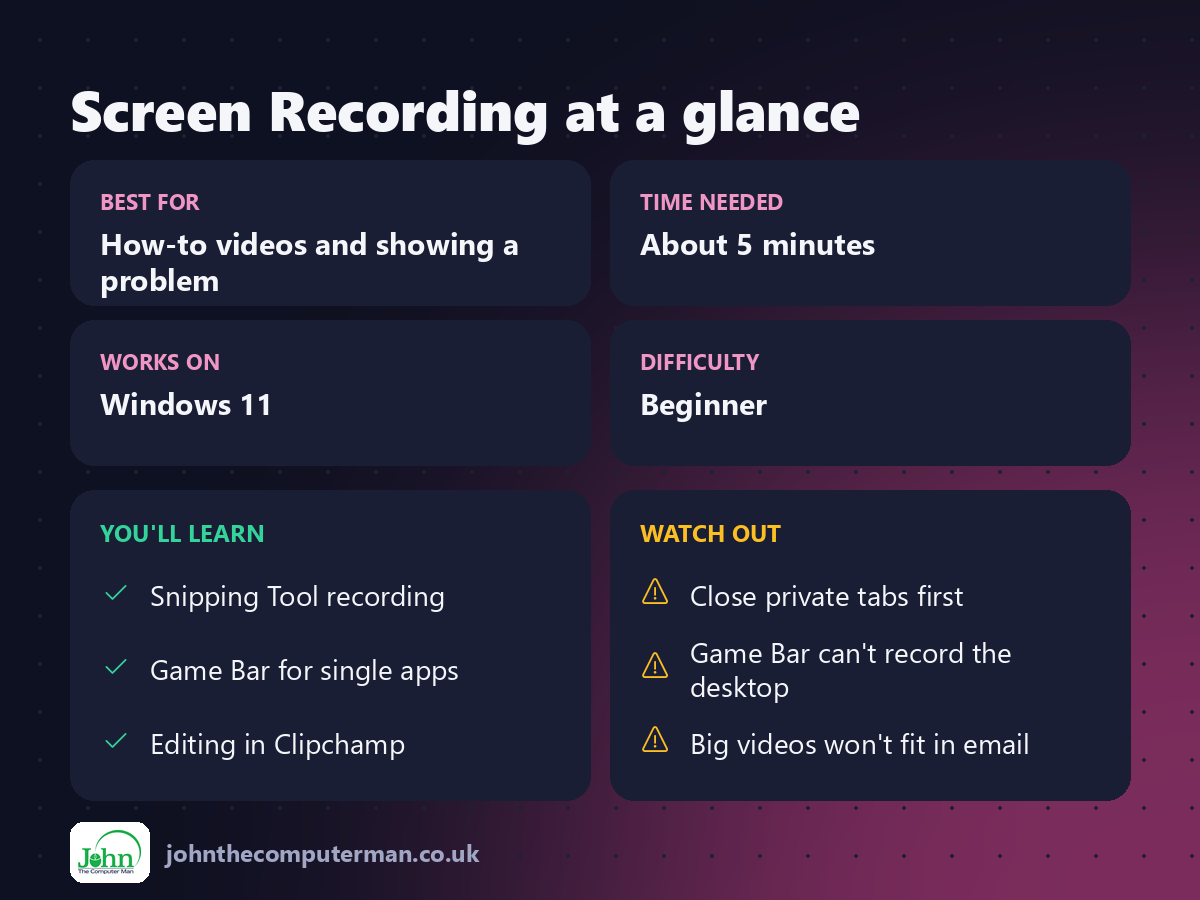
Tool | Best for | Shortcut
Snipping Tool | Recording part of the screen, quickly | Win + Shift + R
Xbox Game Bar | Recording one app or game | Win + Alt + R
Clipchamp | Recording and then editing | Start menu
Snipping Tool | Recording part of the screen, quickly | Win + Shift + R
Xbox Game Bar | Recording one app or game | Win + Alt + R
Clipchamp | Recording and then editing | Start menu
Method 1: Snipping Tool (easiest)
1. Start a recording
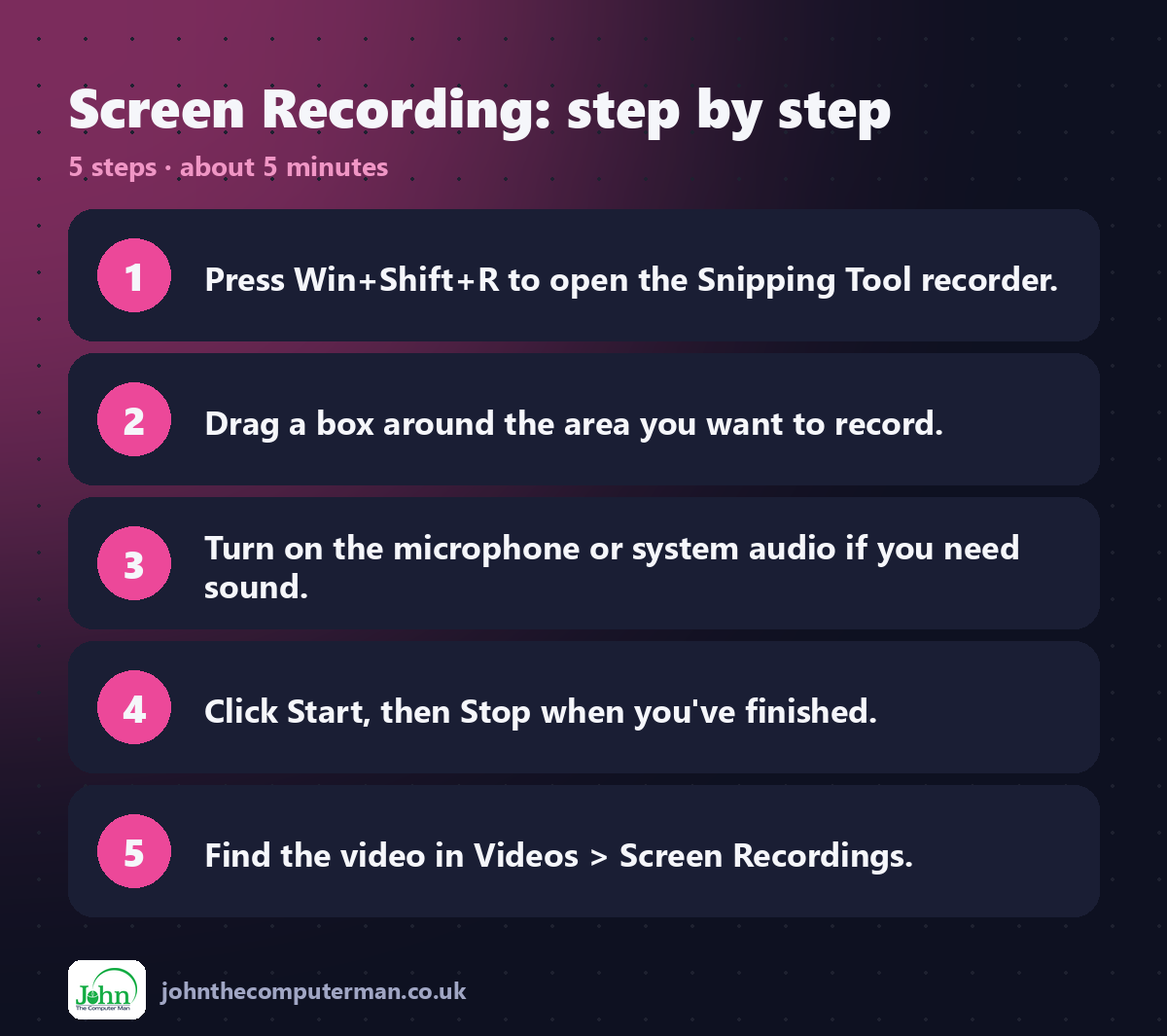
1. Press Win + Shift + R.
2. Drag a box around the area you want to record.
3. Click Start. Recording begins after a 3-second countdown.
2. Drag a box around the area you want to record.
3. Click Start. Recording begins after a 3-second countdown.
2. Choose your sound
Before you click Start, use the buttons on the recording bar to turn on:
• the microphone, to record your voice
• system audio, to record sound from your PC
• system audio, to record sound from your PC
3. Stop and save
Click Stop. The video opens in Snipping Tool, where you can play it back and click Save. Recordings are also saved automatically as MP4 files in Videos → Screen Recordings.
Method 2: Xbox Game Bar (one app at a time)
Game Bar records a single app window. It works in most apps, not just games.
1. Click the app you want to record.
2. Press Win + Alt + R to start.
3. Press Win + Alt + R again to stop.
2. Press Win + Alt + R to start.
3. Press Win + Alt + R again to stop.
Recordings are saved in Videos → Captures. Press Win + G to open the full Game Bar and turn your microphone on or off.
Limitation: Game Bar can't record the desktop or File Explorer. Use the Snipping Tool for those.
Method 3: Clipchamp (record and edit)
Clipchamp is Microsoft's video editor, included with Windows 11.
1. Open Clipchamp from the Start menu.
2. Create a new video and choose Record & create → Screen (or Screen and camera to include your webcam).
3. Record, then trim, add text and export.
2. Create a new video and choose Record & create → Screen (or Screen and camera to include your webcam).
3. Record, then trim, add text and export.
The free plan exports in 1080p.
Tips for a good recording
• Close anything private first, such as email, chats and banking tabs.
• Turn on Do not disturb (Win + N, then the bell) so pop-ups don't appear.
• Make text bigger with Ctrl + Plus so viewers can read it.
• Keep it short. A one-minute video is easier to send and watch.
• Turn on Do not disturb (Win + N, then the bell) so pop-ups don't appear.
• Make text bigger with Ctrl + Plus so viewers can read it.
• Keep it short. A one-minute video is easier to send and watch.
Quick recap
Frequently asked questions
How do I send a big recording to someone? Upload it to OneDrive and share the link. Most email services limit attachments to about 25 MB.
Can I record the whole screen? Yes. In the Snipping Tool, drag the box across the entire screen.

John The Computer Man: plain-English computer help. 🌐 johnthecomputerman.co.uk · 📸 Instagram @johnthecomputerman
