Sleep, Hibernate or Shut Down? Power Settings in Windows 11 Explained
Should you shut your laptop down every night or just close the lid? Why does the screen go dark after two minutes? And why does IT support always say "restart it" instead of "shut it down"?
This guide explains the options and shows you where to change them.
1. Sleep, hibernate and shut down: what's the difference?
Option | What it does | Use it when
Sleep | Pauses everything and uses a tiny amount of power. Wakes in seconds. | You're stepping away for minutes or hours
Hibernate | Saves your open work to the drive and turns off completely. Uses no power. | You won't use a laptop for a day or more
Shut down | Closes everything and turns off. | You're finished, or travelling
Restart | Closes everything and starts Windows completely fresh. | Something is misbehaving, or after updates
Sleep | Pauses everything and uses a tiny amount of power. Wakes in seconds. | You're stepping away for minutes or hours
Hibernate | Saves your open work to the drive and turns off completely. Uses no power. | You won't use a laptop for a day or more
Shut down | Closes everything and turns off. | You're finished, or travelling
Restart | Closes everything and starts Windows completely fresh. | Something is misbehaving, or after updates
2. Change when the screen turns off and the PC sleeps
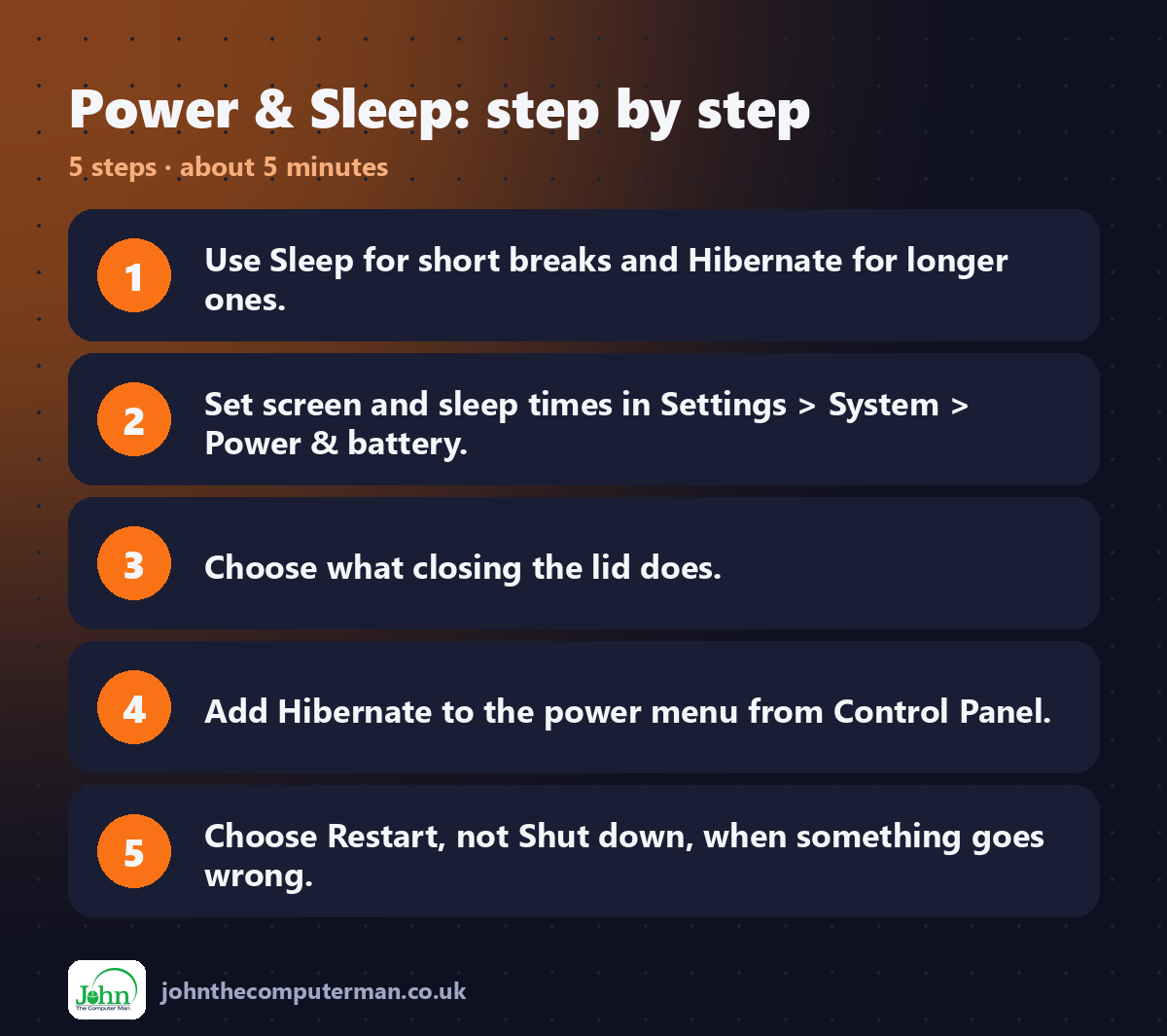
1. Go to Settings → System → Power & battery (or Power on a desktop).
2. Expand Screen, sleep & hibernate timeouts.
3. Set separate times for plugged in and on battery.
2. Expand Screen, sleep & hibernate timeouts.
3. Set separate times for plugged in and on battery.
Good starting points on battery are screen off after 5 minutes and sleep after 10 to 15 minutes.
3. Choose what closing the lid does
1. In Power & battery, expand Lid, power & sleep button controls.
2. Choose what happens when you close the lid or press the power button: Sleep, Hibernate, Shut down or Do nothing.
2. Choose what happens when you close the lid or press the power button: Sleep, Hibernate, Shut down or Do nothing.
If you can't see this in Settings, open Control Panel → Hardware and Sound → Power Options → Choose what closing the lid does.
Using a laptop with an external monitor? Set Closing the lid (plugged in) to Do nothing so it keeps running with the lid shut.
4. Add Hibernate to the power menu
Hibernate is often hidden.
1. Open Control Panel → Hardware and Sound → Power Options.
2. Click Choose what the power buttons do.
3. Click Change settings that are currently unavailable.
4. Tick Hibernate and click Save changes.
2. Click Choose what the power buttons do.
3. Click Change settings that are currently unavailable.
4. Tick Hibernate and click Save changes.
It now appears under Start → Power.
5. Why "restart" fixes more than "shut down"
Windows uses a feature called Fast Startup. When you choose Shut down, it saves part of the system to the drive so it can start more quickly next time. That means some problems survive a shut down.
Restart doesn't use Fast Startup, so it gives Windows a completely fresh start. That's why it's the first thing to try when something goes wrong.
To turn Fast Startup off, follow step 4 and untick Turn on fast startup.
6. Stop your PC waking by itself
If your PC wakes in the night, a device is usually responsible.
1. Press Win + X and choose Device Manager.
2. Expand Mice and other pointing devices (or Network adapters).
3. Double-click the device, open Power Management and untick Allow this device to wake the computer.
2. Expand Mice and other pointing devices (or Network adapters).
3. Double-click the device, open Power Management and untick Allow this device to wake the computer.
Quick recap
Frequently asked questions
Is it bad to leave my PC asleep all the time? No. Sleep is safe and uses very little power. Just restart once a week or so, to clear things out and finish updates.
How do I lock my PC without sleeping it? Press Win + L.
Related: Speed Up a Slow PC · Set Up a Second Monitor

John The Computer Man: plain-English computer help. 🌐 johnthecomputerman.co.uk · 📸 Instagram @johnthecomputerman
