
Some of the most useful Windows features aren’t built into Windows at all. Microsoft ships them separately, for free, in an app called PowerToys.
It adds more than twenty small utilities: snap windows into custom layouts, copy text out of a screenshot, rename hundreds of files at once, keep a window on top, and launch anything from the keyboard. You switch on the ones you want and ignore the rest.
What is PowerToys?
PowerToys is a free, open-source collection of utilities for Windows 10 and 11, made by Microsoft and developed in the open on GitHub. Highlights include FancyZones (custom window layouts), Text Extractor (copy text from anything on screen), Command Palette (a keyboard launcher), PowerRename, Image Resizer, Color Picker, Always On Top and Peek. Each utility can be switched on or off in the PowerToys settings.
Key features
FancyZones window layouts
Design your own screen layout, then hold Shift while dragging a window to drop it into a zone. Brilliant on wide or ultrawide monitors.
Copy text from anything
Press Win+Shift+T, drag a box over any text on screen (a video, image or locked PDF) and it lands on your clipboard.
Command Palette launcher
Press Win+Alt+Space to search apps, files, settings and calculations from one box, without touching the mouse.
How to get started with PowerToys
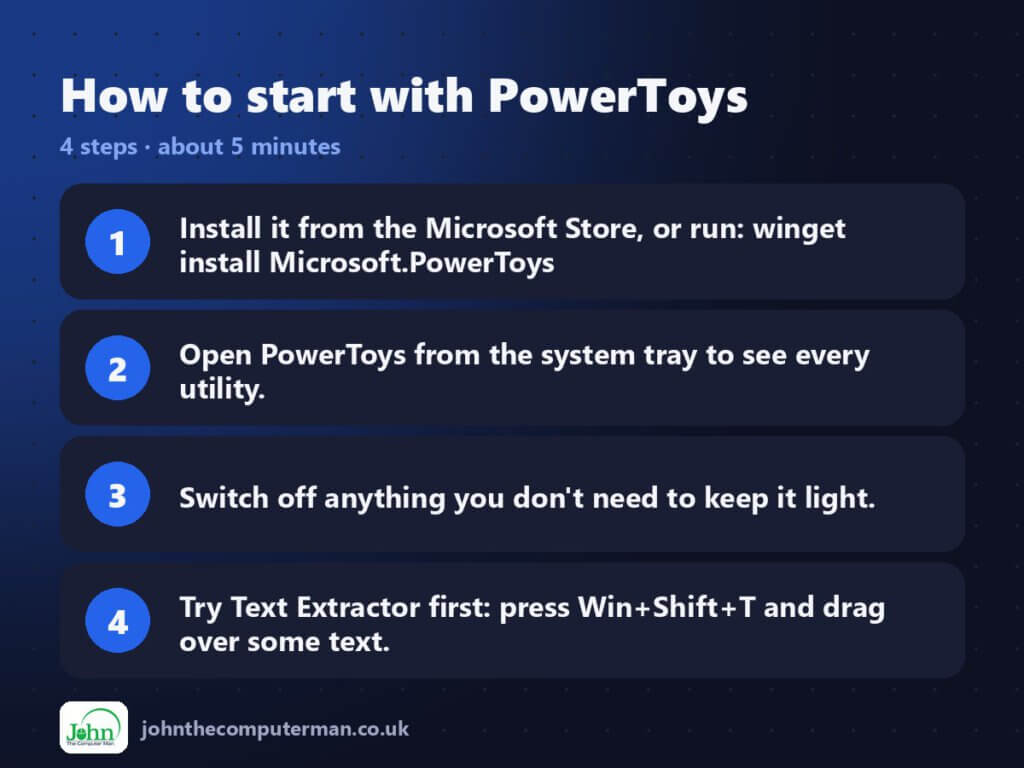
- Install it from the Microsoft Store, or run: winget install Microsoft.PowerToys
- Open PowerToys from the system tray to see every utility.
- Switch off anything you don’t need to keep it light.
- Try Text Extractor first: press Win+Shift+T and drag over some text.
Prefer the command line? Install it with winget, which is built into Windows 10 and 11:
winget install --id Microsoft.PowerToys -e
Tips to get more out of it
- Win+Ctrl+T pins the current window on top of everything else. Great for a calculator or video call.
- Right-click a batch of files and choose Rename with PowerRename to rename them all using find and replace.
- Select images in File Explorer, right-click and pick Resize with Image Resizer to shrink them in one go.
- Win+Shift+C opens Color Picker, which copies the HEX code of any colour on screen.
Is it really free?
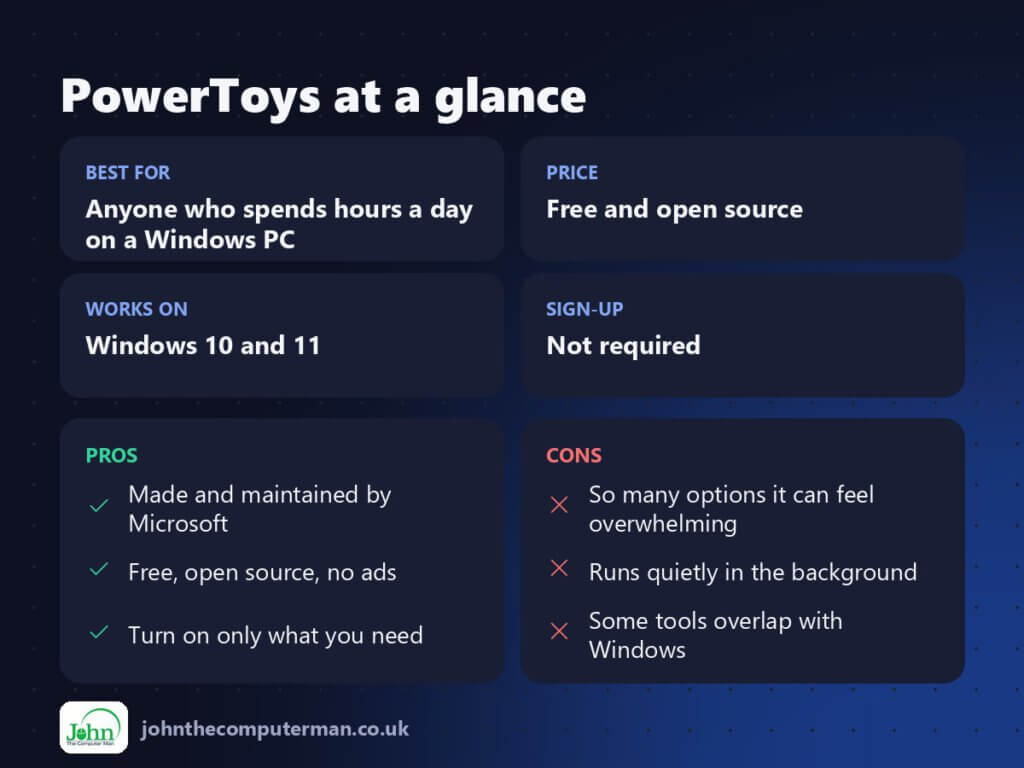
Free and open source. No ads, no account and no paid version.
Pros and cons
| 👍 Pros | 👎 Cons |
|---|---|
| Made and maintained by Microsoft | So many options it can feel overwhelming |
| Free, open source, no ads | Runs quietly in the background |
| Turn on only what you need | Some tools overlap with Windows |
Who is it for?
Best for: Anyone who spends hours a day on a Windows PC.
Works on: Windows 10 and 11.
Sign-up: Not required.
PowerToys alternatives
- Flow Launcher: a free, open-source keyboard launcher with lots of plugins.
- Windows Snap Layouts: built in to Windows 11, simpler but less flexible than FancyZones.
- AutoHotkey: free scripting for power users who want to build their own shortcuts.
FAQ
Is PowerToys safe?
Yes. It’s made by Microsoft, the code is public on GitHub, and it’s available in the Microsoft Store.
Will PowerToys slow my PC down?
Not noticeably on most PCs. If you’re worried, switch off the utilities you don’t use and they stop running.
The verdict
PowerToys is the first thing to install on a new Windows PC. It’s free, it comes from Microsoft, and at least one of its tools will save you time every single day.
👉 Try it: learn.microsoft.com/windows/powertoys/
Part of the best free windows tools series on johnthecomputerman.co.uk. Follow @johnthecomputerman on Instagram for a new free tool every Monday, Wednesday and Friday. Pricing and features were checked in September 2026 and can change, so check the tool’s own site for the latest.
