
If you’ve switched from Windows, one of the first things you miss is dragging a window to the side of the screen and having it snap neatly into half. On a Mac you end up resizing windows by hand, again and again.
Rectangle fixes that. One shortcut sends a window to the left half, right half, a third, a corner or full screen. It’s free, open source, and takes about a minute to set up.
What is Rectangle?
Rectangle is a free, open-source window manager for macOS. It lets you move and resize windows using keyboard shortcuts or by dragging them to the edges of the screen, and supports halves, thirds, quarters, maximise, centre and moving windows between displays. It’s based on the older Spectacle app and is actively maintained on GitHub. A paid Rectangle Pro exists, but the free version covers everything most people need.
Key features
One-key window layouts
Control+Option+Left arrow snaps a window to the left half. Right arrow for the right half, Return to fill the screen.
Drag to snap
Drag a window to a screen edge or corner and it snaps into place, just like on Windows.
Thirds, quarters and more
Control+Option+D, F and G give you thirds, perfect for three apps side by side on a big monitor.
How to get started with Rectangle
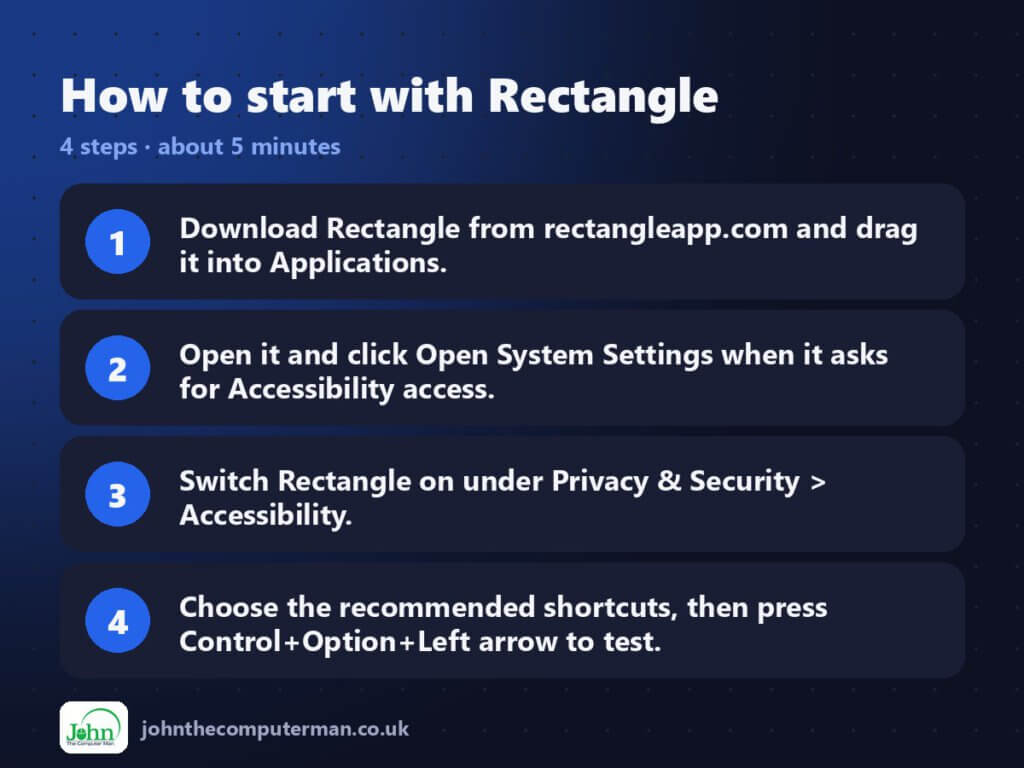
- Download Rectangle from rectangleapp.com and drag it into Applications.
- Open it and click Open System Settings when it asks for Accessibility access.
- Switch Rectangle on under Privacy & Security > Accessibility.
- Choose the recommended shortcuts, then press Control+Option+Left arrow to test.
Prefer the command line? If you use Homebrew, the free package manager for Mac, open Terminal and run:
brew install --cask rectangle
Tips to get more out of it
- Press the same half shortcut again to cycle the window through different widths.
- Control+Option+C centres a window without resizing it, and Control+Option+Delete puts it back how it was.
- If you use macOS’s own tiling as well, turn one off in System Settings > Desktop & Dock so they don’t fight over the screen edges.
- Tick ‘Launch on login’ in Rectangle’s settings so your shortcuts are always ready.
Is it really free?
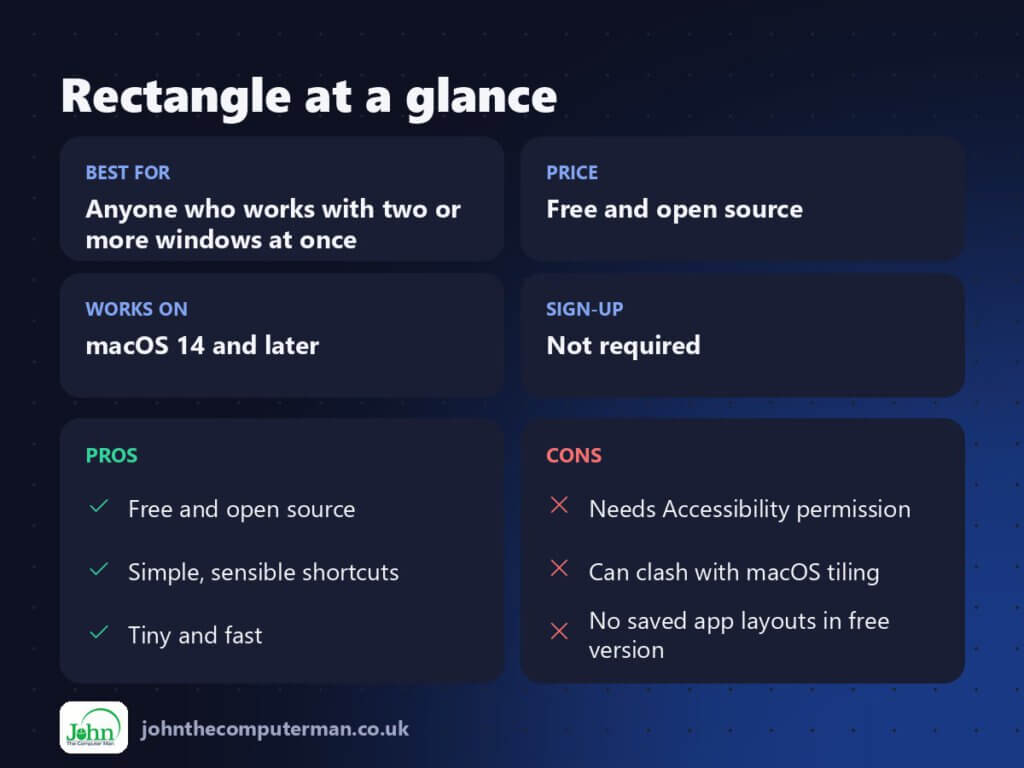
Free and open source. A paid Rectangle Pro adds extras, but you don’t need it.
Pros and cons
| 👍 Pros | 👎 Cons |
|---|---|
| Free and open source | Needs Accessibility permission |
| Simple, sensible shortcuts | Can clash with macOS tiling |
| Tiny and fast | No saved app layouts in free version |
Who is it for?
Best for: Anyone who works with two or more windows at once.
Works on: macOS 14 (Sonoma) and later.
Sign-up: Not required.
Rectangle alternatives
- macOS window tiling: built in since macOS Sequoia: drag to an edge or use the Window menu, but with fewer options.
- Magnet: a popular paid alternative on the Mac App Store.
- Raycast: a free launcher that also includes window management commands.
FAQ
Is Rectangle safe?
Yes. It’s open source, the code is public on GitHub, and it only needs Accessibility access so it can move windows.
Do I still need Rectangle now macOS has tiling?
Apple’s tiling covers the basics. Rectangle adds thirds, more shortcuts and finer control, so it’s still worth it if you snap windows a lot.
Step-by-step tutorials
The verdict
Rectangle is the first app I install on any Mac. It’s free, it just works, and once your fingers learn the shortcuts you’ll never drag a window corner again.
👉 Try it: rectangleapp.com
Part of the best free mac tools series on johnthecomputerman.co.uk. Follow @johnthecomputerman on Instagram for a new free Mac tool every Monday, Wednesday and Friday. Pricing and features were checked in September 2026 and can change, so check the tool’s own site for the latest.
