If you are finding that your phone is having difficulty performing updates, or your apps have been offloaded, then you are running out of storage space on your phone. You can see if removing duplicate photos are getting rid of screenshots can help. I will also help with WhatsApp and the data that uses in this post too.
Removing Duplicates
In iPhone's Photos app, there is a utility that merges duplicates
Open Photos app, click on Collections at the bottom
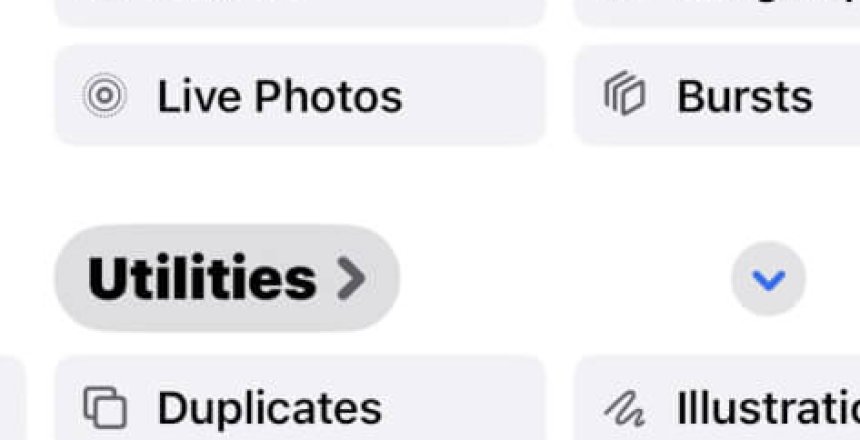
Scroll down the Collections page to Utilities
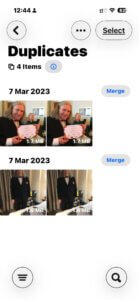
Click on Duplicates under Utilities
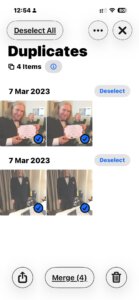
I have 4 duplicates, click on Select at the top, then Select All
Press Merge to merge the duplicates
There is a similar feature on the Mac that can remove duplicate photos in the same location in the Photos app.
Removing Screenshots and other photos
In Media Types above Utilities, you will find a set of categories:
Videos – Shows all video only content
Selfies – Photos you have taken of yourself
Live Photos – These are photos that have a bit of movement captured in them
Portrait – These are photos captured in with the phone in portrait mode, as opposed to landscape.
Long exposure – Photos where the shutter is kept open to take a steady shot of a moving object.
Bursts – This is when you hold the shutter button (or the volume button) down to take a series of photos in one go.
Screenshots – When you press the power button and home button together, or power button and volume up together, you capture the screen.
These categories group content together so that it is easier to delete the photos you don’t want or need.
WhatsApp
Open WhatsApp and press You in the bottom right corner
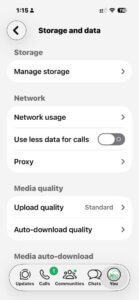
Scroll down to Storage and data
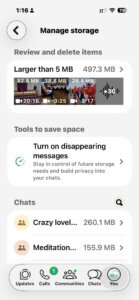
In Storage and data, choose Manage storage
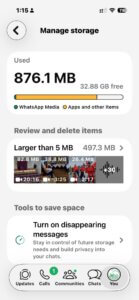
You can see the amount of storage your photos and videos are taking up
From within WhatsApp, you can see what takes up more than 5MB of storage space, and that content is sorted by size with the biggest files first. You can then go through them and delete any you no longer need.
You can also see how much each chat group takes up