

Your Mac opens ZIP files without any help. Then someone sends you a .rar or .7z file, you double-click it, and nothing useful happens.
The Unarchiver fills that gap. It opens pretty much every archive format there is, handles file names in other languages properly, and costs nothing.
What is The Unarchiver?
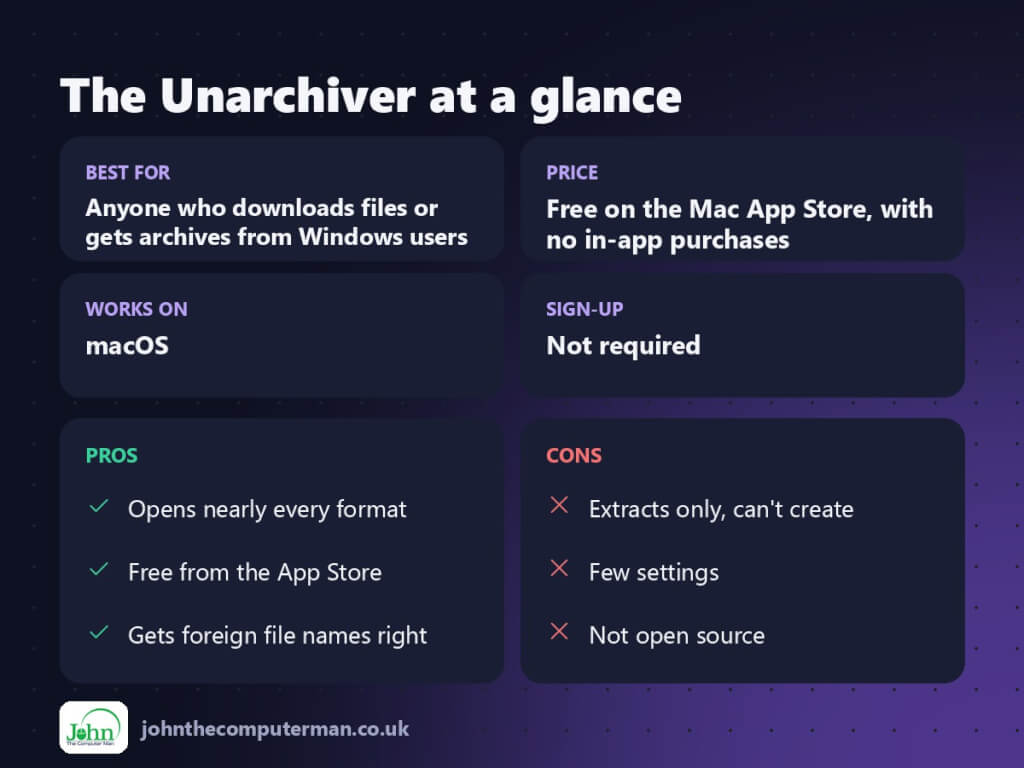
The Unarchiver is a free archive extractor for macOS, made by MacPaw and available on the Mac App Store. It opens RAR, 7z, TAR, GZIP, BZIP2, XZ, ISO, CAB, LZH and many older formats such as StuffIt, and correctly detects foreign-language file names. It only extracts: for creating archives, use Finder’s built-in Compress or an app like Keka.
Key features
Opens almost anything
RAR, 7z, TAR, ISO, CAB and even old StuffIt files. If it’s an archive, it’ll probably open.
Handles foreign file names
Archives made on Windows or in other languages open with their file names intact, not garbled.
Set it and forget it
Make it the default for archives and every one opens with a double-click.
How to get started with The Unarchiver
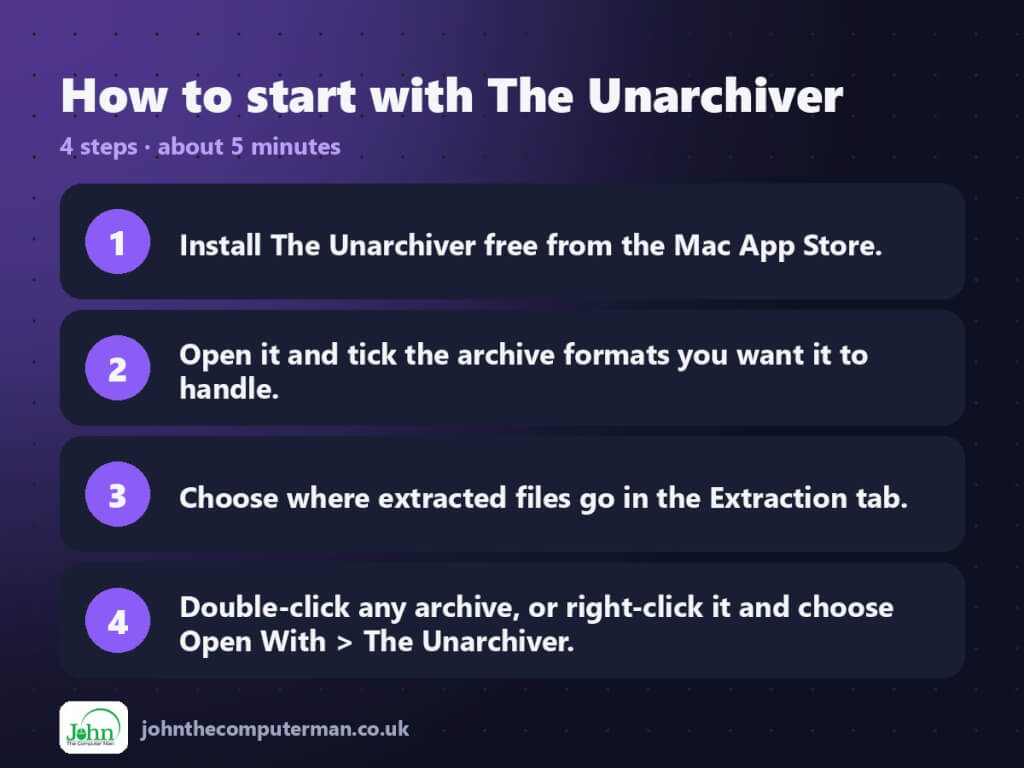
- Install The Unarchiver free from the Mac App Store.
- Open it and tick the archive formats you want it to handle.
- Choose where extracted files go in the Extraction tab.
- Double-click any archive, or right-click it and choose Open With > The Unarchiver.
Prefer the command line? If you use Homebrew, the free package manager for Mac, open Terminal and run:
brew install --cask the-unarchiver
Tips to get more out of it
- In the Extraction tab, tick ‘Move the archive to the Bin’ to tidy up automatically after extracting.
- Split RAR archives (part1, part2 and so on) open fine. Just open the first part.
- Password-protected archives work too. The Unarchiver asks for the password when it needs it.
- To create a ZIP, right-click files in Finder and choose Compress. No extra app needed.
Is it really free?
Free on the Mac App Store, with no in-app purchases.
Pros and cons
| 👍 Pros | 👎 Cons |
|---|---|
| Opens nearly every format | Extracts only, can’t create |
| Free from the App Store | Few settings |
| Gets foreign file names right | Not open source |
Who is it for?
Best for: Anyone who downloads files or gets archives from Windows users. Works on: macOS. Sign-up: Not required.
The Unarchiver alternatives
- Keka: free from its website, and can create 7z and encrypted archives too.
- Archive Utility: built into macOS: handles ZIP and a few others, but not RAR.
- BetterZip: a paid archiver with previews and more control.
FAQ
Is The Unarchiver safe?
Yes. It’s made by MacPaw, a well-known Mac developer, and distributed through the Mac App Store, which Apple checks.
Can The Unarchiver make RAR or 7z files?
No, it only extracts. Use Keka if you need to create 7z or password-protected archives.
The verdict
The Unarchiver is one of those apps every Mac should have. Install it once and you’ll never be stuck with a file you can’t open again.
👉 Try it: theunarchiver.com
Part of the best free mac tools series on johnthecomputerman.co.uk/. Follow @johnthecomputerman on Instagram for a new free Mac tool every Monday, Wednesday and Friday. Pricing and features were checked in September 2026 and can change, so check the tool’s own site for the latest.
