

‘Low disk space’ warnings always arrive at the worst time. Windows’ Storage settings give you rough categories, but not the answer you actually need: which files and folders are eating the space?
WizTree answers that in seconds. It reads your drive’s file table directly, so it can scan a full drive faster than most tools can scan one folder, then draws a map where the biggest blocks are the biggest files.
What is WizTree?
WizTree is a disk space analyser for Windows from Antibody Software. On NTFS drives it reads the Master File Table directly, which lets it scan an entire drive in seconds. Results appear as a folder tree sorted by size, a list of the largest files, a breakdown by file type, and a colourful treemap. It’s free for personal use, and a portable version is available.
Key features
Scans in seconds
Reading the file table directly means even a large, full drive is analysed in a few seconds.
Visual treemap
Every file is a block sized by how much space it uses. The giant blocks jump out immediately.
File type breakdown
See how much space goes on videos, photos, installers or games, then click through to the files themselves.
How to get started with WizTree
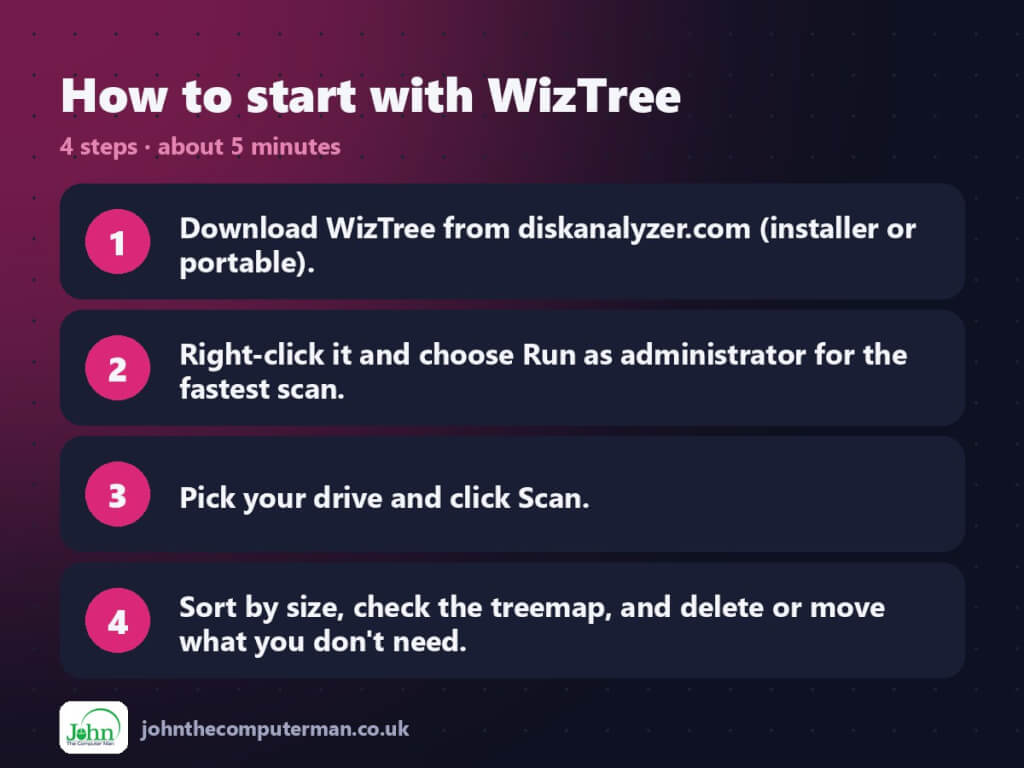
- Download WizTree from diskanalyzer.com (installer or portable).
- Right-click it and choose Run as administrator for the fastest scan.
- Pick your drive and click Scan.
- Sort by size, check the treemap, and delete or move what you don’t need.
Prefer the command line? Install it with winget, which is built into Windows 10 and 11:
winget install --id AntibodySoftware.WizTree -e
Tips to get more out of it
- Run it as administrator. Without admin rights it can’t read the file table and falls back to a much slower scan.
- Check your Downloads folder and old phone backups first. They’re the usual suspects.
- Don’t delete Windows system files such as pagefile.sys or hiberfil.sys. Use Settings > System > Storage > Cleanup recommendations for Windows files.
- Move big videos and photo libraries to an external drive or cloud storage instead of deleting them.
Is it really free?
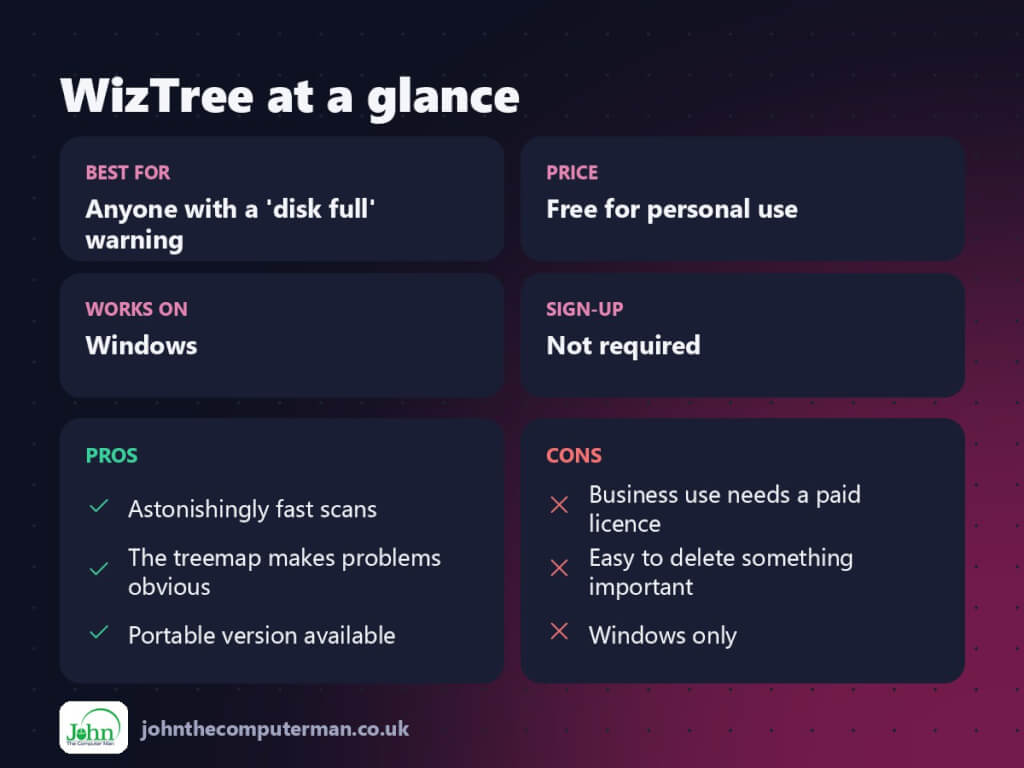
Free for personal use. Businesses need to buy a supporter code licence, and home users can donate if they want to.
Pros and cons
| 👍 Pros | 👎 Cons |
|---|---|
| Astonishingly fast scans | Business use needs a paid licence |
| The treemap makes problems obvious | Easy to delete something important |
| Portable version available | Windows only |
Who is it for?
Best for: Anyone with a ‘disk full’ warning. Works on: Windows. Sign-up: Not required.
WizTree alternatives
- WinDirStat: the free, open-source classic, slower but free for business use too.
- TreeSize Free: a clear folder-size view with a free edition.
- Windows Storage settings: built in, good for temp files and cleanup suggestions.
FAQ
Is WizTree free?
Yes, for personal use. Using it at work requires a supporter code licence from the developer.
Is it safe to delete what WizTree shows?
WizTree only shows you what’s there. Personal files like old downloads and videos are usually fine to remove, but leave anything in Windows or Program Files alone. Uninstall programs properly instead.
The verdict
When your drive fills up, WizTree gives you the answer in seconds rather than guesswork. Just delete carefully, and leave Windows system files to Windows.
👉 Try it: diskanalyzer.com
Part of the best free windows tools series on johnthecomputerman.co.uk/. Follow @johnthecomputerman on Instagram for a new free tool every Monday, Wednesday and Friday. Pricing and features were checked in September 2026 and can change, so check the tool’s own site for the latest.
