
File Explorer is the app you use to find, open and organise your files. You probably use it every day, but most people only scratch the surface. These ten tips will make finding and managing files much quicker.
Open File Explorer with Win + E.
1. Use tabs
Just like a web browser, File Explorer has tabs:
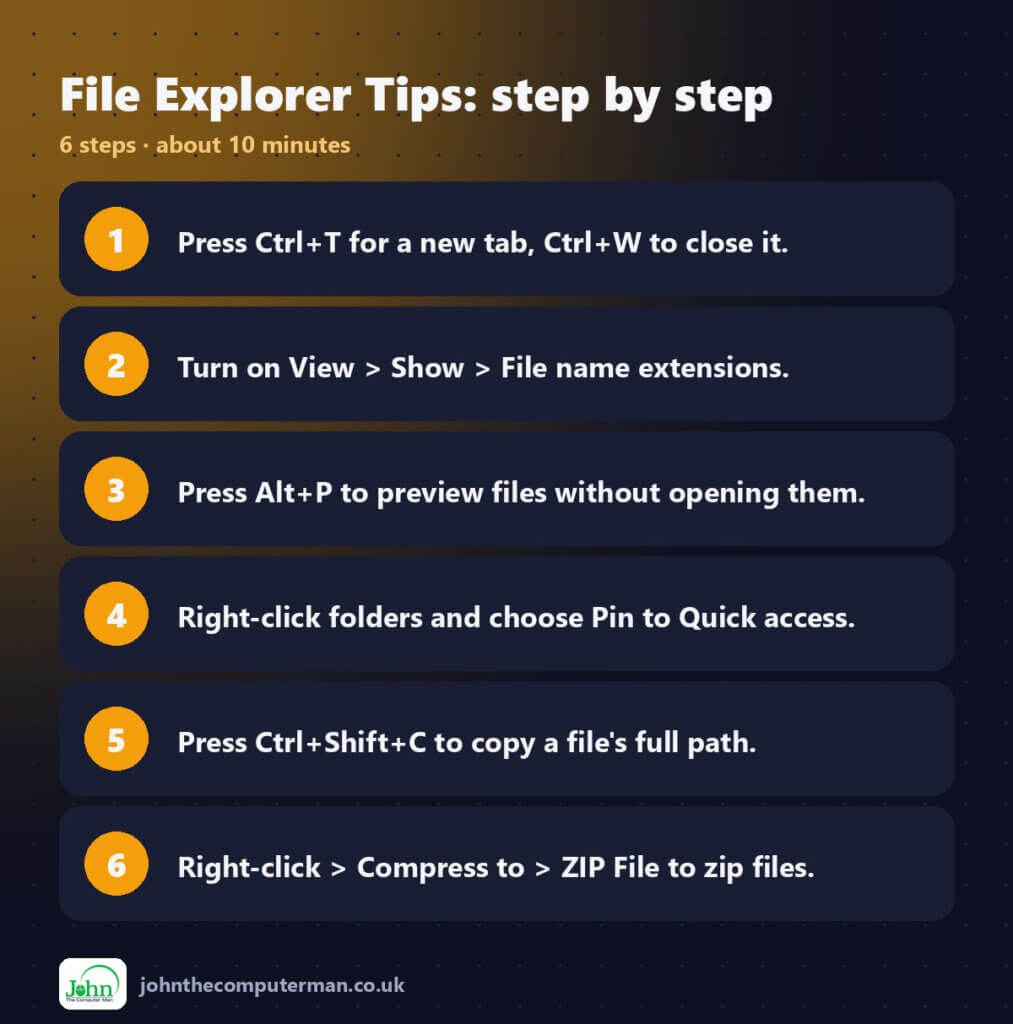
- Ctrl + T opens a new tab.
- Ctrl + W closes the current tab.
- Drag files onto a tab to move them there.
No more juggling several Explorer windows.
2. Show file extensions
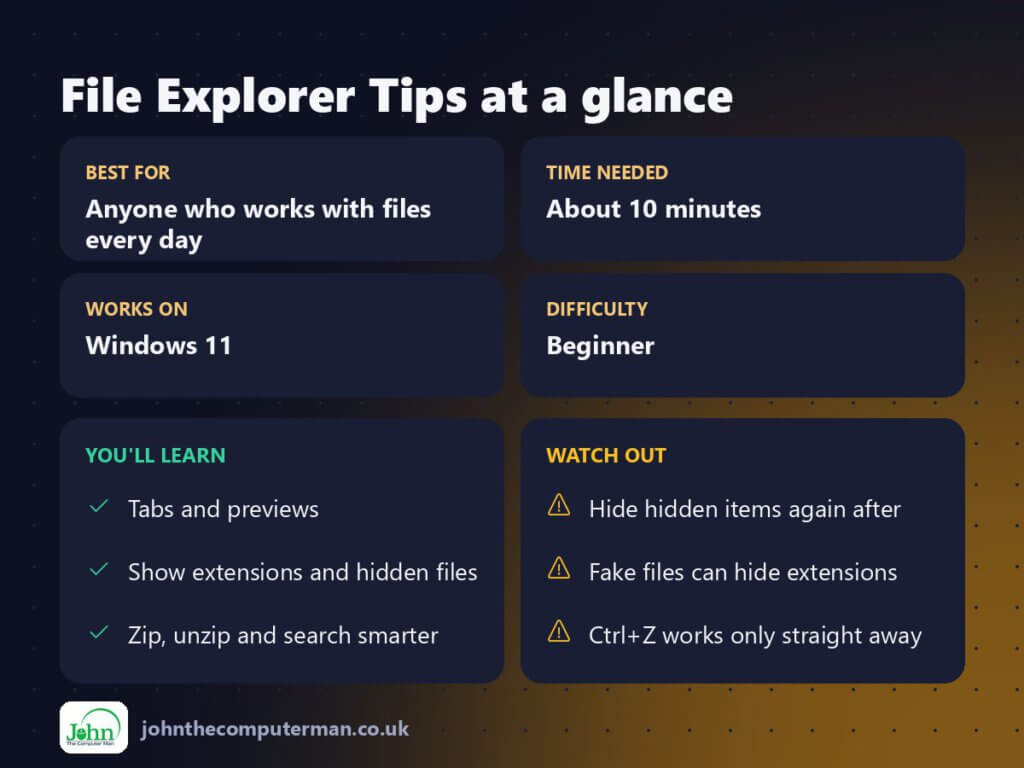
By default, Windows hides the end of file names (the .pdf, .docx or .exe). Showing them helps you spot dodgy files, such as invoice.pdf.exe.
Click View → Show → File name extensions.
3. Show hidden files
Some folders, such as AppData, are hidden. To see them:
Click View → Show → Hidden items.
Turn it off again when you’re done, so you don’t accidentally delete something important.
4. Pin folders to Quick access
Right-click any folder you use often and choose Pin to Quick access. It appears in the left pane and on the Home page, one click away.
5. Open to This PC instead of Home
Prefer to see your drives when you open File Explorer?
- Click ⋯ → Options.
- Set Open File Explorer to as This PC.
- Click OK.
6. Preview files without opening them
Press Alt + P to open the Preview pane. Click a photo, PDF or document and you’ll see it on the right, without opening any app.
Alt + Shift + P opens the Details pane instead, showing size, dates and other information.
7. Zip and unzip files
- To zip: select files, right-click and choose Compress to → ZIP File.
- To unzip: right-click a ZIP file and choose Extract All.
Recent versions of Windows 11 can also open 7z and RAR files without any extra software.
8. Copy a file’s full path
Select a file and press Ctrl + Shift + C, or right-click it and choose Copy as path. This is handy when you need to tell someone exactly where something is, or attach it in a web form.
9. Search smarter
Click the search box in the top-right and try:
*.pdf: all PDFs in this folder and its subfoldersdatemodified:this week: files changed this weeksize:>500MB: files bigger than 500 MB
10. Undo a mistake
Deleted, moved or renamed the wrong file? Press Ctrl + Z straight away to undo it.
Quick recap
Frequently asked questions
Where’s the old ribbon menu? Windows 11 replaced it with a simpler toolbar. Most options are under View, Sort and the ⋯ (See more) button.
Why can’t I find a file I just downloaded? Check the Downloads folder in the left pane, or open your browser’s downloads list with Ctrl + J and click Show in folder.
John The Computer Man: plain-English computer help. 🌐 johnthecomputerman.co.uk · 📸 Instagram @johnthecomputerman
