12 Hidden iPhone Features Worth Switching On Today (Step-by-Step Guides)

12 Hidden iPhone Features Worth Switching On Today (Step-by-Step Guides)

Some of the most useful things your iPhone can do are switched off by default, or buried several menus deep.

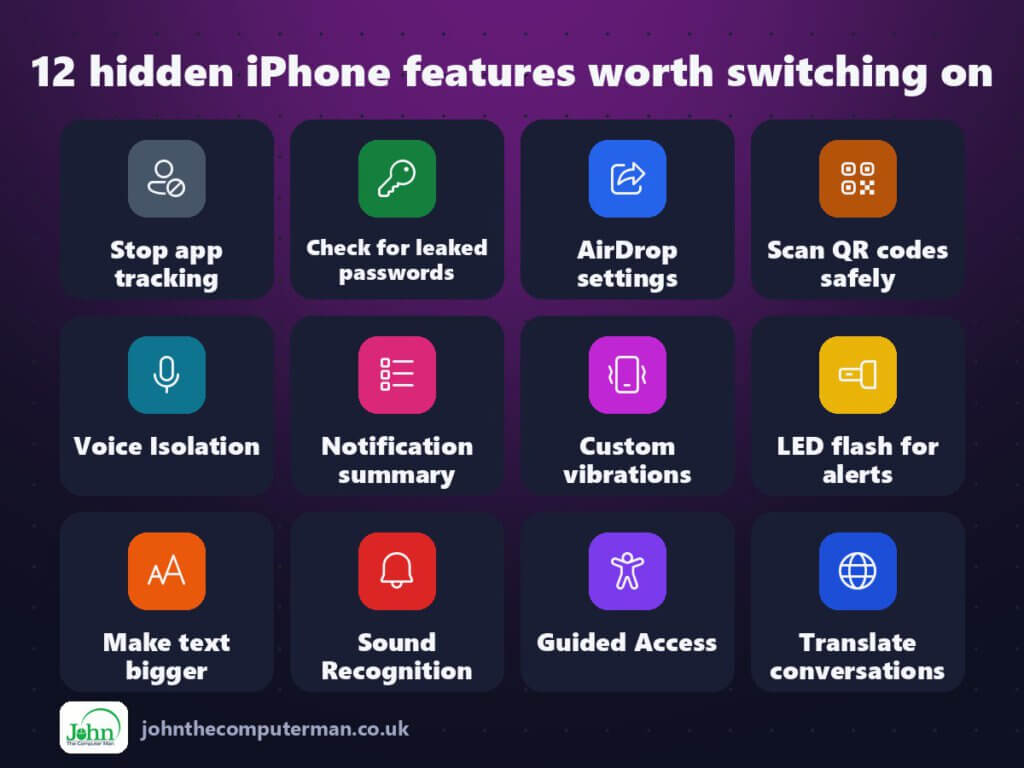
Here are twelve worth finding. They’ll protect your privacy, make calls clearer, make your phone easier to use, and help when you travel. Each has its own step-by-step guide.

All 12 iPhone tricks at a glance

Quick list

TrickWhat it doesWhere to find it
Stop app trackingAsk every app not to track you across other apps and websitesSettings > Privacy & Security > Tracking
Check for leaked passwordsFind leaked, weak and reused passwords and fix themPasswords app > Security > Choose a password
AirDrop settingsControl who can send you files, and stop unwanted AirDropsSettings > General > AirDrop
Scan QR codes safelyScan QR codes with the camera, and spot the scam onesCamera > Point at code > Check the link > Tap to open
Voice IsolationFilter out background noise so callers hear only your voiceDuring a call > Control Centre > Mic Mode > Voice Isolation
Notification summaryBundle non-urgent notifications into a digest at times you chooseSettings > Notifications > Scheduled Summary
Custom vibrationsGive important people their own vibration patternContacts > Choose contact > Edit > Ringtone > Haptics
LED flash for alertsBlink the camera light for calls and notificationsSettings > Accessibility > Audio & Visual > LED Flash for Alerts
Make text biggerMake text bigger and bolder so it’s easier to readSettings > Display & Brightness > Text Size
Sound RecognitionGet a notification when your iPhone hears a doorbell, alarm or babySettings > Accessibility > Sound Recognition
Guided AccessLock your iPhone to a single app so nobody can wander offSettings > Accessibility > Guided Access
Translate conversationsSpeak and hear translations out loud, even offlineTranslate app > Conversation > Pick languages > Tap mic

Privacy and security

1. Stop app tracking

Stop app tracking

Your iPhone can ask every app not to track you, with one switch, so you never have to answer the pop-up again.

Where: Settings > Privacy & Security > Tracking

2. Check for leaked passwords

Check for leaked passwords

Your iPhone securely checks your saved passwords against known leaks, and flags any that are weak or used more than once.

Where: Passwords app > Security > Choose a password

3. AirDrop settings

AirDrop settings

A quick settings change means only people in your contacts can AirDrop you, with a 10-minute window when you need to receive from someone else.

Where: Settings > General > AirDrop

4. Scan QR codes safely

Scan QR codes safely

But scammers stick fake QR codes over real ones to steal card details. A two-second check keeps you safe.

Where: Camera > Point at code > Check the link > Tap to open

Calls and notifications

5. Voice Isolation

Voice Isolation

Voice Isolation uses your iPhone’s processing to filter out background noise and put your voice front and centre.

Where: During a call > Control Centre > Mic Mode > Voice Isolation

6. Notification summary

Notification summary

Scheduled Summary collects the non-urgent ones and delivers them together at times you choose, like 8am and 6pm.

Where: Settings > Notifications > Scheduled Summary

7. Custom vibrations

Custom vibrations

You can give anyone in your contacts their own vibration pattern, so you know who it is just from the feel.

Where: Contacts > Choose contact > Edit > Ringtone > Haptics

8. LED flash for alerts

LED flash for alerts

LED Flash for Alerts makes the light on the back of your iPhone blink when a call or notification comes in. You’ll see it from across the room.

Where: Settings > Accessibility > Audio & Visual > LED Flash for Alerts

Easier to use, for everyone

9. Make text bigger

Make text bigger

Your iPhone can make text bigger and bolder across the whole phone. It takes a few seconds and makes a real difference.

Where: Settings > Display & Brightness > Text Size

10. Sound Recognition

Sound Recognition

Sound Recognition lets your iPhone listen for specific sounds and send you a notification when it hears one.

Where: Settings > Accessibility > Sound Recognition

11. Guided Access

Guided Access

Guided Access

Guided Access locks your iPhone to one app until you enter a passcode. You can even disable parts of the screen.

Where: Settings > Accessibility > Guided Access

Travel

12. Translate conversations

Translate conversations

The Translate app, built into your iPhone, can translate a back-and-forth conversation out loud, and works offline if you download the languages.

Where: Translate app > Conversation > Pick languages > Tap mic

Where to start

Start with privacy: turn off app tracking and check your passwords for leaks. Those two take ten minutes and protect you every day. Then set AirDrop to Contacts Only before your next train journey.

More in this series: 12 iPhone Tricks Everyone Should Know (Step-by-Step Guides) · 12 More iPhone Tricks You Didn’t Know You Had (Step-by-Step Guides) · 12 iPhone Features You’ll Wish You’d Set Up Sooner (Step-by-Step Guides)


Part of the iPhone tutorials series on johnthecomputerman.co.uk. Follow @johnthecomputerman on Instagram for more iPhone tips. Menu names were checked in September 2026 and can shift slightly between iOS versions.

Share this post with your friends