
You don’t need to learn hundreds of shortcuts. A dozen well-chosen ones will save you time every day. Here are the Windows 11 shortcuts I recommend to everyone, grouped by what they help you do.
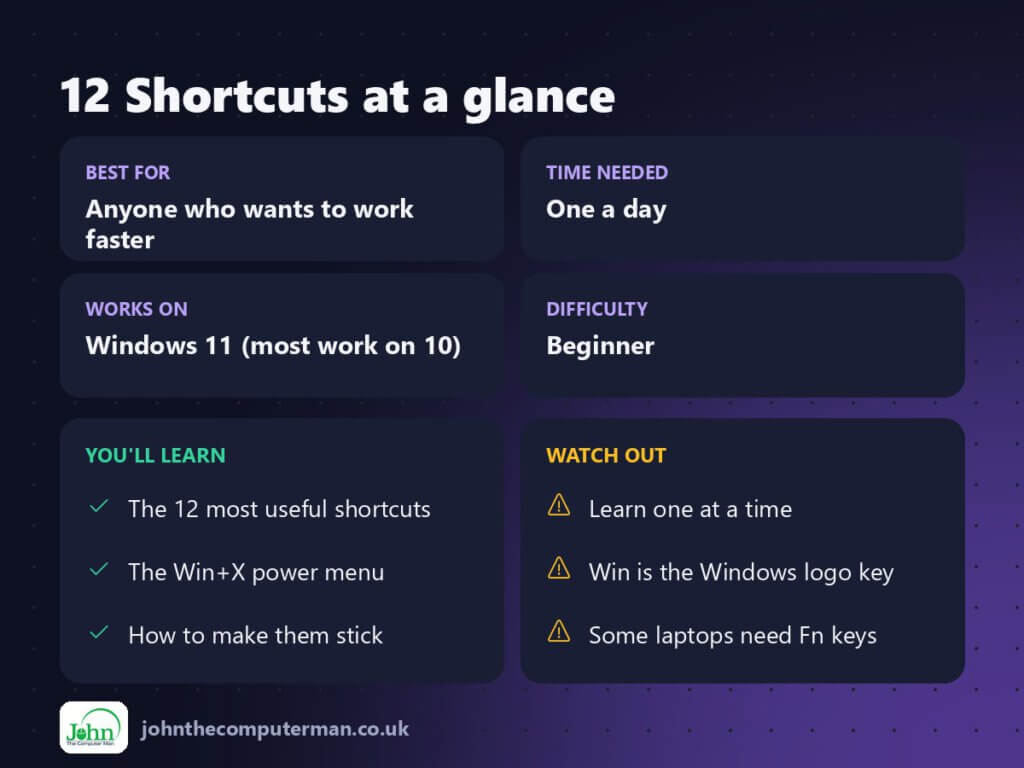
The Windows key is the key with the Windows logo, usually between Ctrl and Alt in the bottom-left of your keyboard. In this guide it’s written as Win.
Open things fast
| Shortcut | What it does |
|---|---|
| Win + E | Open File Explorer |
| Win + I | Open Settings |
| Win + A | Open Quick Settings (Wi-Fi, Bluetooth, volume, brightness) |
Hide and lock
| Shortcut | What it does |
|---|---|
| Win + D | Show the desktop (press again to bring windows back) |
| Win + L | Lock your PC instantly |
Make Win + L a habit. Lock your PC every time you walk away from it, whether at work, in a café or even at home.
Switch between apps
| Shortcut | What it does |
|---|---|
| Alt + Tab | Flip between open apps (hold Alt, tap Tab) |
| Win + Tab | Open Task View to see all windows and virtual desktops |
| Win + 1, 2, 3… | Open the 1st, 2nd or 3rd app pinned to your taskbar |
The power-user menu: Win + X
Press Win + X (or right-click the Start button) for quick access to:
- Device Manager and Disk Management
- Terminal and Terminal (Admin)
- Task Manager, Settings and Network Connections
- Shut down or sign out
Rescue a frozen app: Ctrl + Shift + Esc
This opens Task Manager directly, which is quicker than Ctrl + Alt + Delete.
- Press Ctrl + Shift + Esc.
- Find the app that’s not responding.
- Select it and click End task.
Type less
| Shortcut | What it does |
|---|---|
| Win + H | Voice typing. Speak and Windows types for you |
| Win + V | Clipboard history. Paste things you copied earlier |
| Win + . | Emoji and symbols panel |
Undo your mistakes
| Shortcut | What it does |
|---|---|
| Ctrl + Z | Undo almost anything, even an accidentally deleted file in File Explorer |
| Ctrl + Shift + T | Reopen the last closed tab in Edge, Chrome or Firefox |
Quick recap
How to actually remember them
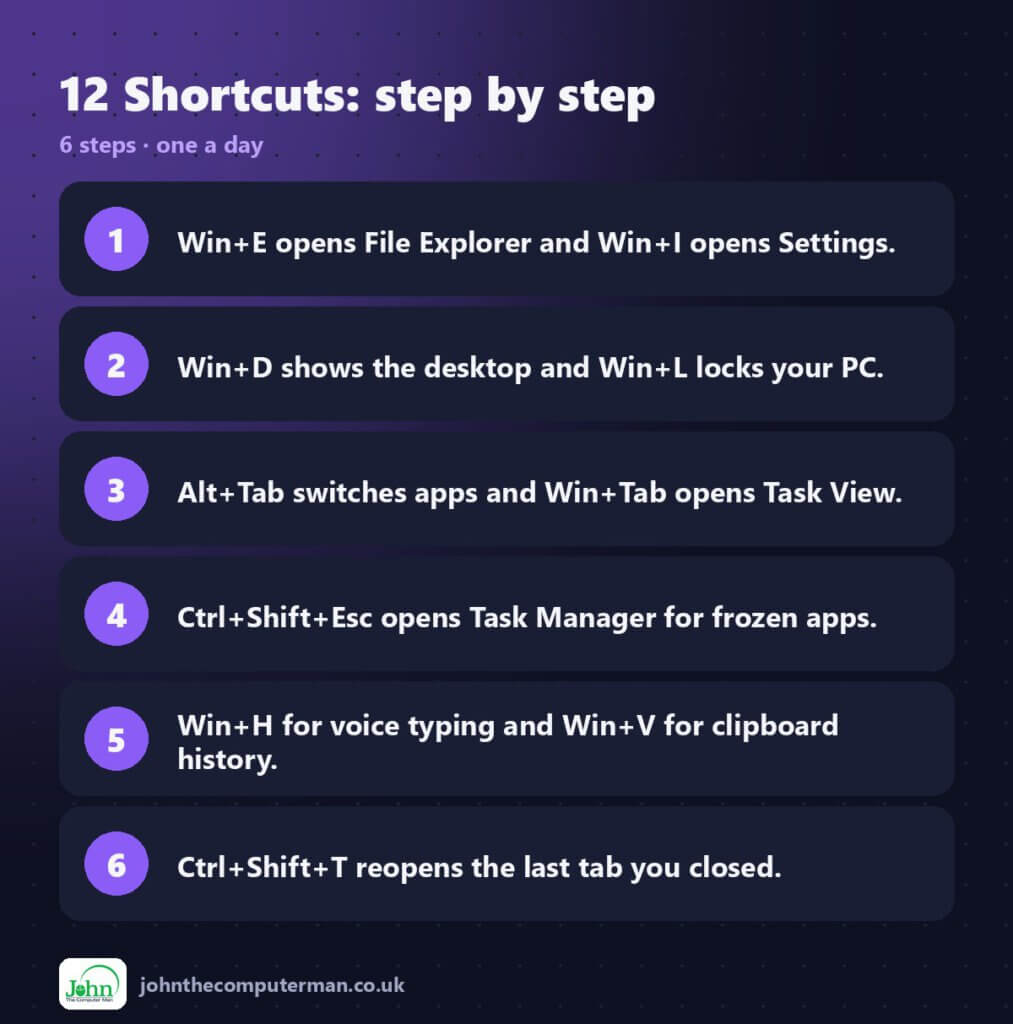
Don’t try to learn them all at once. Pick one shortcut a day, then stick a note on your monitor until it becomes muscle memory. Most people find Win + E, Win + L and Win + V stick fastest.
John The Computer Man: plain-English computer help. 🌐 johnthecomputerman.co.uk · 📸 Instagram @johnthecomputerman
