
Bright white screens can be harsh, especially in the evening. Windows 11 has two built-in features that make your screen easier on the eyes:
- Dark mode switches menus, Settings and many apps to a dark background.
- Night light warms up your screen colours to reduce blue light in the evening.
Here’s how to set up both.
1. Turn on Dark mode
- Press Win + I to open Settings.
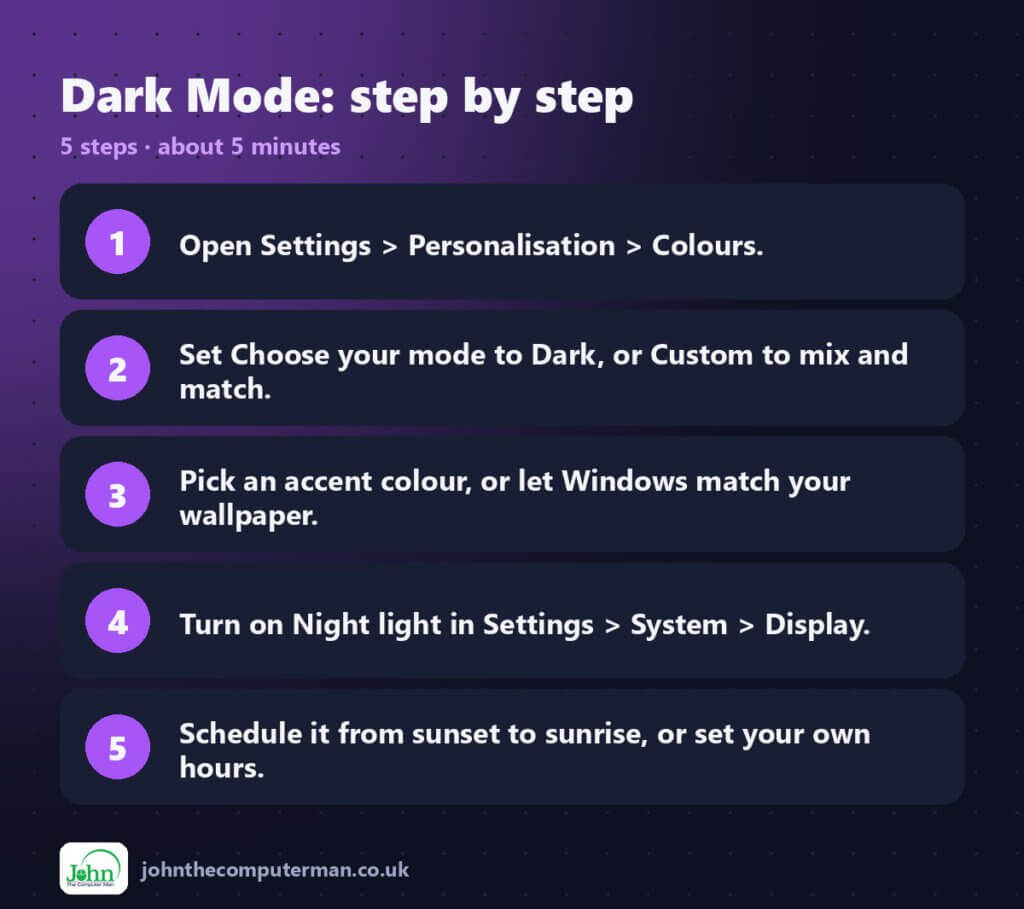
- Go to Personalisation → Colours.
- Next to Choose your mode, select Dark.
The Start menu, taskbar, File Explorer, Settings and most built-in apps change straight away.
2. Mix light and dark with Custom mode
Prefer a dark taskbar but light apps (or the other way round)?
- In Personalisation → Colours, set Choose your mode to Custom.
- Set Choose your default Windows mode (Start, taskbar and notifications).
- Set Choose your default app mode (apps and File Explorer).
3. Pick an accent colour
The accent colour is used for highlights, buttons and links.
- In Personalisation → Colours, find Accent colour.
- Choose Automatic to match your wallpaper, or Manual to pick your own.
- Optionally, turn on Show accent colour on Start and taskbar. This option is only available in Dark mode.
4. Turn on Night light
- Go to Settings → System → Display.
- Click Night light (click the words, not just the toggle, to see its settings).
- Click Turn on now.
- Drag the Strength slider. Further right is warmer and more orange.
Quick toggle: Press Win + A to open Quick Settings. There’s usually a Night light button there. If not, click the pencil icon to add it.
5. Schedule Night light
Night light works best when it turns on automatically in the evening.
- In Night light settings, turn on Schedule night light.
- Choose either:
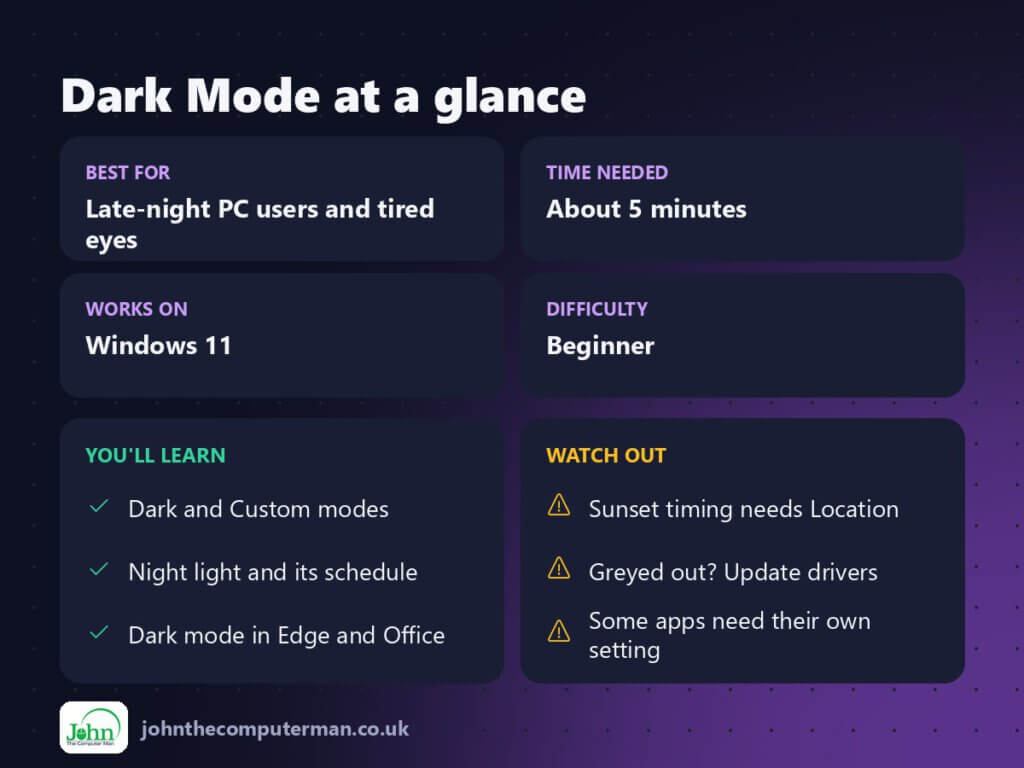
- Sunset to sunrise: this adjusts through the year automatically, but needs Location services turned on.
- Set hours: for example, Turn on at 20:00 and Turn off at 07:00.
6. Dark mode in your apps
Many apps follow the Windows setting automatically. If one doesn’t, look in its own settings:
- Microsoft Edge: Settings → Appearance → Overall appearance → Dark (or System default).
- Microsoft Office: File → Account → Office Theme → Black (or Use system setting).
- Google Chrome: follows Windows automatically.
Does Night light help me sleep?
Night light reduces blue light, which many people find more comfortable in the evening. Research on sleep is mixed, though. The biggest benefit usually comes from putting screens away before bed, not just changing their colour.
Quick recap
Frequently asked questions
Night light is greyed out. Why? This is usually a display driver issue. Run Windows Update (including Optional updates) or install the latest graphics driver from your PC manufacturer.
Does Dark mode save battery? On laptops with OLED screens, yes, noticeably. On standard LCD screens the difference is very small.
John The Computer Man: plain-English computer help. 🌐 johnthecomputerman.co.uk · 📸 Instagram @johnthecomputerman
