
Comparing two documents, writing while you research, or keeping a video call next to your notes: side-by-side windows make it all easier. But on a Mac, it’s not obvious how.
Recent versions of macOS can tile windows on their own, and the free Rectangle app adds keyboard shortcuts for halves, thirds and more. Here’s how to use both.
Time needed: about 5 minutes – Cost: free
What you'll need
- Rectangle: free, open-source window snapping for your Mac
- macOS 15 Sequoia or later for built-in tiling (Rectangle works on macOS 14 Sonoma)
The quick way (nothing to install)
Hover over a window’s green button in the top-left corner and choose a layout, such as Left & Right. On macOS Sequoia or later you can also drag a window to the edge of the screen to tile it.
Step by step
Step 1: Try the green button
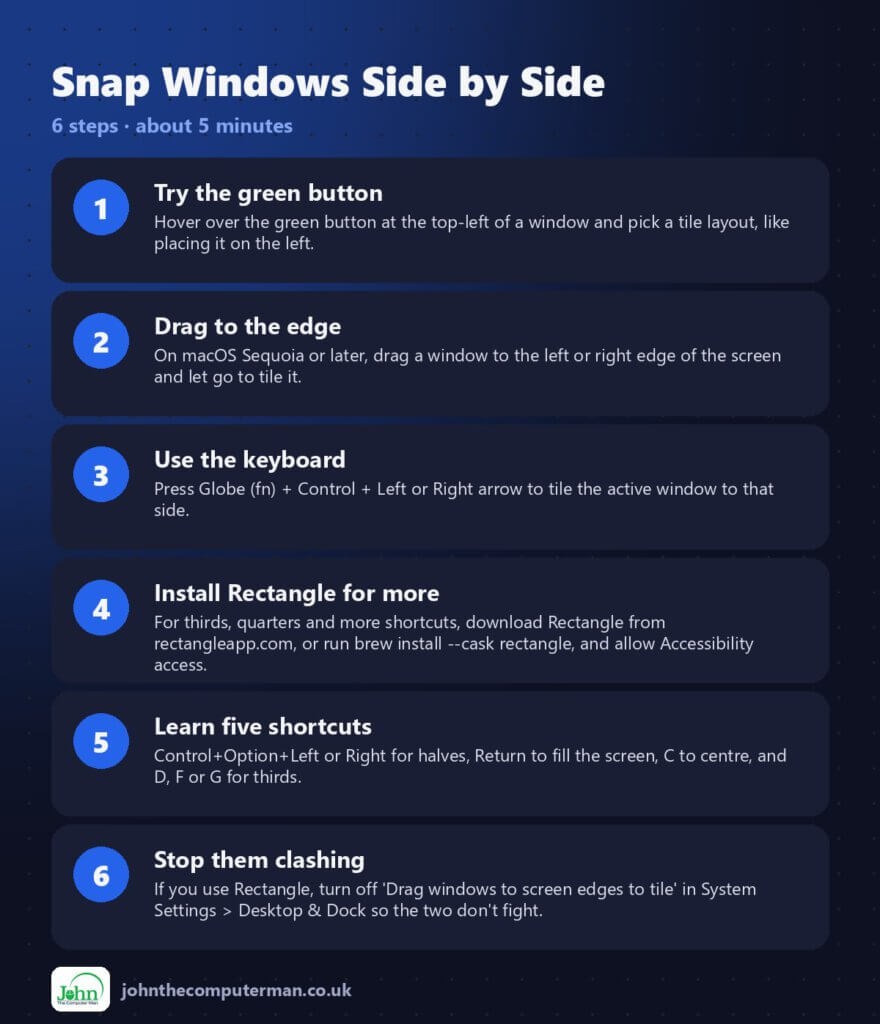
Hover over the green button at the top-left of a window and pick a tile layout, like placing it on the left.
Step 2: Drag to the edge
On macOS Sequoia or later, drag a window to the left or right edge of the screen and let go to tile it.
Step 3: Use the keyboard
Press Globe (fn) + Control + Left or Right arrow to tile the active window to that side.
Step 4: Install Rectangle for more
For thirds, quarters and more shortcuts, download Rectangle from rectangleapp.com, or run brew install –cask rectangle, and allow Accessibility access.
Step 5: Learn five shortcuts
Control+Option+Left or Right for halves, Return to fill the screen, C to centre, and D, F or G for thirds.
Step 6: Stop them clashing
If you use Rectangle, turn off ‘Drag windows to screen edges to tile’ in System Settings > Desktop & Dock so the two don’t fight.
Prefer Terminal? If you use Homebrew, install the app for this tutorial in one go:
brew install --cask rectangle
Tips
- In Desktop & Dock settings, turn off ‘Tiled windows have margins’ to remove the gaps.
- Press a Rectangle half shortcut repeatedly to cycle through different widths.
- On a big monitor, thirds are perfect for three apps side by side.
- Control+Option+Delete puts a window back to its previous size.
If something goes wrong
Dragging to the edge doesn’t tile
It needs macOS Sequoia or later, and the setting must be on in System Settings > Desktop & Dock.
Rectangle shortcuts do nothing
Check Rectangle is allowed in System Settings > Privacy & Security > Accessibility.
Some apps won’t resize
A few apps have a minimum size or fixed window. Try another layout.
FAQ
What’s the difference between tiling and full-screen Split View?
Split View puts two apps in their own full-screen space. Tiling keeps them on your normal desktop with the Dock and menu bar.
Is Rectangle free?
Yes. It’s free and open source. A paid Rectangle Pro exists, but you don’t need it.
Wrapping up
Try the green button today, and install Rectangle if you want more. Once your fingers learn the shortcuts, you’ll never drag a window corner again.
Full app guide: Rectangle
Part of the free Mac tools series on johnthecomputerman.co.uk. Follow @johnthecomputerman on Instagram for free Mac tips every Monday, Wednesday and Friday. Steps were checked in September 2026. Menus can move between macOS versions, so look for similar wording if yours differs.
