5 Android Clock App Tricks: Better Alarms, Timers and Bedtime
Everyone uses the Clock app for alarms. Almost nobody looks past the plus button.
It can wake you gently with music, run a timer for each pan on the hob, and nudge you to bed on time. These tips are for Google's Clock app (on Pixel and many other phones). Samsung's Clock has very similar options.
Before you start: Android menus vary a little between phone makers. The steps below use Google Pixel / standard Android names, with Samsung Galaxy differences noted. If you can't find a setting, tap the search bar at the top of Settings and type its name.
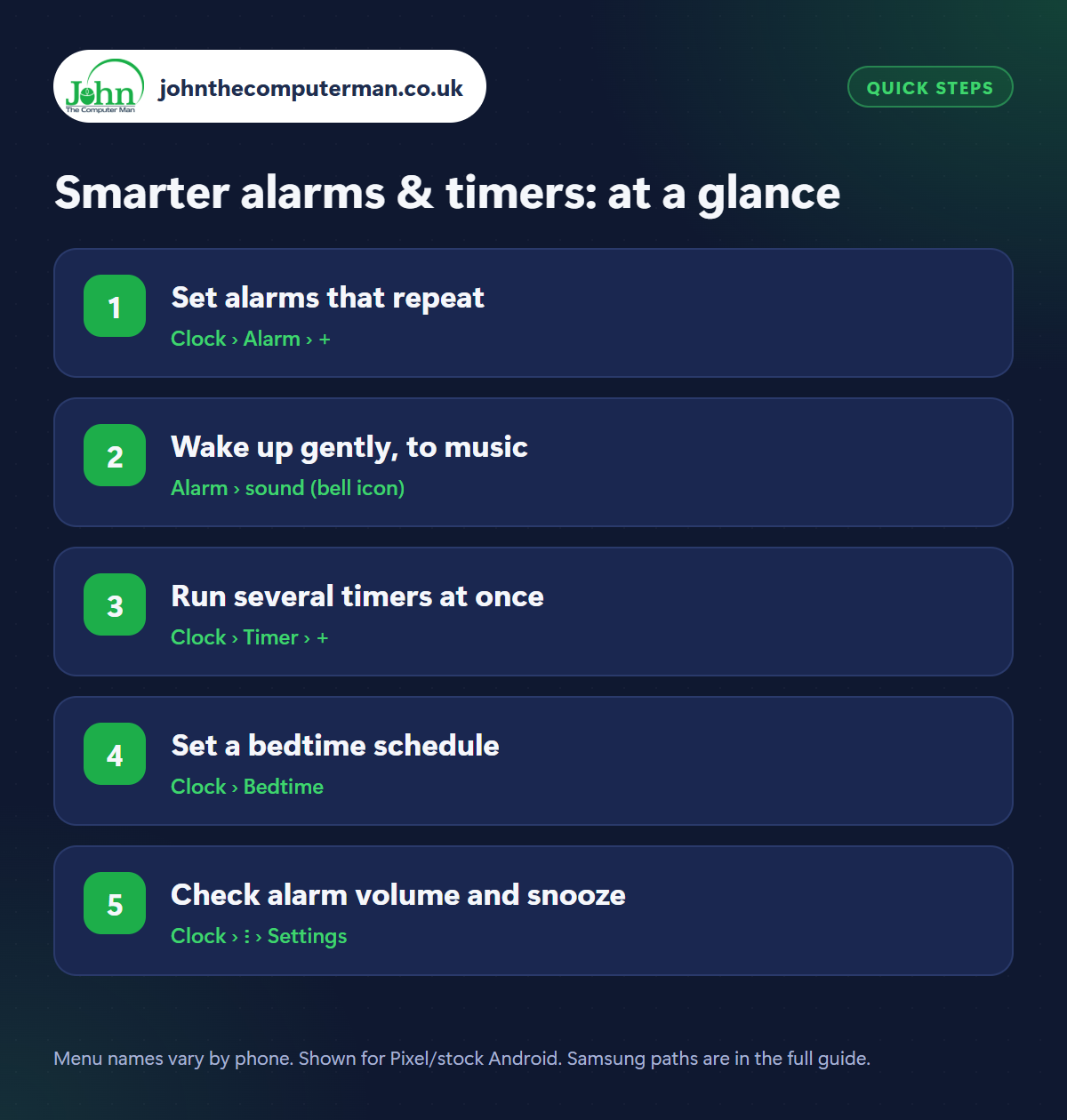
How to smarter alarms & timers on Android
Step 1: Set alarms that repeat
Where: Clock › Alarm › +
Open Clock › Alarm and tap + to choose a time. Then tap the alarm to expand it. Tap the days of the week to make it repeat, so you can have one alarm for weekdays and a later one for weekends. Tap Add label to name it (‘School run’, ‘Take tablets’, ‘Bins out’) so you know why it's going off. Use the switch to turn alarms on and off without deleting them.
Step 2: Wake up gently, to music
Where: Alarm › sound (bell icon)
Tap the bell icon on an alarm to change its sound. As well as the built-in tones, you can choose a song or playlist from Spotify or YouTube Music, or add your own audio file. Then tap the three dots › Settings and set Gradually increase volume so the alarm starts quietly and builds up over 30 seconds or more, instead of a sudden blast.
Step 3: Run several timers at once
Where: Clock › Timer › +
In Clock › Timer, type a time and tap Start. Then tap + to add another, and another. Tap Label on each to name them (‘Pasta’, ‘Garlic bread’, ‘Washing’), so when one goes off you know which it is. Timers you use often can be saved. It's far quicker by voice, too: “Hey Google, set a pasta timer for 11 minutes.”
Step 4: Set a bedtime schedule
Where: Clock › Bedtime
Tap Bedtime and set your usual bedtime and wake-up time. Your phone reminds you when it's time to wind down, can turn on Bedtime mode (Do Not Disturb and a greyscale screen) and wakes you with your alarm in the morning. You can play sleep sounds like rain or the ocean, and turn on a Sunrise alarm that slowly brightens the screen before the alarm sounds.
Step 5: Check alarm volume and snooze
Where: Clock › ⋮ › Settings
Alarm volume has its own slider, separate from ring and media volume, which is how alarms end up silent. In Clock › three dots › Settings, check Alarm volume, set the Snooze length (five minutes is often better than ten), and choose what the volume buttons do when an alarm rings. Alarms still sound in Do Not Disturb by default.
Pro tip
💡 Travelling? Add cities in the Clock tab to see the time back home, and your alarms automatically follow the local time zone.
FAQ
Will my alarm go off if my phone is on silent?
Yes. Alarms use their own volume and still ring on silent and in Do Not Disturb, unless you've changed that setting.
Will my alarm go off if the phone is switched off?
On most Android phones, no. The phone needs to be on. Keep it charging overnight.
Can I use any song as an alarm?
Yes: a music file on your phone, or a track from Spotify or YouTube Music if you have the app installed.
The bottom line
Repeat days and labels tidy up your alarms, gradual volume makes mornings kinder, and named timers are a small joy in the kitchen. All in an app you already open every day.
More Android tutorials:
• How to Use Google Keep for Notes and Shared Shopping Lists
• 5 Gmail Tricks on Android to Tame Your Inbox
• How to Tidy Up Your Contacts on Android
• 5 Gmail Tricks on Android to Tame Your Inbox
• How to Tidy Up Your Contacts on Android
Part of the android phone tutorials series on johnthecomputerman.co.uk. Follow @johnthecomputerman on Instagram for more Android tips. Steps were checked on current Android and Samsung One UI versions in September 2026; menu names can change with updates.
