5 Gmail Tricks on Android to Tame Your Inbox
For most of us the inbox is a mess: a few emails that matter, buried under newsletters, offers and receipts we never asked for.
The Gmail app on your Android phone has some excellent tools for getting on top of it. None of them take long to learn, and the fourth one alone can cut your email in half.
Before you start: Android menus vary a little between phone makers. The steps below use Google Pixel / standard Android names, with Samsung Galaxy differences noted. If you can't find a setting, tap the search bar at the top of Settings and type its name.
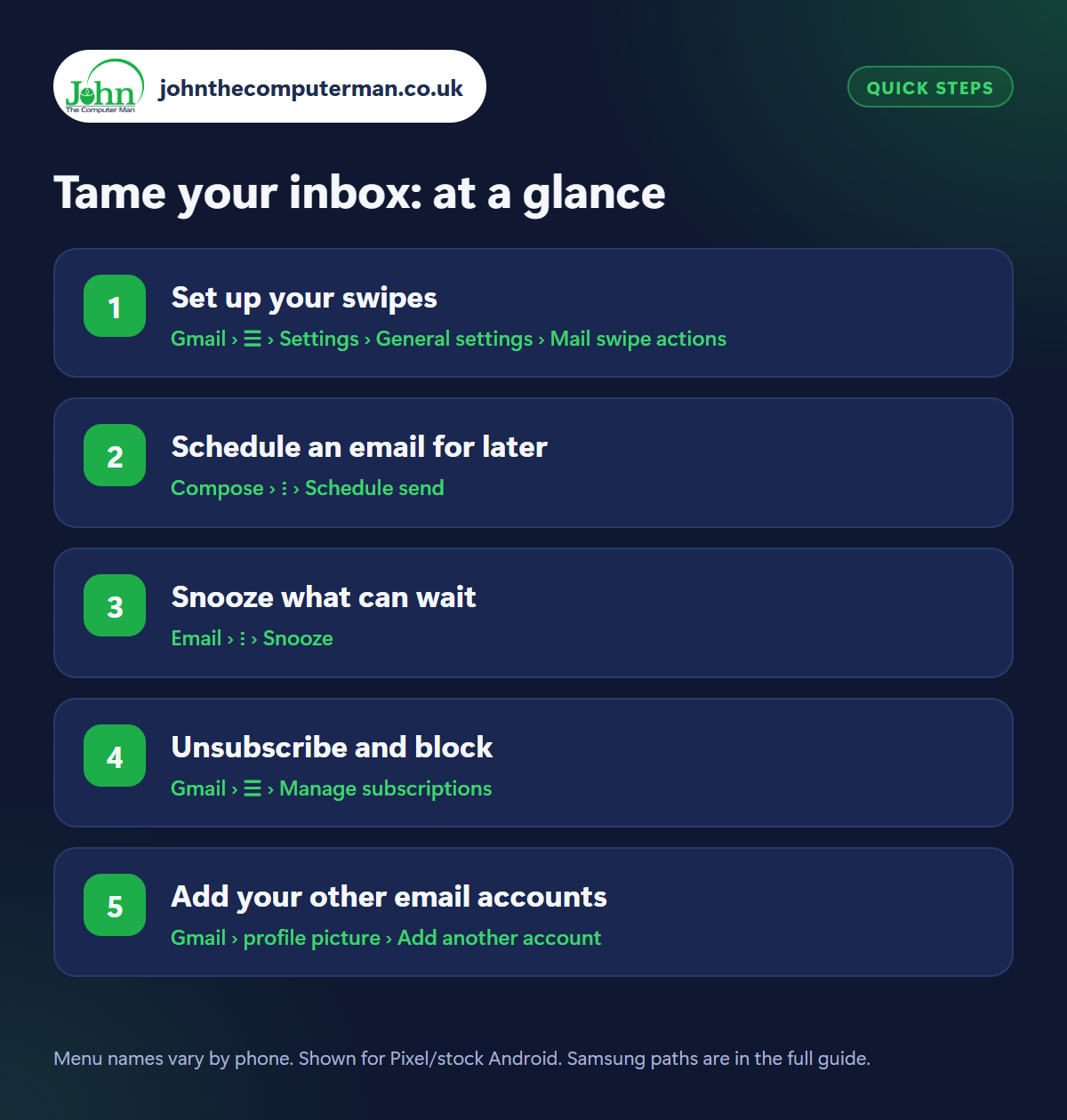
How to tame your inbox on Android
Step 1: Set up your swipes
Where: Gmail › ☰ › Settings › General settings › Mail swipe actions
Open Gmail, tap the three-line menu › Settings › General settings › Mail swipe actions. Choose what a right swipe and a left swipe do: Archive, Delete, Mark as read/unread, Move to or Snooze. A good combination is delete one way and archive the other. You can then clear an inbox with your thumb in seconds.
Step 2: Schedule an email for later
Where: Compose › ⋮ › Schedule send
Write your email as normal, then instead of Send, tap the three dots › Schedule send. Pick one of the suggested times or choose your own. The email waits in the Scheduled folder (in the menu), where you can edit or cancel it. That's handy for writing things when you think of them without emailing people at midnight.
Step 3: Snooze what can wait
Where: Email › ⋮ › Snooze
Some emails need action, just not now. Open one, tap the three dots › Snooze and choose Tomorrow, This weekend, Next week or a date and time. It disappears from your inbox and comes back to the top at that moment, like new. Use it for bills due later, tickets for an event, or anything you'd otherwise leave unread as a reminder.
Step 4: Unsubscribe and block
Where: Gmail › ☰ › Manage subscriptions
Open the three-line menu › Manage subscriptions to see the mailing lists that email you most, with an Unsubscribe button beside each. (If you don't have it yet, open any marketing email and tap Unsubscribe next to the sender's name.) For senders who keep going, open an email, tap the three dots beside their name and choose Block. Use Report spam for anything dodgy rather than unsubscribing.
Step 5: Add your other email accounts
Where: Gmail › profile picture › Add another account
The Gmail app isn't only for Gmail addresses. Tap your profile picture › Add another account and choose Outlook, Hotmail and Live, Yahoo, Exchange or Other. Sign in and that mailbox appears in the app. Tap your profile picture to switch between accounts, or choose All inboxes from the menu to see everything together.
Pro tip
💡 Running out of Google storage? Search Gmail for larger:10M to find emails with big attachments, then delete the ones you don't need.
FAQ
What's the difference between archive and delete?
Archive removes an email from your inbox but keeps it, so you can still search for it. Delete sends it to the Bin, which empties after 30 days.
Can I unsend an email?
Briefly. Just after sending, tap Undo at the bottom of the screen. After a few seconds it's gone for good.
Is it safe to click Unsubscribe?
For genuine companies, yes, and Gmail's own Unsubscribe button is safest. For obvious spam or scams, use Report spam instead.
The bottom line
Set your swipes, then spend ten minutes in Manage subscriptions. Fewer emails arriving is the real fix. Snooze and Schedule send take care of the rest.
More Android tutorials:
• How to Tidy Up Your Contacts on Android
• How to Make Video Calls on Android with Google Meet
• 5 WhatsApp Privacy Settings to Change on Android
• How to Make Video Calls on Android with Google Meet
• 5 WhatsApp Privacy Settings to Change on Android
Part of the android phone tutorials series on johnthecomputerman.co.uk. Follow @johnthecomputerman on Instagram for more Android tips. Steps were checked on current Android and Samsung One UI versions in September 2026; menu names can change with updates.
