How to Use Google Keep for Notes and Shared Shopping Lists
Notes scribbled on envelopes, a shopping list on the fridge that you forgot to photograph, a door code you texted to yourself. There's a tidier way.
Google Keep is a free notes app that's already on most Android phones. It's simple, it syncs to your Google account, and it has a few clever tricks, including a shopping list the whole household can add to.
Before you start: Android menus vary a little between phone makers. The steps below use Google Pixel / standard Android names, with Samsung Galaxy differences noted. If you can't find a setting, tap the search bar at the top of Settings and type its name.
How to notes & shared lists on Android
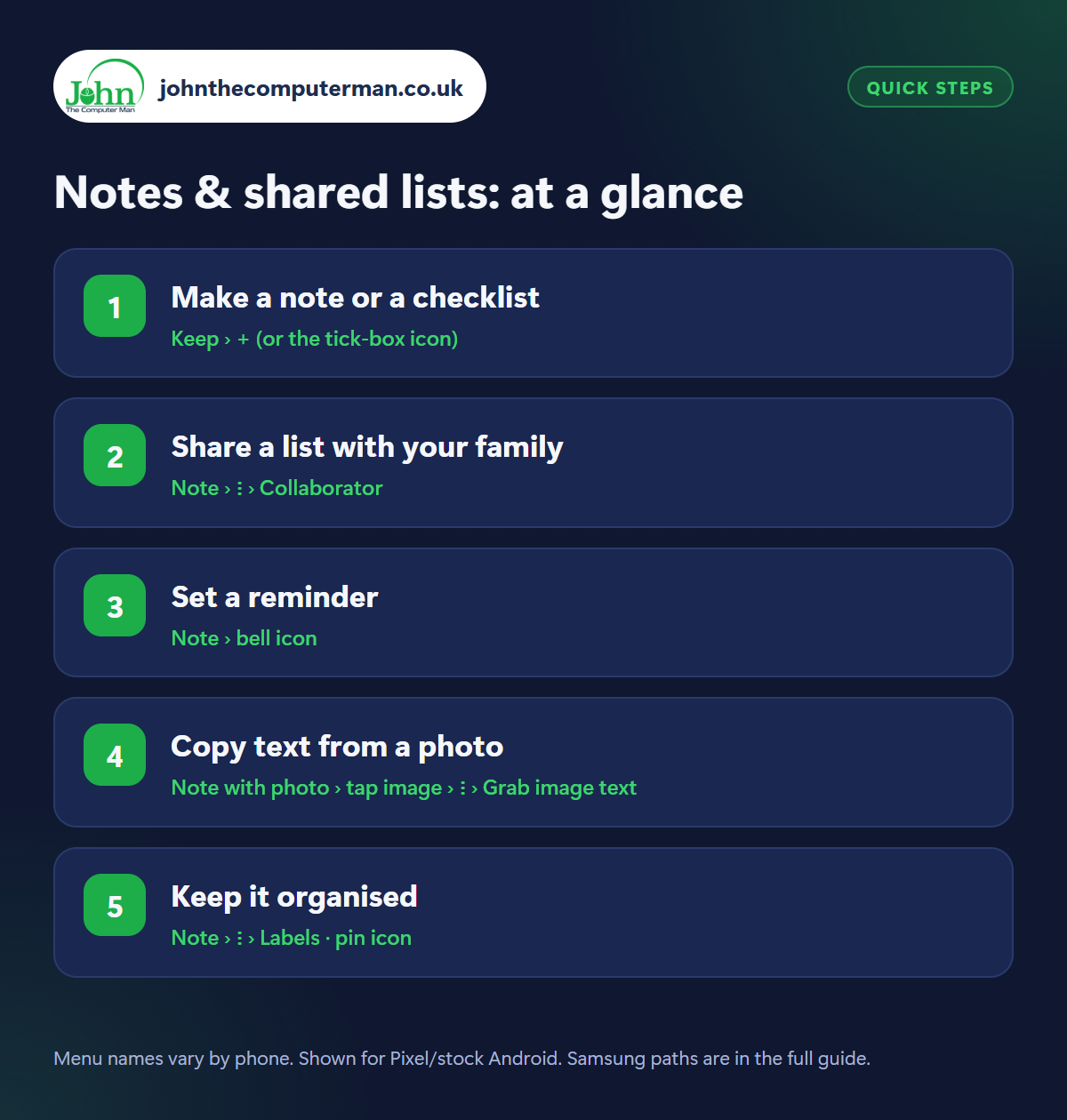
Step 1: Make a note or a checklist
Where: Keep › + (or the tick-box icon)
Open Keep and tap the + button to start a note. Give it a title and type away. It saves automatically. For a list with tick boxes, tap the tick-box icon at the bottom of the home screen instead. Tick items off as you go and they drop to the bottom. You can drag items to reorder them, and turn an existing note into a checklist from the + menu inside the note.
Step 2: Share a list with your family
Where: Note › ⋮ › Collaborator
Open your shopping list, tap the three dots › Collaborator and add someone by their email address. The list now appears in their Keep app too. Either of you can add or tick things off, and it updates instantly for both. No more ‘did you get milk?’ texts. It works with iPhone users as well, as long as they have a Google account.
Step 3: Set a reminder
Where: Note › bell icon
Tap the bell icon at the top of a note and choose a date and time. You can make it repeat daily, weekly, monthly or yearly, which is good for things like ‘Put the bins out’ or ‘Renew car insurance’. A notification pops up at the right moment and opens the note. Reminders also show up in Google Calendar and Google Tasks.
Step 4: Copy text from a photo
Where: Note with photo › tap image › ⋮ › Grab image text
Tap + inside a note and choose Take photo (or add one from your gallery). Photograph a recipe, a business card, a page from a book or a Wi-Fi password on a router. Then tap the image, tap the three dots › Grab image text. Keep reads the words and adds them to the note as typed text you can edit, copy and search.
Step 5: Keep it organised
Where: Note › ⋮ › Labels · pin icon
Tap the pin at the top of a note to keep it at the top of the list. Tap the palette to give it a colour so it stands out. Use three dots › Labels to file notes under headings like ‘Home’, ‘Work’ or ‘Recipes’, then find them from the menu. Finished with a note? Archive it. It disappears from view but stays searchable.
Pro tip
💡 Add the Keep widget to your home screen (long-press the home screen › Widgets › Keep) so your shopping list is always one tap away.
FAQ
Is Google Keep free?
Yes. Notes count towards your free 15 GB of Google storage, but text notes take up almost nothing.
Can I use Keep on my computer?
Yes. Go to keep.google.com and sign in. Everything syncs with your phone.
Can I record a voice note?
Yes. Tap the microphone icon on the Keep home screen, speak, and Keep saves the recording and types out what you said.
The bottom line
A shared shopping list alone makes Keep worth using. Add reminders and Grab image text, and it quietly replaces the scraps of paper, the texts to yourself and the photos of lists.
More Android tutorials:
• 5 Gmail Tricks on Android to Tame Your Inbox
• How to Tidy Up Your Contacts on Android
• How to Make Video Calls on Android with Google Meet
• How to Tidy Up Your Contacts on Android
• How to Make Video Calls on Android with Google Meet
Part of the android phone tutorials series on johnthecomputerman.co.uk. Follow @johnthecomputerman on Instagram for more Android tips. Steps were checked on current Android and Samsung One UI versions in September 2026; menu names can change with updates.
