How to Tidy Up Your Contacts on Android
‘Dave’, ‘Dave Mobile’, ‘Dave NEW’ and ‘Dave plumber’. After a few phones, most people's contacts are a jumble of duplicates, old numbers and names with no details.
The Google Contacts app can sort most of it out for you. Here's how to clean up, and how to get back a contact you deleted by mistake.
Before you start: Android menus vary a little between phone makers. The steps below use Google Pixel / standard Android names, with Samsung Galaxy differences noted. If you can't find a setting, tap the search bar at the top of Settings and type its name.
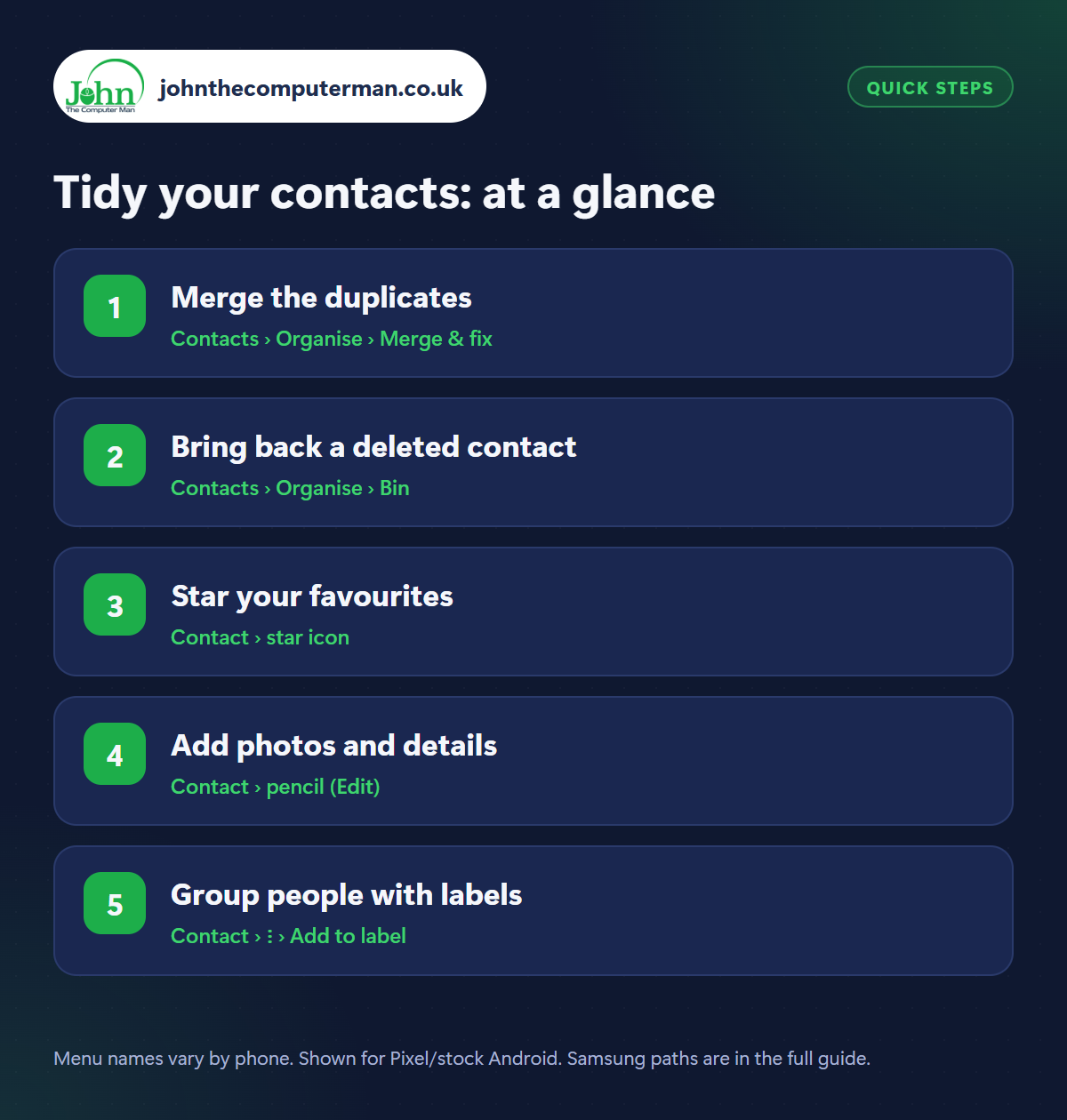
How to tidy your contacts on Android
Step 1: Merge the duplicates
Where: Contacts › Organise › Merge & fix
Samsung: Contacts › ☰ › Manage contacts › Merge contacts
Samsung: Contacts › ☰ › Manage contacts › Merge contacts
Open the Contacts app and tap Organise (called Fix & manage on some versions) › Merge & fix. Your phone lists contacts that look like duplicates. Tap Merge on each, or Merge all. Numbers and emails are combined into a single entry, so nothing is lost. On Samsung's Contacts app, it's menu › Manage contacts › Merge contacts.
Step 2: Bring back a deleted contact
Where: Contacts › Organise › Bin
Deleted contacts aren't gone straight away. Go to Contacts › Organise › Bin, where they stay for 30 days. Tap the contact and choose Recover. If your whole list has gone wrong, for example after a bad merge or sync, use Organise › Restore contacts (or Undo changes at contacts.google.com) to roll everything back to how it was up to 30 days ago.
Step 3: Star your favourites
Where: Contact › star icon
Open a contact and tap the star at the top. Starred contacts appear in Favourites at the top of your Phone app for one-tap calling. More usefully, you can let starred contacts ring through Do Not Disturb, so close family can always reach you. See our guide to notifications and Do Not Disturb.
Step 4: Add photos and details
Where: Contact › pencil (Edit)
Tap the pencil to edit a contact. Add a photo so their face fills the screen when they call. That's helpful for anyone who struggles to read small names quickly. Tap More fields to add a birthday (it appears in Google Calendar), an address (tap it to open directions), relationship, and extra numbers or emails.
Step 5: Group people with labels
Where: Contact › ⋮ › Add to label
Labels are groups. Long-press a contact to select it, tap others, then tap the label icon (or three dots › Add to label) and create one: ‘Family’, ‘Football team’, ‘Tradespeople’. Find your labels in the Contacts menu. In Gmail, typing a label's name in the To box adds everyone in it, which is ideal for club or family emails.
Pro tip
💡 Tidying lots of contacts? Do it at contacts.google.com on a computer. A keyboard and big screen make it much quicker, and it syncs to your phone.
FAQ
Why do I have duplicate contacts?
Usually because contacts were saved to the phone, the SIM and your Google account separately. Merging and saving new ones to Google fixes it.
Will merging delete any numbers?
No. Merging combines all the numbers, emails and details from both entries into one.
Are my contacts backed up?
Contacts saved to your Google account are synced automatically. Check new contacts are saving to Google, not ‘Device’ or SIM.
The bottom line
Merge & fix does the heavy lifting in a minute. Star your favourites, add a few photos, and your contacts go from a jumble to something you can actually use.
More Android tutorials:
• How to Make Video Calls on Android with Google Meet
• 5 WhatsApp Privacy Settings to Change on Android
• How to Set Up an Android Phone for an Older Relative
• 5 WhatsApp Privacy Settings to Change on Android
• How to Set Up an Android Phone for an Older Relative
Part of the android phone tutorials series on johnthecomputerman.co.uk. Follow @johnthecomputerman on Instagram for more Android tips. Steps were checked on current Android and Samsung One UI versions in September 2026; menu names can change with updates.
