5 Android Privacy Settings to Stop Apps Tracking You
Many apps collect far more about you than they need: where you go, what you do and how often. Mostly it's used for advertising, but it's still your information.
Android gives you good tools to see what's going on and rein it in. These five settings take about ten minutes and make a real difference to how much you're tracked.
Before you start: Android menus vary a little between phone makers. The steps below use Google Pixel / standard Android names, with Samsung Galaxy differences noted. If you can't find a setting, tap the search bar at the top of Settings and type its name.
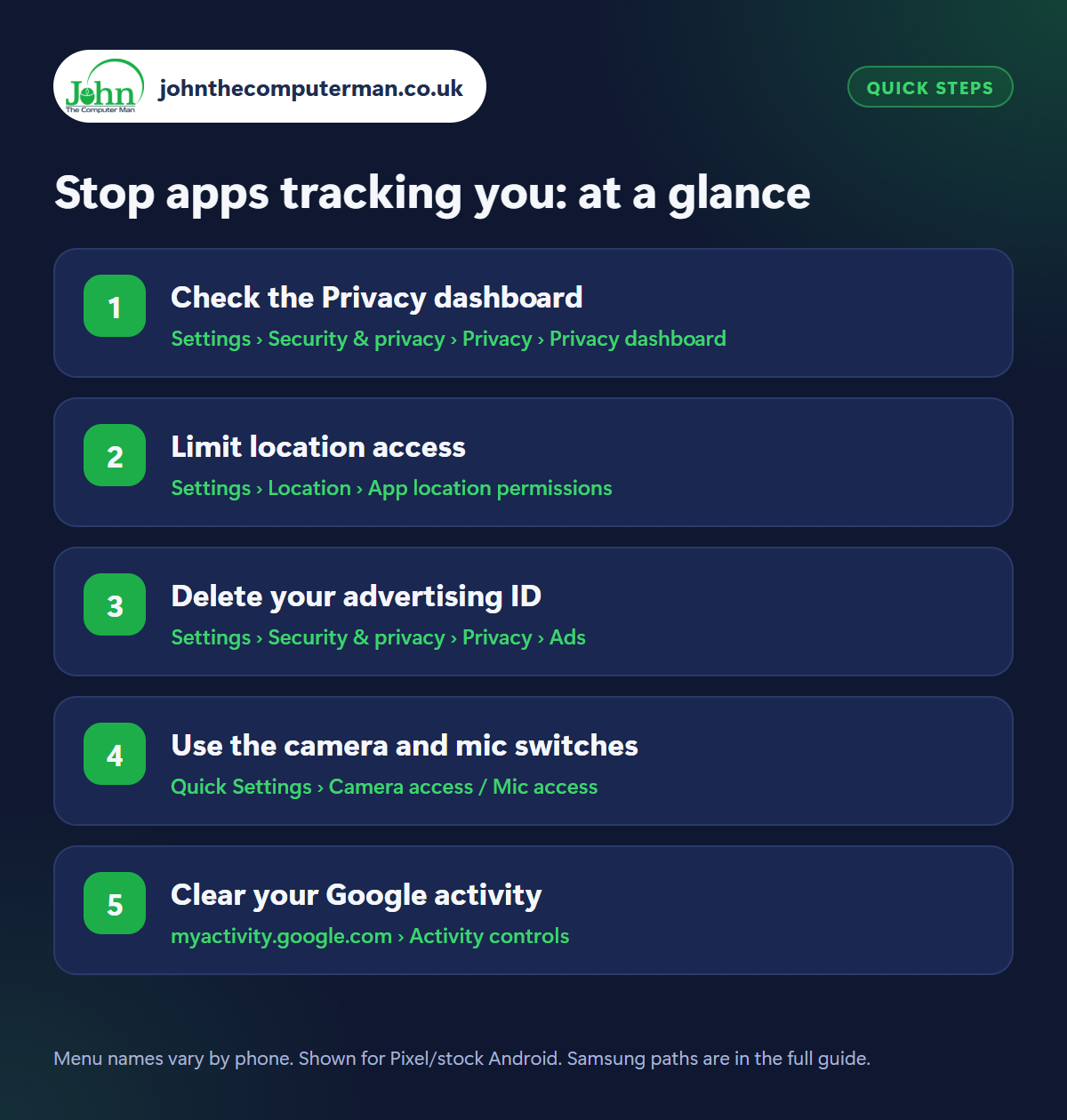
How to stop apps tracking you on Android
Step 1: Check the Privacy dashboard
Where: Settings › Security & privacy › Privacy › Privacy dashboard
Open Settings › Security & privacy › Privacy › Privacy dashboard (or search Settings for ‘Privacy dashboard’). It shows a timeline of which apps accessed your location, camera and microphone in the last 24 hours, and you can switch to the last 7 days. Anything surprising, like a game checking your location at 3am? Tap it and change its permission.
Step 2: Limit location access
Where: Settings › Location › App location permissions
Go to Settings › Location › App location permissions. Check the apps under Allowed all the time. Very few really need that. Change them to Allow only while using the app. Then tap each app and turn off Use precise location unless it truly needs it. A weather or shopping app only needs your rough area, not your exact address.
Step 3: Delete your advertising ID
Where: Settings › Security & privacy › Privacy › Ads
Every Android phone has an advertising ID that apps use to link your activity together and build an advertising profile. Go to Settings › Security & privacy › Privacy › Ads (or Settings › Google › All services › Ads) and tap Delete advertising ID. You'll still see adverts, but apps can no longer use that ID to follow you from one app to another.
Step 4: Use the camera and mic switches
Where: Quick Settings › Camera access / Mic access
When any app uses your camera or microphone, a green dot appears at the top of the screen. Swipe down and tap it to see which app. For total peace of mind, add the Camera access and Mic access tiles to Quick Settings (tap the pencil to edit). One tap blocks every app from using them until you switch them back on.
Step 5: Clear your Google activity
Where: myactivity.google.com › Activity controls
Google keeps a record of your searches, the apps you use and, if it's switched on, the places you go. Visit myactivity.google.com (or Settings › Google › Manage your Google Account › Data & privacy). Under Web & App Activity and Timeline, set Auto-delete to 3 months, or pause them altogether. You can also delete everything collected so far.
Pro tip
💡 When an app asks for your location, camera or mic, choose ‘Only this time’. It has to ask again next time, so nothing is allowed for ever by accident.
FAQ
Will turning these off break my apps?
Rarely. If an app really needs a permission, it will ask again when you use that feature, and you can allow it then.
Does deleting my advertising ID stop adverts?
No. You'll see the same number of adverts, but they'll be less targeted because apps can't link your activity together as easily.
Is my phone listening to my conversations for adverts?
There's no evidence apps do this, and the green dot would show if the mic were in use. Targeted ads usually come from your searches, location and browsing.
The bottom line
Start with the Privacy dashboard to see what's really going on. Then tighten location access and delete your advertising ID. Ten minutes, and you're tracked a lot less.
More Android tutorials:
• Android Quick Settings and Gestures: 5 Shortcuts to Learn
• How to Connect Bluetooth Headphones, Speakers and Cars to Android
• How to Set Up an eSIM and Use Two SIMs on Android
• How to Connect Bluetooth Headphones, Speakers and Cars to Android
• How to Set Up an eSIM and Use Two SIMs on Android
Part of the android phone tutorials series on johnthecomputerman.co.uk. Follow @johnthecomputerman on Instagram for more Android tips. Steps were checked on current Android and Samsung One UI versions in September 2026; menu names can change with updates.
