How to Connect Bluetooth Headphones, Speakers and Cars to Android
New earbuds, a speaker for the garden, the hands-free system in your car. Bluetooth connects them all, and when it works it's effortless.
Getting things paired the first time is where people get stuck. Here's the method that works for almost any Bluetooth device, plus how to switch the sound between them.
Before you start: Android menus vary a little between phone makers. The steps below use Google Pixel / standard Android names, with Samsung Galaxy differences noted. If you can't find a setting, tap the search bar at the top of Settings and type its name.
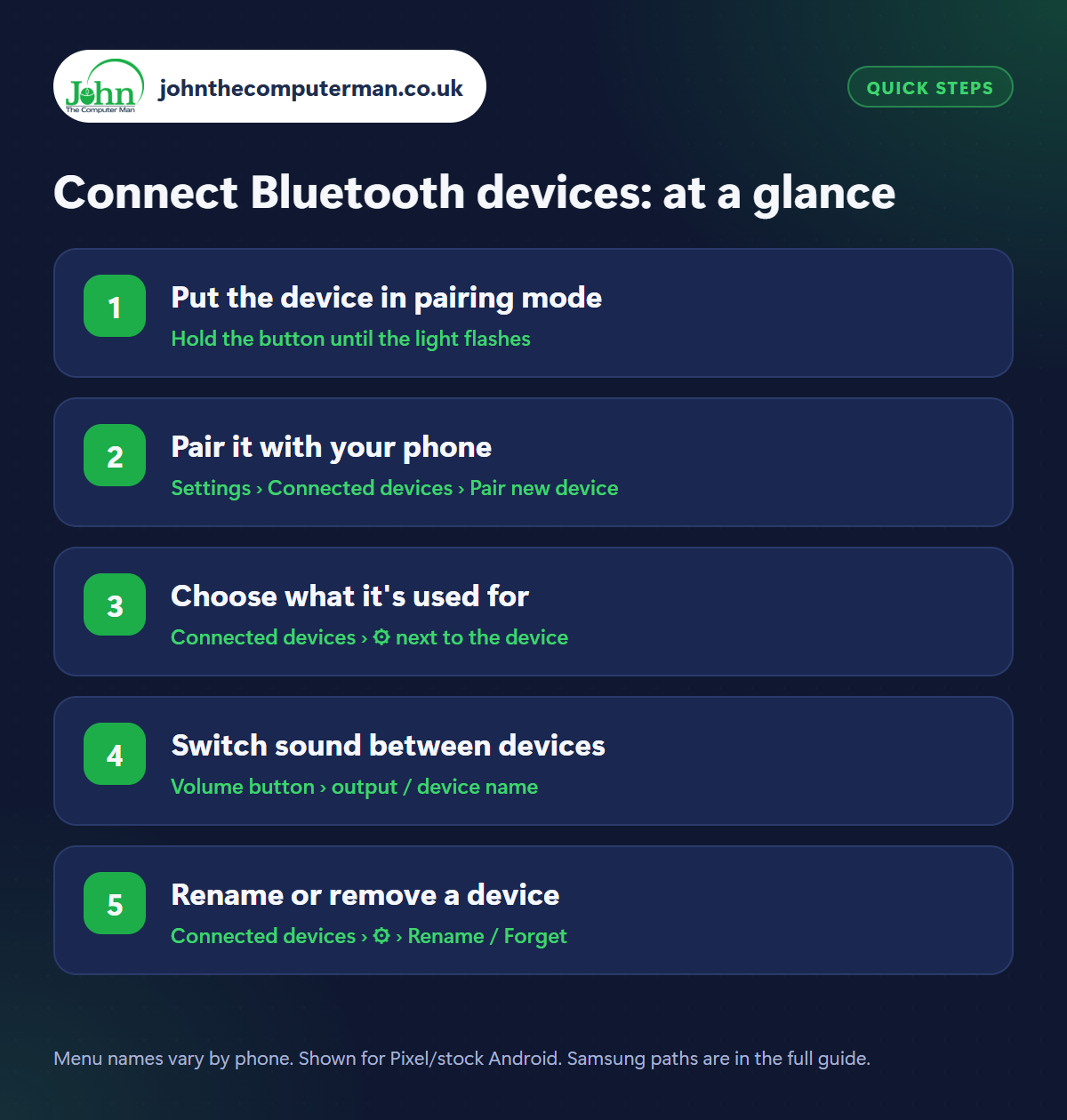
How to connect Bluetooth devices on Android
Step 1: Put the device in pairing mode
Where: Hold the button until the light flashes
This is the step most people miss. A Bluetooth device has to be in pairing mode before your phone can see it. Usually you hold the power or Bluetooth button for a few seconds until a light flashes (often blue and red) or a voice says ‘pairing’. Earbuds normally do this by opening the case, or holding the button on the case. Check the leaflet if you're not sure.
Step 2: Pair it with your phone
Where: Settings › Connected devices › Pair new device
Samsung: Settings › Connections › Bluetooth
Samsung: Settings › Connections › Bluetooth
On your phone, go to Settings › Connected devices › Pair new device (Samsung: Settings › Connections › Bluetooth). Wait for the device's name to appear and tap it. If it shows a code, check it matches and tap Pair. Many newer earbuds use Fast Pair: just open the case near your phone and tap Connect on the pop-up.
Step 3: Choose what it's used for
Where: Connected devices › ⚙ next to the device
Tap the gear icon next to a paired device to see its options. You can switch Phone calls and Media audio on or off separately. For example, let your car play music but keep calls on the phone, or stop a speaker from taking your phone calls. For cars, you'll also be asked whether to share your contacts so names show on the dashboard.
Step 4: Switch sound between devices
Where: Volume button › output / device name
With more than one device connected, press a volume button and tap the device name (or the small icon under the slider) to choose where sound plays: your earbuds, a speaker or the phone itself. You can also swipe down and tap the media player's output button at the top right. Useful when your phone connects to the car while someone else is on a call.
Step 5: Rename or remove a device
Where: Connected devices › ⚙ › Rename / Forget
Tap the gear next to a device and use the pencil to rename it. ‘Kitchen speaker’ is easier to spot than ‘BT-SPK-0492’. Tap Forget (Samsung: Unpair) to remove devices you've sold or stopped using. If a device plays up, forgetting it and pairing again fixes most problems. See our guide to fixing Wi-Fi and Bluetooth.
Pro tip
💡 Lost an earbud? Many now appear in Google's Find Hub, where you can see their last location and make them play a sound.
FAQ
Why can't my phone find the device?
It's almost always not in pairing mode, or it's still connected to another phone or tablet nearby. Turn Bluetooth off on the other device and try again.
Can I connect two pairs of headphones at once?
Some phones can. Samsung calls it Dual Audio, and newer phones support audio sharing with compatible earbuds.
Does leaving Bluetooth on drain the battery?
Barely. Modern Bluetooth uses very little power when nothing is connected, so it's fine to leave on.
The bottom line
Pairing mode first, then Pair new device. That's the whole secret. After that, the gear icon and the volume panel give you full control over what plays where.
More Android tutorials:
• How to Set Up an eSIM and Use Two SIMs on Android
• Poor Mobile Signal on Android? 5 Fixes, Including Wi-Fi Calling
• 5 Chrome Tricks Every Android User Should Know
• Poor Mobile Signal on Android? 5 Fixes, Including Wi-Fi Calling
• 5 Chrome Tricks Every Android User Should Know
Part of the android phone tutorials series on johnthecomputerman.co.uk. Follow @johnthecomputerman on Instagram for more Android tips. Steps were checked on current Android and Samsung One UI versions in September 2026; menu names can change with updates.
