How to Set Up an eSIM and Use Two SIMs on Android
An eSIM is a SIM card built into your phone. There's nothing to insert. You download your mobile plan instead, usually by scanning a QR code.
Most recent Android phones have one alongside the normal SIM slot, which means you can have two numbers on one phone: work and personal, or your UK number plus a cheap data plan abroad. Here's how to set it up.
Before you start: Android menus vary a little between phone makers. The steps below use Google Pixel / standard Android names, with Samsung Galaxy differences noted. If you can't find a setting, tap the search bar at the top of Settings and type its name.
How to set up an eSIM on Android
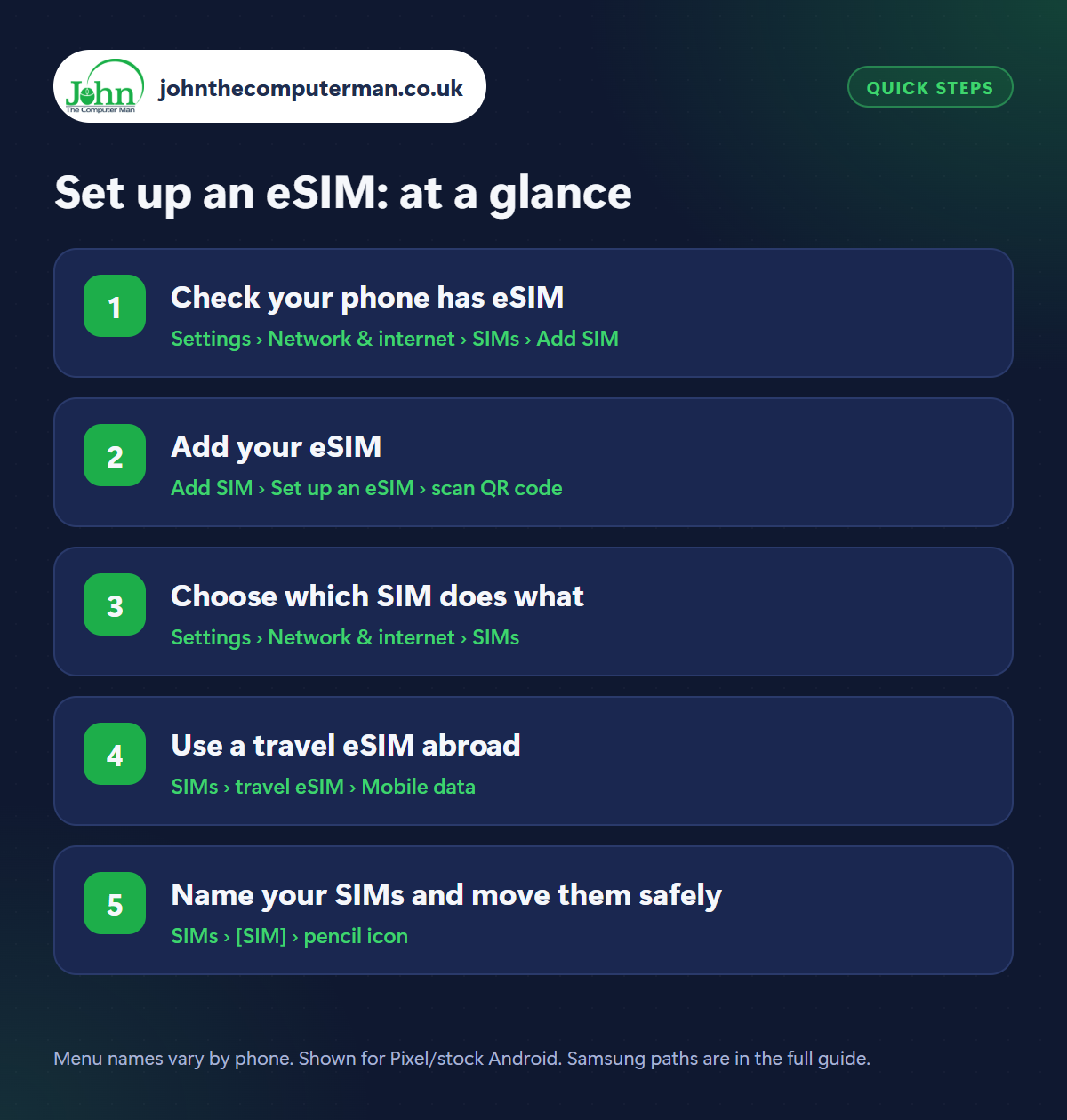
Step 1: Check your phone has eSIM
Where: Settings › Network & internet › SIMs › Add SIM
Samsung: Settings › Connections › SIM manager › Add eSIM
Samsung: Settings › Connections › SIM manager › Add eSIM
Go to Settings › Network & internet › SIMs and tap Add SIM (Samsung: Settings › Connections › SIM manager › Add eSIM). If you see an option to download or set up an eSIM, your phone supports it. Most Pixel and Samsung Galaxy S and Z phones from the last few years do, though some budget models don't. Your phone also needs to be unlocked to use another network's eSIM.
Step 2: Add your eSIM
Where: Add SIM › Set up an eSIM › scan QR code
Your mobile network (or travel eSIM provider) gives you a QR code by email, in their app or on paper. Connect to Wi-Fi, then choose Set up an eSIM and scan the QR code. The plan downloads and activates in a minute or two. Some networks let you activate straight from their app instead. Don't delete the eSIM afterwards unless you mean to. You may need a new QR code to get it back.
Step 3: Choose which SIM does what
Where: Settings › Network & internet › SIMs
Samsung: Settings › Connections › SIM manager › Primary SIM
Samsung: Settings › Connections › SIM manager › Primary SIM
With two SIMs active, tell your phone which to use. In Settings › Network & internet › SIMs (Samsung: SIM manager), set the default SIM for Calls, Texts and Mobile data. You can set calls to Ask every time, and the Phone app lets you pick a SIM for each call. Both numbers can receive calls and texts at the same time.
Step 4: Use a travel eSIM abroad
Where: SIMs › travel eSIM › Mobile data
Outside the UK and EU, roaming can be eye-wateringly expensive. A travel eSIM from a specialist provider gives you local data for a fraction of the price. Install it on Wi-Fi before you leave. When you land, set the travel eSIM as your mobile data SIM with roaming on, and turn roaming off on your main SIM. You can still receive texts (like bank codes) on your usual number.
Step 5: Name your SIMs and move them safely
Where: SIMs › [SIM] › pencil icon
Tap a SIM, then the pencil icon, to give it a clear name and colour like ‘Personal’, ‘Work’ or ‘Spain trip’. When you change phone, an eSIM doesn't move by itself: some transfer during setup, but often you need a new QR code from your network. And when doing a factory reset, read the screen carefully. There's an option to erase eSIMs. Keep them if you're keeping the phone.
Pro tip
💡 Finished your trip? Switch the travel eSIM off rather than deleting it straight away, in case you still have data left for the journey home.
FAQ
Is an eSIM better than a normal SIM?
It does the same job. The advantages are convenience: nothing to post or lose, and you can add a second plan in minutes.
Can I have two eSIMs at once?
Many newer phones can store several eSIMs and use two at the same time. Others use one eSIM plus one physical SIM.
Does dual SIM use more battery?
Slightly, because the phone stays connected to two networks. Turn off the SIM you're not using if it bothers you.
The bottom line
If you travel, a travel eSIM can pay for itself on the first trip. And for anyone juggling a work phone and a personal one, dual SIM means carrying just one.
More Android tutorials:
• Poor Mobile Signal on Android? 5 Fixes, Including Wi-Fi Calling
• 5 Chrome Tricks Every Android User Should Know
• How to Stop Pop-Up Ads on Your Android Phone
• 5 Chrome Tricks Every Android User Should Know
• How to Stop Pop-Up Ads on Your Android Phone
Part of the android phone tutorials series on johnthecomputerman.co.uk. Follow @johnthecomputerman on Instagram for more Android tips. Steps were checked on current Android and Samsung One UI versions in September 2026; menu names can change with updates.
