Android Quick Settings and Gestures: 5 Shortcuts to Learn
Digging through Settings to turn on the torch, or stretching your thumb to the top of a big screen, gets old fast.
Android is full of shortcuts that make everyday things quicker, but nobody tells you they're there. Here are five that are worth the two minutes it takes to set them up.
Before you start: Android menus vary a little between phone makers. The steps below use Google Pixel / standard Android names, with Samsung Galaxy differences noted. If you can't find a setting, tap the search bar at the top of Settings and type its name.
How to quick Settings & gestures on Android
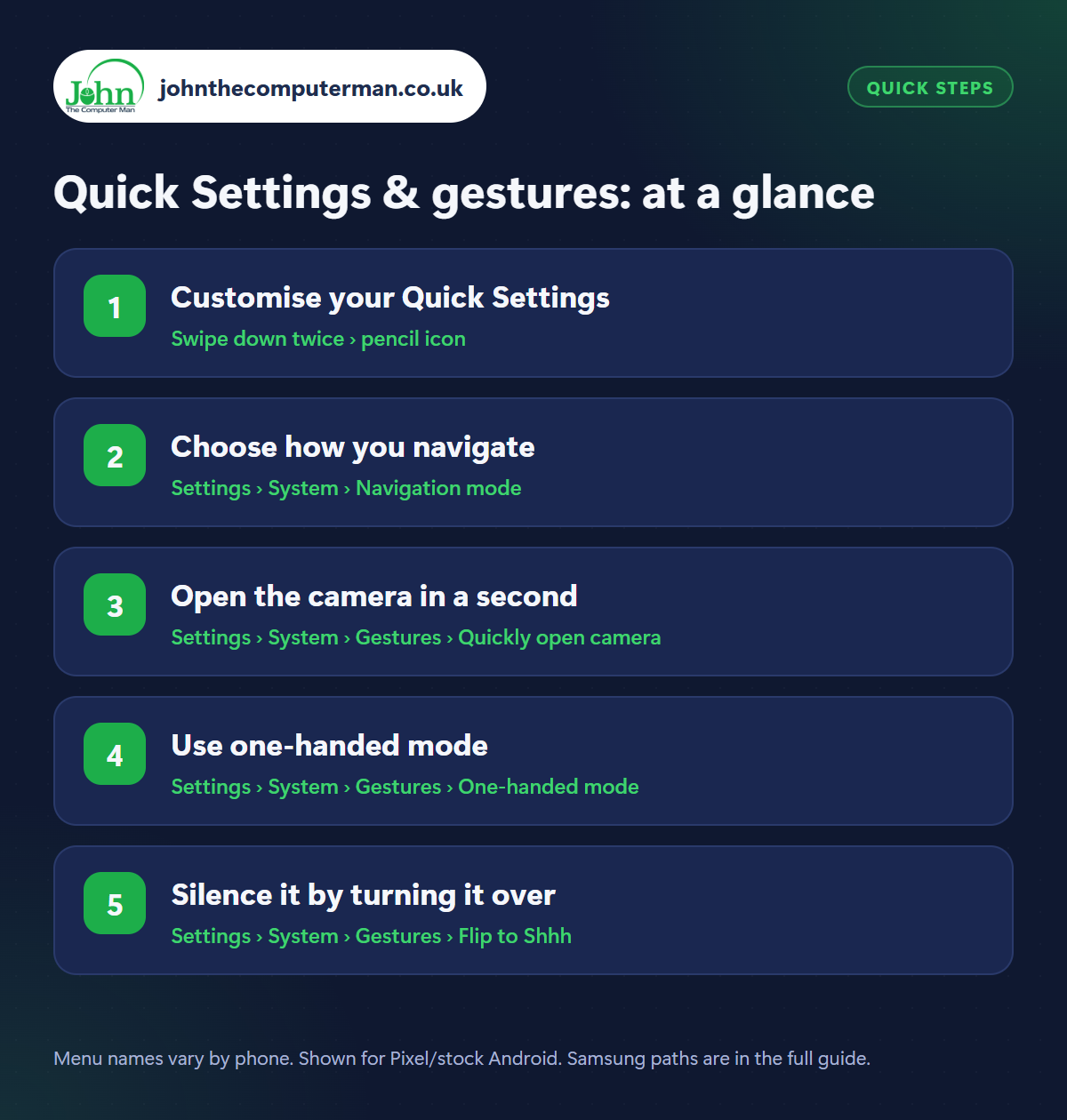
Step 1: Customise your Quick Settings
Where: Swipe down twice › pencil icon
Swipe down twice from the top of the screen to open Quick Settings, then tap the pencil (edit) icon. Drag the tiles you use most (Torch, Hotspot, Do Not Disturb, Battery Saver) into the first few positions so they show with a single swipe. Drag up useful hidden ones too, like QR code scanner, Screen record and Dark theme, and drag away any you never touch.
Step 2: Choose how you navigate
Where: Settings › System › Navigation mode
Samsung: Settings › Display › Navigation bar
Samsung: Settings › Display › Navigation bar
Android can be driven by swipe gestures (swipe up to go home, swipe in from the edge to go back) or the classic three buttons. Choose in Settings › System › Navigation mode (Samsung: Settings › Display › Navigation bar). Gestures give you more screen. Buttons are easier for many people. Neither is ‘right’. With gestures you can also adjust how sensitive the back swipe is.
Step 3: Open the camera in a second
Where: Settings › System › Gestures › Quickly open camera
Samsung: Settings › Advanced features › Side button
Samsung: Settings › Advanced features › Side button
Double-press the power button and the camera opens straight away, even from a locked phone, so you don't miss the moment. Check it's on in Settings › System › Gestures › Quickly open camera (Samsung: Settings › Advanced features › Side button › Double press). On most phones you can then press a volume button to take the photo.
Step 4: Use one-handed mode
Where: Settings › System › Gestures › One-handed mode
Samsung: Settings › Advanced features › One-handed mode
Samsung: Settings › Advanced features › One-handed mode
Big phones are hard to use with one hand. Turn on One-handed mode in Settings › System › Gestures (Samsung: Settings › Advanced features). Then swipe down on the very bottom edge of the screen and everything slides down within reach of your thumb. Tap the empty space above to go back to normal.
Step 5: Silence it by turning it over
Where: Settings › System › Gestures › Flip to Shhh
Samsung: Settings › Advanced features › Motions and gestures › Mute with gestures
Samsung: Settings › Advanced features › Motions and gestures › Mute with gestures
On Pixel phones, Flip to Shhh (in Settings › System › Gestures) turns on Do Not Disturb whenever you place the phone face down. That's handy in meetings and at dinner. On Samsung, Mute with gestures (in Advanced features › Motions and gestures) silences incoming calls and alarms when you turn the phone over or cover the screen with your hand.
Pro tip
💡 Swipe down with two fingers instead of one to open the full Quick Settings panel in a single move.
FAQ
I can't find a tile I want. Where is it?
Tap the pencil icon in Quick Settings and look in the lower section of hidden tiles. Some apps add their own tiles after you install them.
How do I go back with gestures?
Swipe in from the left or right edge of the screen. To go home, swipe up from the bottom. Swipe up and hold for recent apps.
Can I change what the power button does?
On most phones, yes. Look under Settings › System › Gestures, or Side button settings on Samsung, to choose between the power menu and the assistant.
The bottom line
Put your favourite tiles at the top and learn the double-press for the camera. Those two alone will save you time every single day.
More Android tutorials:
• How to Connect Bluetooth Headphones, Speakers and Cars to Android
• How to Set Up an eSIM and Use Two SIMs on Android
• Poor Mobile Signal on Android? 5 Fixes, Including Wi-Fi Calling
• How to Set Up an eSIM and Use Two SIMs on Android
• Poor Mobile Signal on Android? 5 Fixes, Including Wi-Fi Calling
Part of the android phone tutorials series on johnthecomputerman.co.uk. Follow @johnthecomputerman on Instagram for more Android tips. Steps were checked on current Android and Samsung One UI versions in September 2026; menu names can change with updates.
