5 Chrome Tricks Every Android User Should Know
Chrome is the app most Android users open more than any other, yet most people only use a fraction of what it can do.
These five tricks make browsing on your phone quicker and quieter, starting with the one that stops websites pestering you. (Use Samsung Internet? It has very similar options in its own settings.)
Before you start: Android menus vary a little between phone makers. The steps below use Google Pixel / standard Android names, with Samsung Galaxy differences noted. If you can't find a setting, tap the search bar at the top of Settings and type its name.
How to chrome tricks on Android
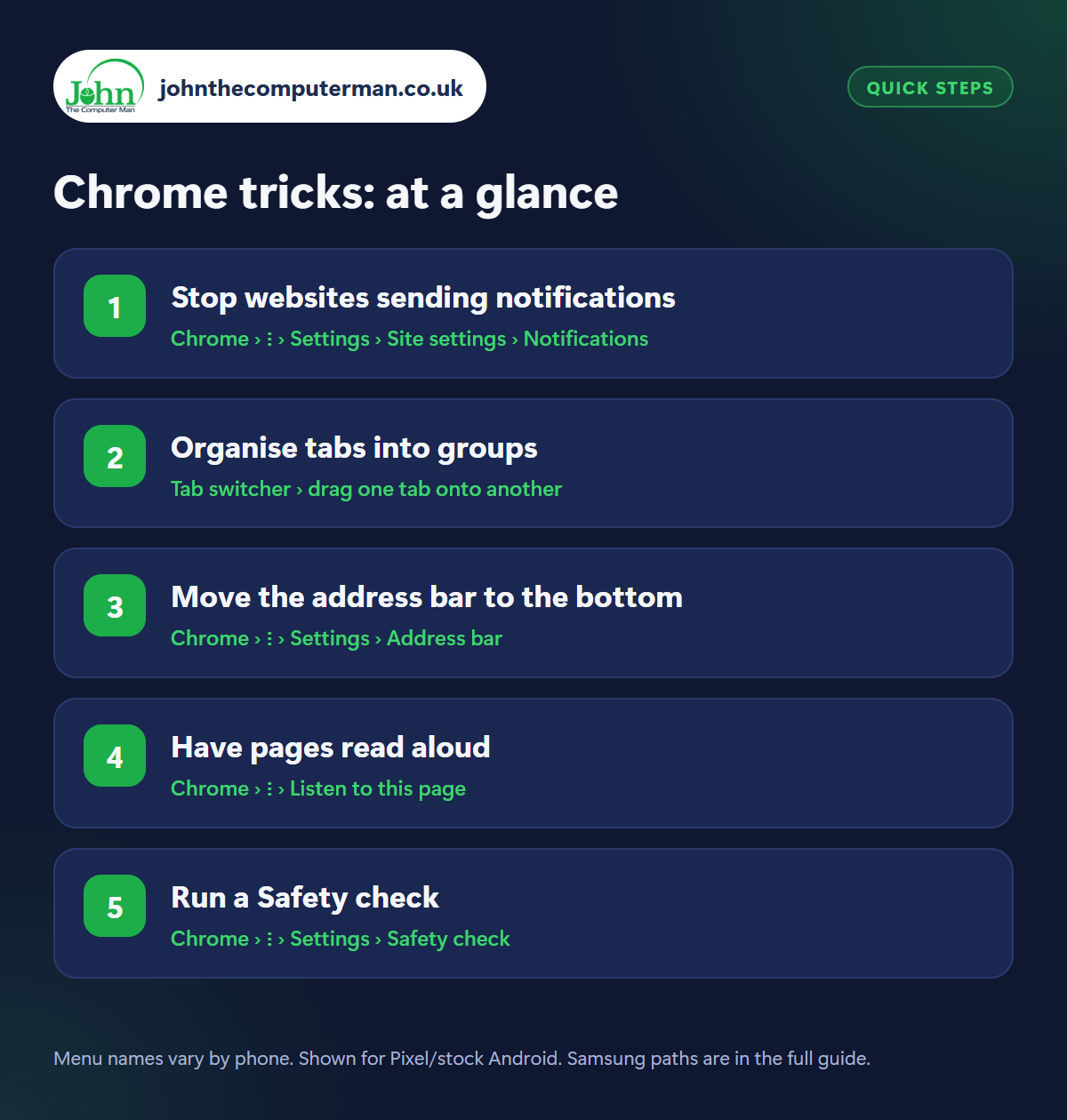
Step 1: Stop websites sending notifications
Where: Chrome › ⋮ › Settings › Site settings › Notifications
Those ‘You've won!’ and ‘Virus detected’ notifications usually come from a website you once tapped Allow on. Open Chrome, tap the three dots › Settings › Site settings › Notifications. Remove any sites you don't recognise from the Allowed list, or switch notifications off entirely so sites can't even ask. This single setting stops a huge amount of spam.
Step 2: Organise tabs into groups
Where: Tab switcher › drag one tab onto another
Got dozens of tabs open? Tap the tab counter (the square with a number) to see them all, then drag one tab on top of another to create a group. Name it and give it a colour: ‘Holiday’, ‘Christmas presents’, ‘Car insurance’. To clear out, tap the three dots › Close all tabs. Chrome can also tidy away tabs you haven't looked at for weeks.
Step 3: Move the address bar to the bottom
Where: Chrome › ⋮ › Settings › Address bar
Reaching the top of a tall phone to type a web address is awkward. In Chrome, go to three dots › Settings › Address bar and choose Bottom. You can also press and hold the address bar itself and choose to move it. Everything else works the same, just within easy reach of your thumb.
Step 4: Have pages read aloud
Where: Chrome › ⋮ › Listen to this page
On an article or long web page, tap the three dots › Listen to this page. Chrome reads it aloud with play, pause and speed controls, and carries on while you use other apps or lock the screen. It's great for long reads while cooking or walking. You can choose a different voice from the player's menu.
Step 5: Run a Safety check
Where: Chrome › ⋮ › Settings › Safety check
Go to three dots › Settings › Safety check. Chrome checks whether any of your saved passwords have appeared in a data breach, whether Chrome is up to date, whether Safe Browsing is on, and which sites have permissions you might want to remove. While you're there, Delete browsing data (also in the three-dot menu) clears your history and cached files if a site is misbehaving.
Pro tip
💡 Swipe left or right along the address bar to flick between your open tabs without opening the tab view.
FAQ
Does Incognito mode make me anonymous?
No. It only stops Chrome saving your history and cookies on that phone. Websites, your network and your internet provider can still see what you visit.
How do I get the desktop version of a site?
Tap the three dots and tick ‘Desktop site’. Useful when the mobile version hides something you need.
Can I use a different browser on Android?
Yes. Firefox, Edge, Samsung Internet and others all work. See our guide to changing default apps.
The bottom line
Turn off website notifications today. It's the quickest way to a quieter phone. Then try tab groups and the bottom address bar, and Chrome becomes much nicer to live with.
More Android tutorials:
• How to Stop Pop-Up Ads on Your Android Phone
• Android Phone Getting Hot? 5 Ways to Cool It Down
• How to Print from Your Android Phone
• Android Phone Getting Hot? 5 Ways to Cool It Down
• How to Print from Your Android Phone
Part of the android phone tutorials series on johnthecomputerman.co.uk. Follow @johnthecomputerman on Instagram for more Android tips. Steps were checked on current Android and Samsung One UI versions in September 2026; menu names can change with updates.
