How to Print from Your Android Phone
A boarding pass, a returns label, a recipe, a form to sign. Plenty of things still need printing, and they usually arrive on your phone.
You don't need to email them to yourself and find a computer. If you have a Wi-Fi printer, your Android phone can print to it directly. Here's how to set it up and print from any app.
Before you start: Android menus vary a little between phone makers. The steps below use Google Pixel / standard Android names, with Samsung Galaxy differences noted. If you can't find a setting, tap the search bar at the top of Settings and type its name.
How to print from your phone on Android
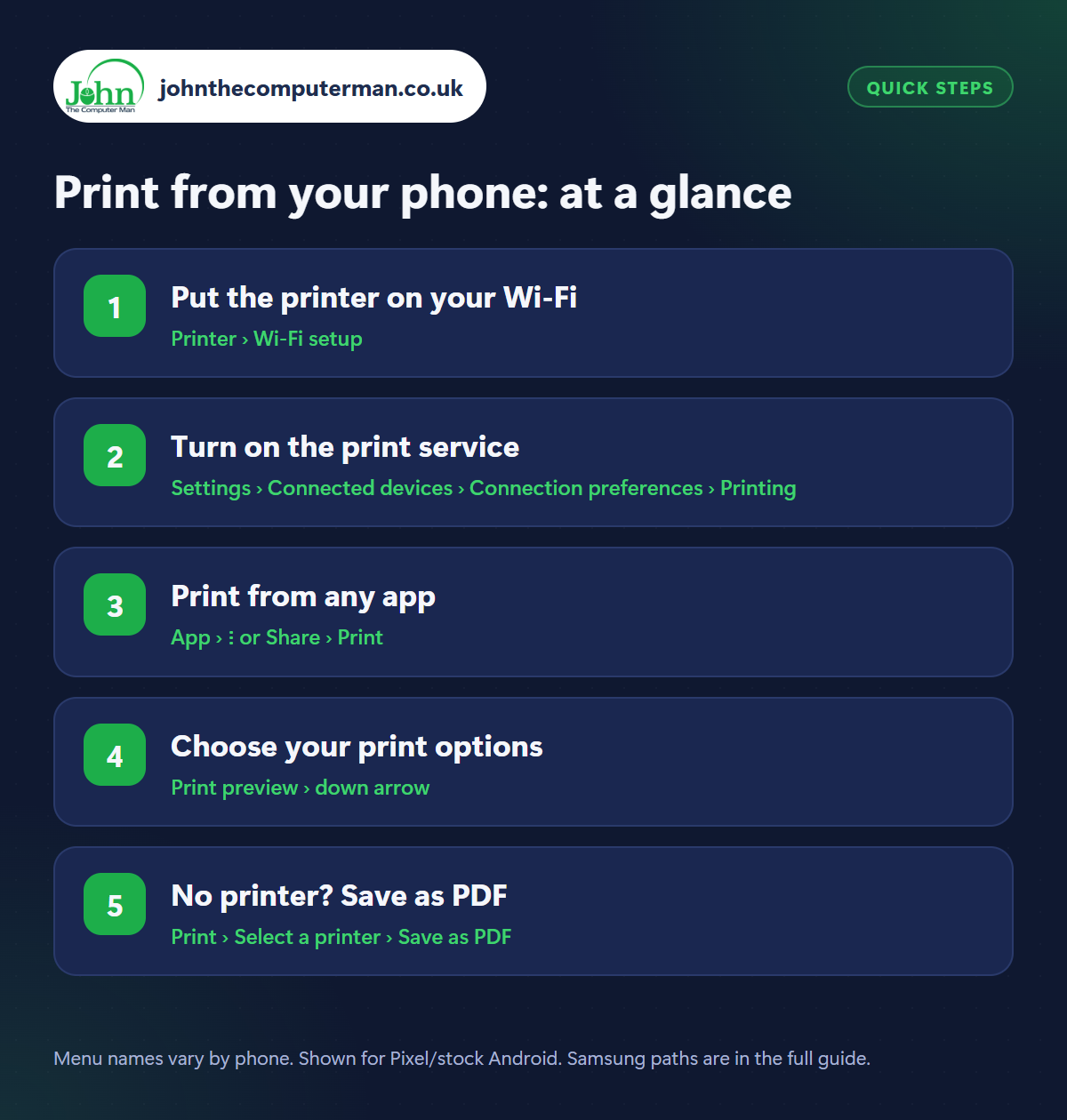
Step 1: Put the printer on your Wi-Fi
Where: Printer › Wi-Fi setup
Your phone and printer must be connected to the same Wi-Fi network. Most printers sold in the last ten years have Wi-Fi. Use the printer's own screen or setup button to connect it, following its leaflet. A steady Wi-Fi light on the printer means it's connected. If your router has separate 2.4 GHz and 5 GHz networks, the printer is usually on the 2.4 GHz one.
Step 2: Turn on the print service
Where: Settings › Connected devices › Connection preferences › Printing
Samsung: Settings › Connections › More connection settings › Printing
Samsung: Settings › Connections › More connection settings › Printing
Go to Settings › Connected devices › Connection preferences › Printing (Samsung: Settings › Connections › More connection settings › Printing) and make sure Default Print Service is on. It automatically finds most modern Wi-Fi printers on your network with no extra app. Your printer's name should appear in the list within a few seconds.
Step 3: Print from any app
Where: App › ⋮ or Share › Print
Open what you want to print and look for Print in the three-dot menu or the Share menu. In Chrome, it's three dots › Share › Print. In Gmail, open the email and tap three dots › Print. In Google Photos, open the photo and tap three dots › Print. In Files or Drive, open the document and use the three-dot menu.
Step 4: Choose your print options
Where: Print preview › down arrow
On the print preview, pick your printer at the top, then tap the down arrow to see the options: number of copies, paper size (A4 for the UK), colour or black & white, orientation, two-sided and which pages to print. Printing only the pages you need saves ink. Then tap the printer button to send it.
Step 5: No printer? Save as PDF
Where: Print › Select a printer › Save as PDF
On the print screen, tap the printer name and choose Save as PDF. Instead of printing, this saves the page, email or ticket as a PDF file on your phone. That's perfect for keeping receipts and confirmations, or sending something to a print shop or a friend with a printer. The file goes to your Downloads folder.
Pro tip
💡 Printer not showing up? Install your printer maker's own app (HP Smart, Epson Smart Panel, Canon PRINT or Brother Mobile Connect) and it usually appears.
FAQ
Can I print without Wi-Fi?
Many printers support Wi-Fi Direct, which connects phone and printer without a router. Some also print from a USB cable with an adapter.
Why is my printer offline?
Check it's switched on, hasn't gone to sleep, and is on the same Wi-Fi network as your phone. Restarting the printer fixes most cases.
Can I print photos at proper photo quality?
Yes. Choose photo paper size and the best quality setting in the print options, and use photo paper in the printer.
The bottom line
Once Default Print Service is on, printing from your phone is just Share, Print, done. And ‘Save as PDF’ is one of the most useful hidden features on Android.
More Android tutorials:
• How to Use a USB Stick or SD Card with Your Android Phone
• How to Cancel Subscriptions and Get Refunds on Google Play
• How to Share Your Location with Family on Android
• How to Cancel Subscriptions and Get Refunds on Google Play
• How to Share Your Location with Family on Android
Part of the android phone tutorials series on johnthecomputerman.co.uk. Follow @johnthecomputerman on Instagram for more Android tips. Steps were checked on current Android and Samsung One UI versions in September 2026; menu names can change with updates.
