How to Stop Pop-Up Ads on Your Android Phone
Full-screen adverts that appear when you unlock your phone. Pop-ups over other apps. Notifications claiming you have a virus. It's infuriating, and it isn't normal.
It's almost always caused by one of two things: a website you allowed to send notifications, or an app you installed that's misbehaving. Here's how to work out which, and get rid of it.
Before you start: Android menus vary a little between phone makers. The steps below use Google Pixel / standard Android names, with Samsung Galaxy differences noted. If you can't find a setting, tap the search bar at the top of Settings and type its name.
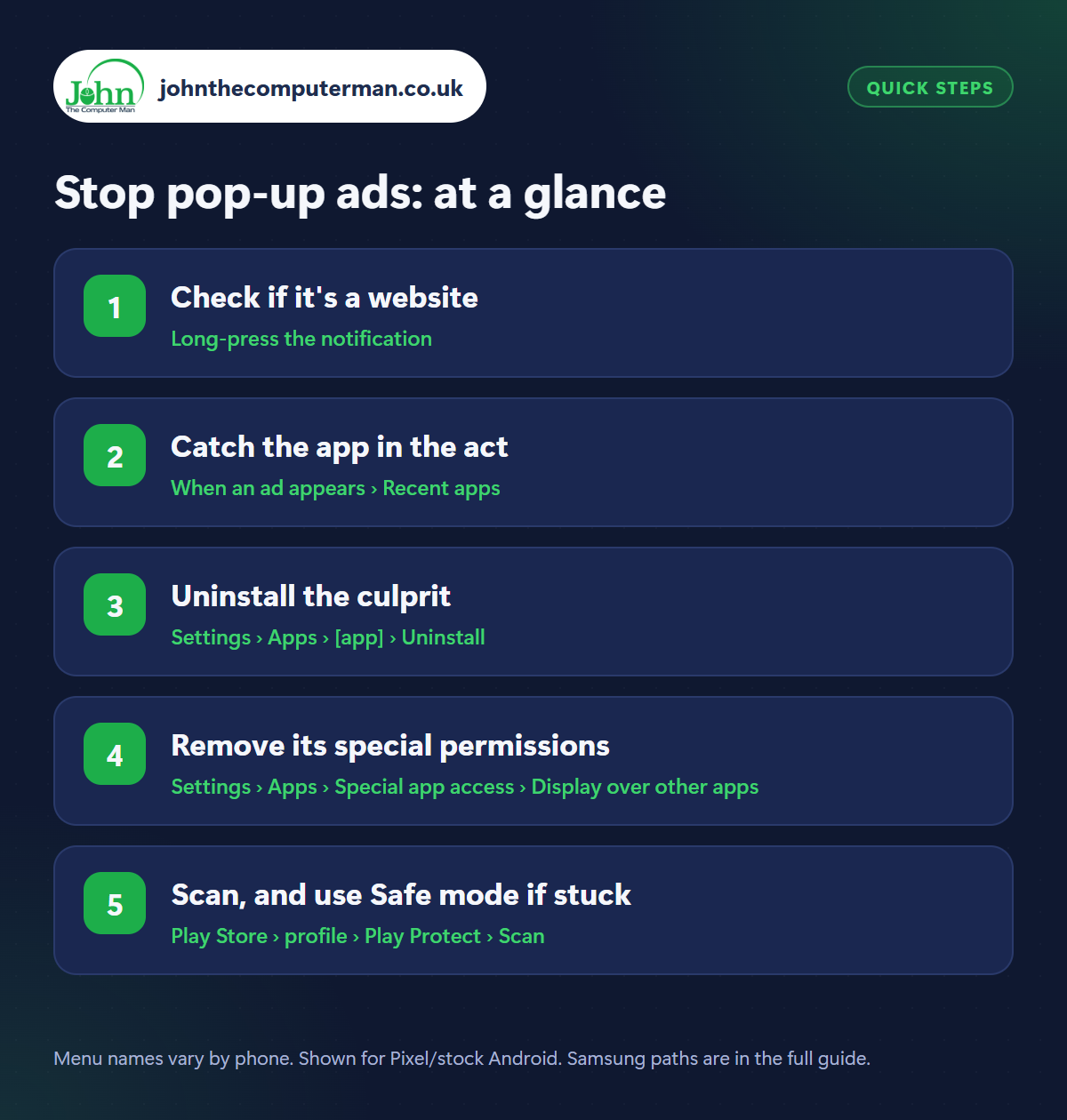
How to stop pop-up ads on Android
Step 1: Check if it's a website
Where: Long-press the notification
If the ads arrive as notifications, long-press one. If it shows Chrome (or your browser) and a web address, a website is sending them. Tap Turn off notifications for that site, or go to Chrome › three dots › Settings › Site settings › Notifications and remove every site you don't recognise. See our Chrome tricks for more. This is the cause more often than not.
Step 2: Catch the app in the act
Where: When an ad appears › Recent apps
For full-screen pop-ups, the trick is to catch the culprit. The moment an ad appears, open Recent apps. The ad shows as a card with the icon and name of the app responsible, though it's sometimes blank or disguised. Alternatively, open the Play Store › profile › Manage apps & device › Manage and sort by Recently used: the app at the top just showed you that ad.
Step 3: Uninstall the culprit
Where: Settings › Apps › [app] › Uninstall
Go to Settings › Apps, find the app and tap Uninstall. Think about what you installed just before the ads started. The usual suspects are free torch, cleaner, battery booster, wallpaper, QR scanner and photo filter apps, and some games. Your phone already has a torch, a QR scanner and a file cleaner built in, so you don't need them.
Step 4: Remove its special permissions
Where: Settings › Apps › Special app access › Display over other apps
Pop-ups over other apps need a special permission. Go to Settings › Apps › Special app access › Display over other apps (Samsung: Appear on top) and switch off anything you don't recognise or trust. If an app won't uninstall, check Settings › Security & privacy › More security settings › Device admin apps, switch it off there, then uninstall it.
Step 5: Scan, and use Safe mode if stuck
Where: Play Store › profile › Play Protect › Scan
Open the Play Store, tap your profile picture › Play Protect › Scan to check for harmful apps. If pop-ups are so constant you can't get into Settings, restart in Safe mode: hold Power, then long-press Power off and tap OK. Safe mode disables every app you've installed, so you can uninstall the culprit in peace. Restart normally afterwards.
Pro tip
💡 A pop-up saying “Your phone has a virus!” is always fake. Never tap it or install what it suggests. Just close the browser tab.
FAQ
Do I need antivirus to stop pop-up ads?
No. Removing the app or website notification that's causing them fixes it. Many ‘antivirus’ and ‘cleaner’ apps cause ads themselves.
Are ads inside free apps normal?
Yes. Ads within a free app or game while you're using it are normal. Ads on your home screen, lock screen or over other apps are not.
Will a factory reset remove pop-up ads?
Yes, but it's rarely needed. Follow the steps above first. A reset wipes everything, so back up before you consider it.
The bottom line
Check website notifications first, then catch the app using Recent apps and uninstall it. In the vast majority of cases, the pop-ups are gone in five minutes.
More Android tutorials:
• Android Phone Getting Hot? 5 Ways to Cool It Down
• How to Print from Your Android Phone
• How to Use a USB Stick or SD Card with Your Android Phone
• How to Print from Your Android Phone
• How to Use a USB Stick or SD Card with Your Android Phone
Part of the android phone tutorials series on johnthecomputerman.co.uk. Follow @johnthecomputerman on Instagram for more Android tips. Steps were checked on current Android and Samsung One UI versions in September 2026; menu names can change with updates.
